
Less Hassle, More Productivity
Copying images and content directly from your clipboard into Divi has never been easier. Say goodbye to the cumbersome save-and-upload routine and hello to streamlined efficiency.
A More Efficient Workflow
This plugin lets you to transfer images, text and HTML straight into Divi, making your design process smoother and faster.
With it, content is copied from your computer's clipboard into Divi's internal clipboard, ready to be pasted into your layout as a module or section, using Divi's own paste function.
Divi Copy & Paste converts copied images into Image modules, text and HTML into Text modules, and longer HTML or Markdown content into structured Divi sections with headings, buttons, dividers, images and videos automatically split into the appropriate Divi modules.
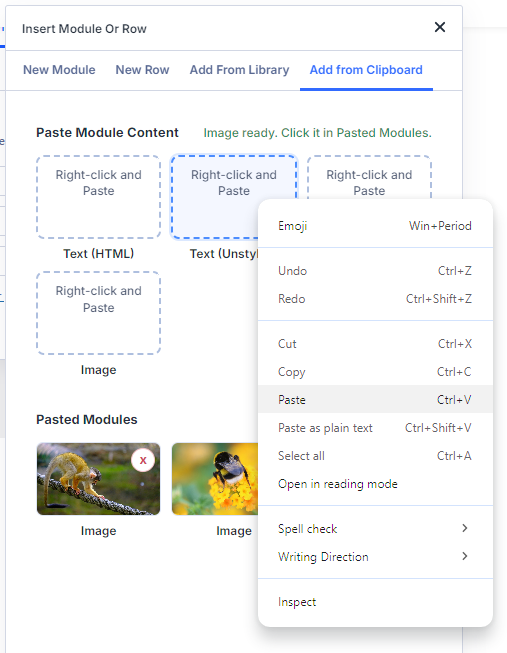
To get started, copy your content to your clipboard. Then, in the Divi Builder, click to add a module or section where you'd like it appear in your layout. Next, in the "Insert Module Or Row" and "Insert Module" popup, click the "Add from Clipboard" tab added by the plugin. Right-click on one of the options under "Paste Module Content" and select "Paste" from your browser's menu. Your content will then be added to a list of "Pasted Modules" – simply click it to insert it in to your page.
Module Types
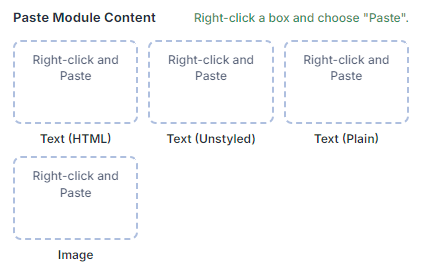
Divi Copy & Paste can convert clipboard content into Divi modules of several different types:
Text (HTML) – Turns content into a Text Module, preserving the HTML and inline styles of the source content
Text (Unstyled) – Creates a Text Module with the HTML markup preserved, but inline styles removed
Text (Plain) – Creates a Text Module from the content, with both HTML markup and inline styles removed
Image – Turns an copied image into an Image Module
Additional module types, including Heading, Button, Divider, Image and Video modules, may also be created automatically when pasting HTML or Markdown sections.
Section Types
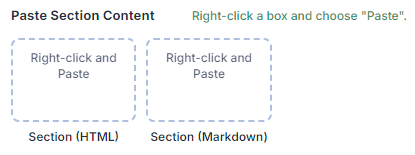
If you access the "Insert from Clipboard" tab when inserting a section, you'll find the following section options:
Section (HTML) – Creates a Divi section from HTML content on the clipboard. Text is split into modules, headings become Heading modules, horizontal rules become Divider modules, standalone links become Button modules, images become Image modules, and YouTube embeds become Video modules.
Section (Markdown) – Creates a Divi section from Markdown content on the clipboard, converting Markdown headings, dividers, links, images and YouTube embeds into the corresponding Divi modules where possible.
Clipboard History
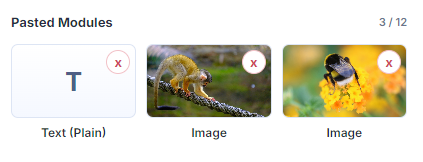
When you paste content into one of the Divi Copy & Paste boxes, it will add the module (or section) to the "Pasted Modules" area of the "Insert from Clipboard" tab.
These "Pasted Modules" can be inserted into the page with a single click. The plugin stores a history of up to 12 pasted modules, allowing you to copy in multiple items before inserting them into the builder, or to insert the same item multiple times without the need to copy it in repeatedly.
Divi 4 Mode
Divi Copy & Paste has been completely redesigned for Divi 5. But if you're still using Divi 4, no problem – it works with Divi 4 too. It just has a different user interface.
In Divi 4, to get started, hover over "Paste into Divi" in the admin bar and then right-click your desired element and select "Paste".
You can then use the Divi "Paste Module" or "Paste Section" option in the Divi 4 builder menu to insert the created module wherever you like.
The enhanced HTML and Markdown section conversion features are designed for Divi 5. Divi 4 remains supported, but some Divi 5 workflow features and clipboard history enhancements are not available there.
