
Build Beautiful Password-Protected Pages in Divi
No custom code required.
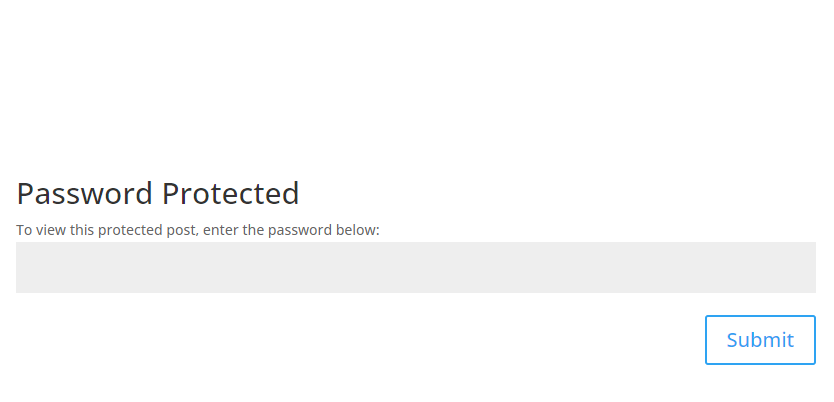
Default
Plain WordPress password protection
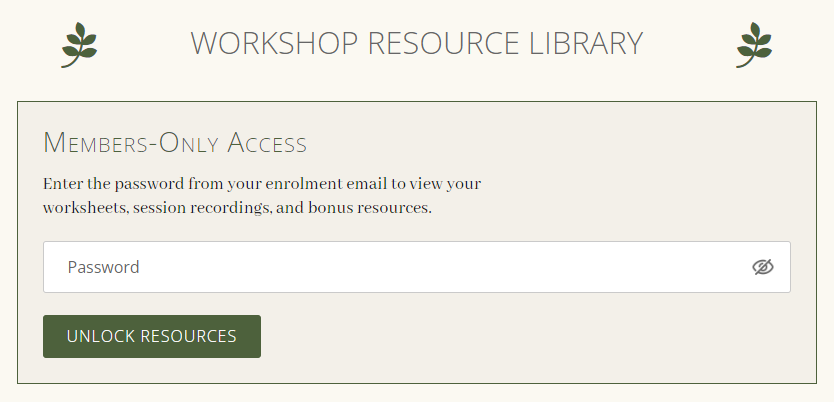
With Divi Password Box
Fully branded Divi-designed experience
The Problem With Default Password-Protected Pages
By default, WordPress password-protected pages:
- look disconnected from your site design
- hide all page content
- provide almost no customization
- create a poor client/member experience
A Better Way to Build Password-Protected Pages in Divi
Use Divi Password Box and the Divi Builder to create:
- branded client portals
- member-only previews
- gated downloads
- hidden course content
- private proposal pages
- exclusive landing pages
NEW in Divi 5
Visual Password-State Switching
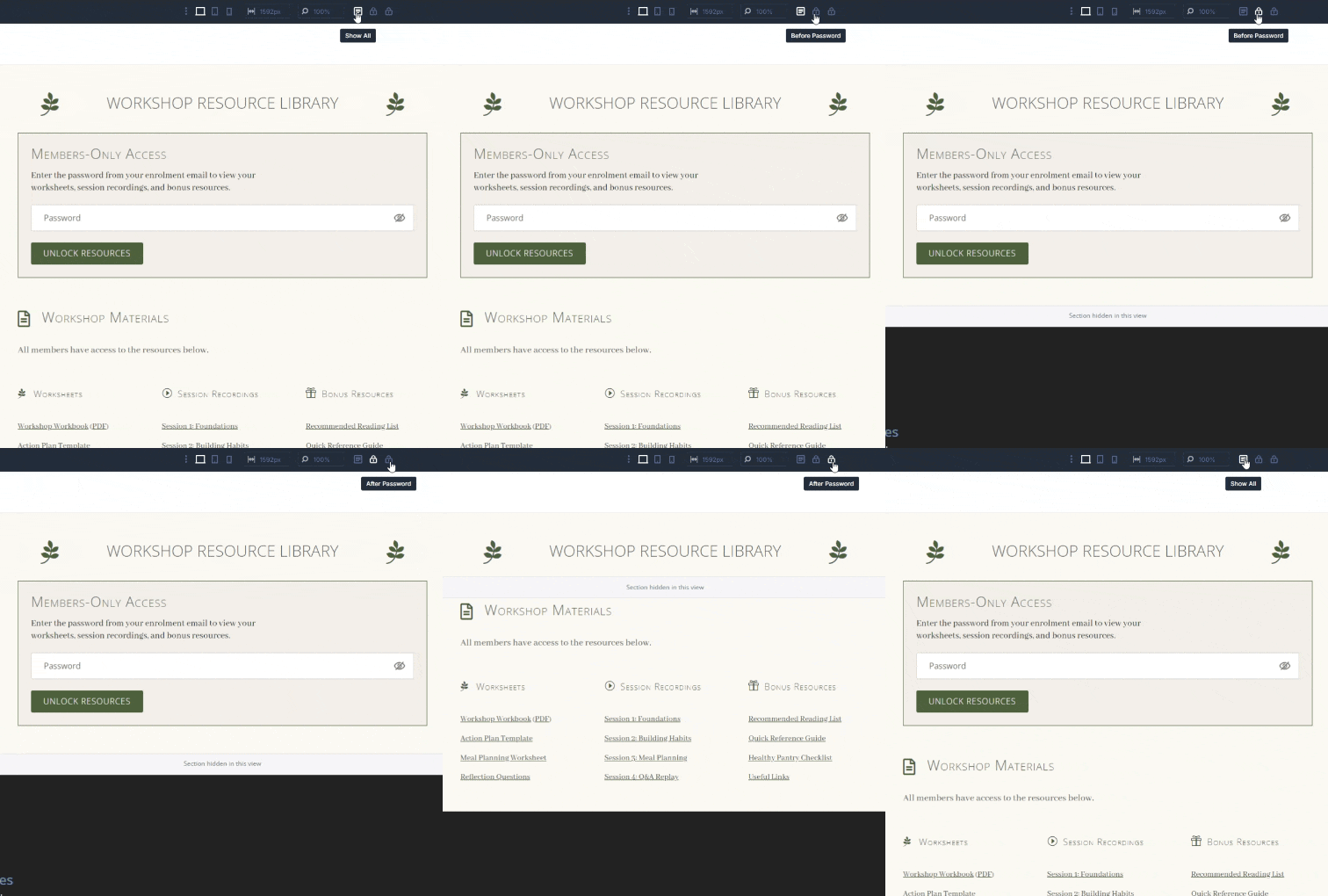
When building protected pages in Divi 5, it can be difficult to visualize which sections appear before and after password entry.
Divi Password Box now adds convenient view-switching icons directly to the Divi 5 builder toolbar, allowing you to instantly switch between:
- Show All
- Before Password
- After Password
This makes it easy to design and preview the exact experience your visitors will see.
Sections not relevant to the current view are collapsed into slim placeholders, helping you focus on the active content without losing your page structure.
Ready to Build Better Password-Protected Divi Pages?
Divi Password Box is Perfect For…
Client approval pages
Hidden sales pages
Member previews
Agency handoff pages
Lesson protection
VIP downloads
Private event pages
Internal resources
Features
Style the Password Form
Replace WordPress’ plain default password form with a fully customizable Divi module that matches the style of your website and brand.
Show Sections Before & After Login
Built for Divi 5
Join 75,000+ Websites Using Divi Booster Plugins
How to use Divi Password Box?
1. Password Protect your Page
Divi Password Box leverages the existing secure password protection mechanism built into WordPress.
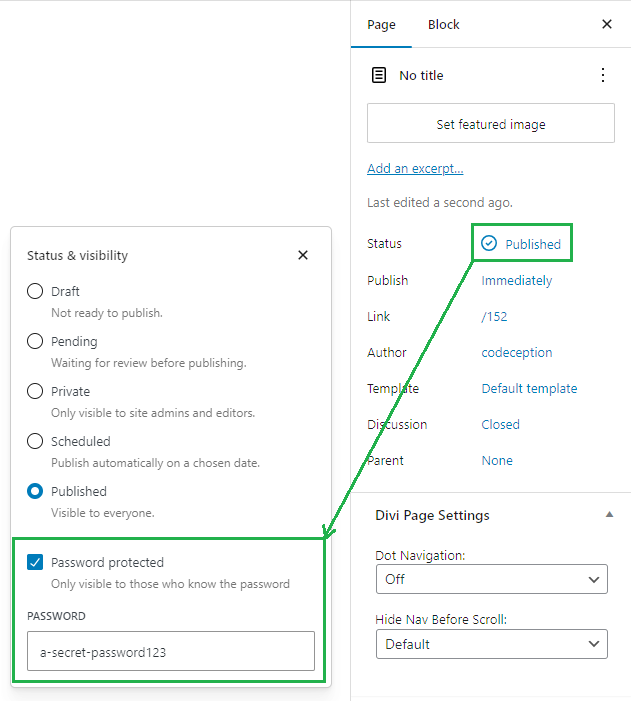
To enable WordPress's password protection on a page, open the page in the WordPress editor, click on the "Status" value in the sidebar and enable the "Password protected" open that appears. Enter your password and save to complete the password protection setup.
2. Add a Password Box Module
Open your password-protected page in Divi Builder and add a new section.
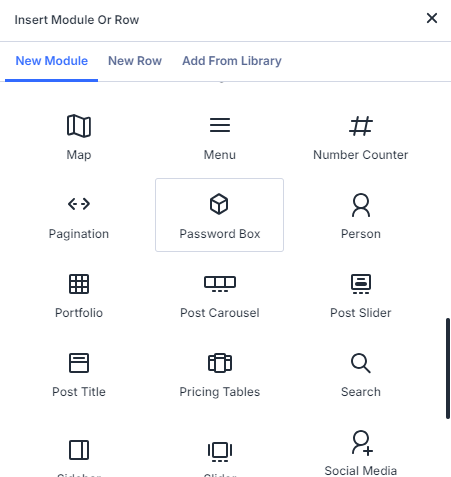
Place a "Password Box" module in this section. You'll find the Password Box module alongside the built-in Divi modules in the "Insert Module" menu.
3. Configure the Password Box Module
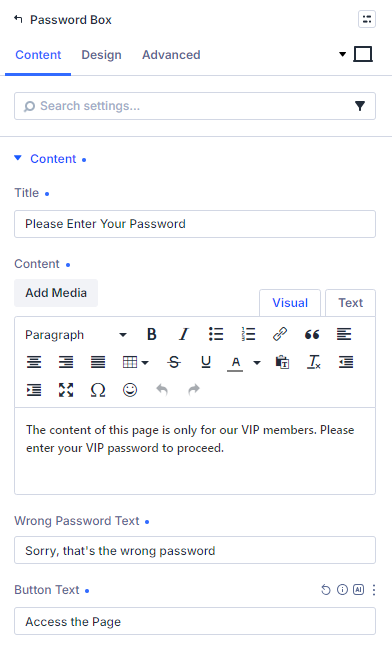
Now, in the password module settings, you can easily configure the text, behavior and look of the password box.
In the Content tab, you'll find the options for the text of the module, and optionally add elements such as the "password reveal" icon.
In the Design tab, you'll find options for styling every aspect of the password box.
4. Select Section Visibility
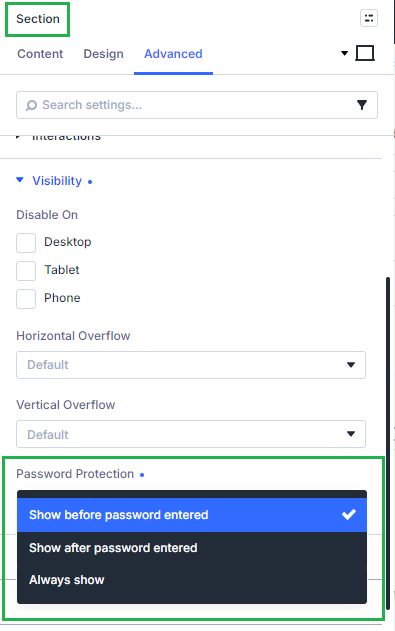
Now, for each section in the page, choose whether that section should be shown before the password is entered (e.g. the password box module's section), shown after the password is entered (e.g. the content to be protected), or always shown (e.g. a heading). Select the appropriate value at:
Section Settings > Advanced > Visibility > Password Protection
This lets you create separate pre-login and post-login experiences within the same Divi layout.
Frequently Asked Questions
Does Divi Password Box work with Divi 5?
Yes. Divi Password Box is fully compatible with Divi 5, including new builder toolbar controls for switching between password visibility states while editing.
Does it use WordPress’ native password protection system?
Yes. Divi Password Box builds on WordPress’ native password protection system for compatibility and reliability.
Can I show content before password entry?
Yes. You can display selected sections before login while keeping protected content hidden until the correct password is entered.
Can I show different content after the password is entered?
Yes. Create separate “before password” and “after password” content directly within the Divi Builder.
Does it work with custom post types?
Yes. Divi Password Box works with custom post types that support WordPress password protection.
Can I customize the incorrect password message?
Yes. You can customize the incorrect password message to better match your site and branding.
Does it work with Divi Theme Builder templates?
Yes. Divi Password Box is compatible with Divi Theme Builder templates and custom layouts.
Will it work on existing password-protected pages?
Yes. You can use Divi Password Box on existing password-protected pages and posts without recreating your content.
Is Divi Password Box compatible with Supreme AI Writer?
Yes. Divi Password Box is compatible with Supreme AI Writer and can be used alongside AI-generated Divi content and layouts.
Is Divi Password Box compatible with Protect the Children?
Yes. Divi Password Box is compatible with Protect the Children.
Can I style the password form using Divi design settings?
Yes. Style the password box using standard Divi design controls including colors, typography, spacing, borders, backgrounds, and buttons.
Do visitors need a WordPress account to access protected content?
No. Visitors only need the password you provide – no WordPress account or login is required.
Create Better Password-Protected Experiences in Divi
Whether you're building:
- client portals
- gated content
- course previews
- private landing pages
- member resources
Divi Password Box gives you complete visual control over how protected content looks and behaves – directly inside the Divi Builder.