

Top (or Bottom) Align Divi Icon List Module Icons using the "Icon Vertical Alignment" Setting
This method shows how to use our "Icon Vertical Alignment" setting to change a Divi 5 Icon List from the default middle alignment to top alignment.
This feature is included in one or more of our plugins – see the 'Get this feature' section for the current list.
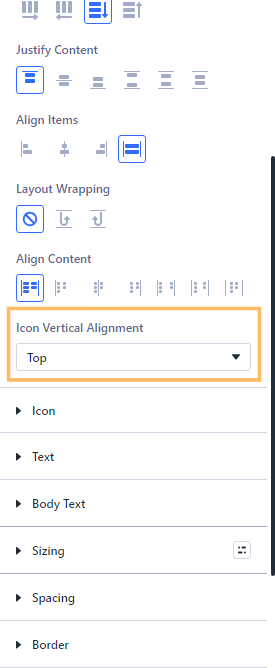
Change the Icon Vertical Alignment in the Divi Icon List Module
Open the settings for your Icon List module. Switch to the Design tab, then expand the "Layout" section to reveal the "Icon Vertical Alignment" dropdown. Open this dropdown and choose the "Top" option, which will align your icons to the top of the list item text, making your lists look more balanced when the text wraps onto multiple lines.
Edit an Icon List Item to Test the Alignment Effect
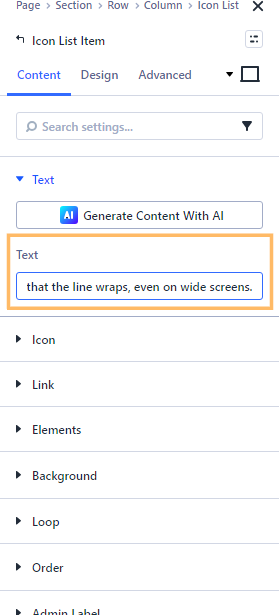
Switch to the Content tab in the module settings. Edit the first Icon List Item and enter a longer sentence to ensure the text wraps onto a second line. This will help you clearly see the effect of aligning the icon at the top.
Save and Preview Your Changes
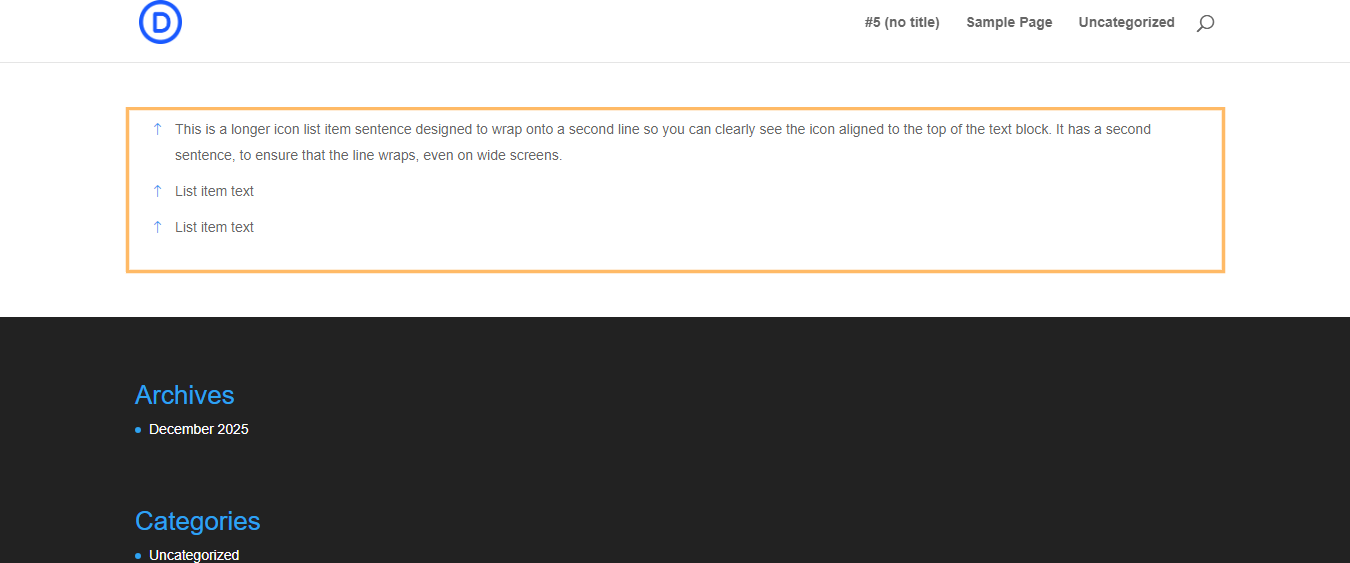
After updating the Icon Vertical Alignment and your list item content, save the module and publish the page. Exit the Divi Builder to view the live page as visitors will see it. Look at your Icon List: icons should now sit at the top of each list entry, even if there's more than one line of text.
Conclusion
Setting your Icon List icons to top alignment in Divi makes multi-line lists cleaner and easier to scan. With just a couple of adjustments, your lists will look polished and professional on your live site.

0 Comments