Top (or Bottom) Align Divi Icon List Module Icons

Written by Dan Mossop

YouTube video
When Icon List items wrap onto multiple lines, the default icon alignment can make the icon appear vertically centered next to the text, which may look unbalanced or harder to scan. Setting the icons to align at the top creates a cleaner, more consistent layout—especially for long list items—and ensures the front-end styling matches the chosen design option. In this guide we show you how to set the Icon List icon vertical alignment to Top and confirm it’s applied on the live page.

Top (or Bottom) Align Divi Icon List Module Icons using the "Icon Vertical Alignment" Setting

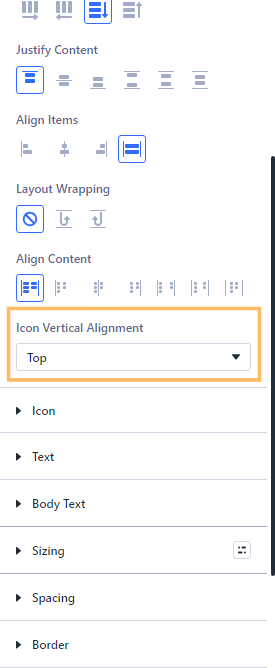
This method shows how to use our "Icon Vertical Alignment" setting to change a Divi 5 Icon List from the default middle alignment to top alignment.

This feature is included in one or more of our plugins – see the 'Get this feature' section for the current list.

Change the Icon Vertical Alignment in the Divi Icon List Module

Open the settings for your Icon List module. Switch to the Design tab, then expand the "Layout" section to reveal the "Icon Vertical Alignment" dropdown. Open this dropdown and choose the "Top" option, which will align your icons to the top of the list item text, making your lists look more balanced when the text wraps onto multiple lines.
Edit an Icon List Item to Test the Alignment Effect

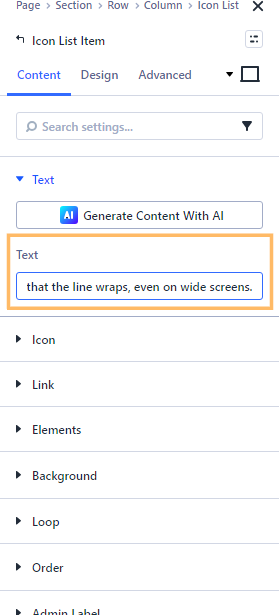
Switch to the Content tab in the module settings. Edit the first Icon List Item and enter a longer sentence to ensure the text wraps onto a second line. This will help you clearly see the effect of aligning the icon at the top.
Save and Preview Your Changes

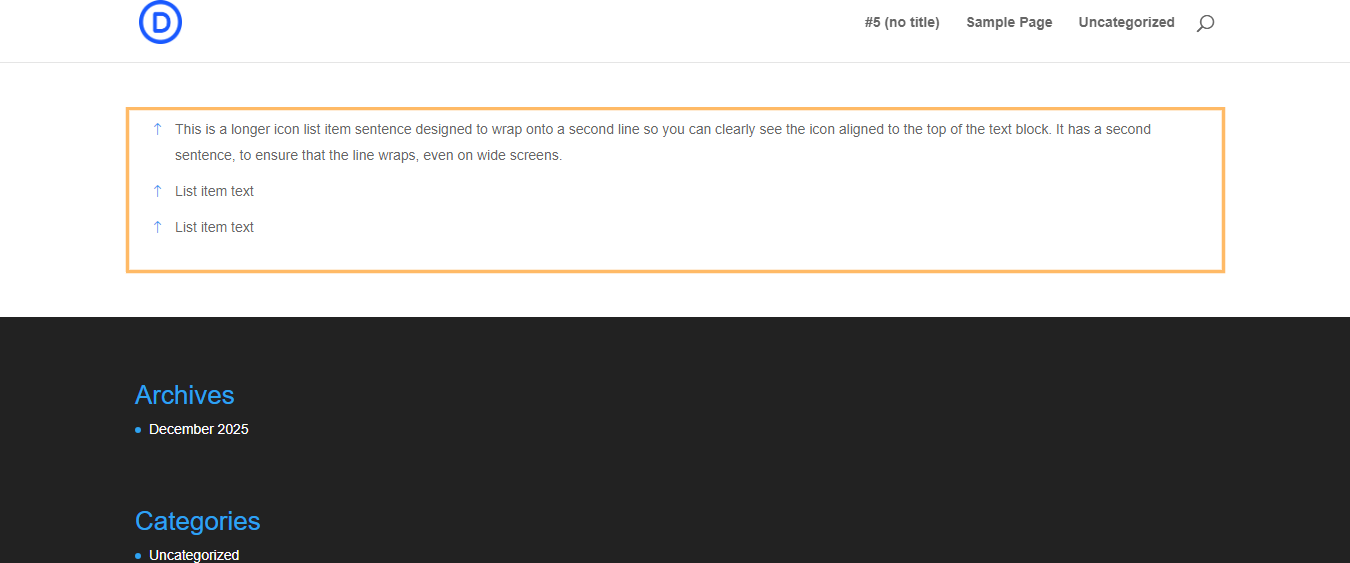
After updating the Icon Vertical Alignment and your list item content, save the module and publish the page. Exit the Divi Builder to view the live page as visitors will see it. Look at your Icon List: icons should now sit at the top of each list entry, even if there's more than one line of text.
Conclusion

Setting your Icon List icons to top alignment in Divi makes multi-line lists cleaner and easier to scan. With just a couple of adjustments, your lists will look polished and professional on your live site.


Unlock the Full Potential of Shortcodes in Divi!

Empower your Divi site with the Divi Shortcode Enabler. This plugin allows shortcodes to run effortlessly in various Divi module fields, enhancing functionality and customization across your site.

About Dan Mossop

Dan is a Scottish-born web developer, now living in Brisbane with his wife and son. He has been sharing tips and helping users with Divi since 2014. He created Divi Booster, the first Divi plugin, and continues to develop it along with 20+ other Divi plugins. Dan has a PhD in Computer Science, a background in web security and likes a lot of stuff, 

We may earn a commission when you visit links on our website.

0 Comments

Submit a Comment

Comments are manually moderated and approved at the time they are answered. A preview is shown while pending but may disappear if your are cookies cleared - don't worry though, the comment is still in the queue.

Your email address will not be published. Required fields are marked *.

Get this feature

This feature is available in the following plugins:

Single Feature

Compatible with

Divi 5

News