

Add a Google Preferred Sources Button to a Divi Page using the Preferred Sources Module
This method shows you how to insert the Preferred Sources module into an existing Divi layout, publish the page, and confirm that the Google follow button works on the front end. The module uses its standard presentation and does not require additional content or style configuration.
This method has been tested on, and is compatible with, Divi 5.
Get the Module
The Preferred Sources module is provided by our dedicated plugin. If you have not installed the plugin yet, download and install it so that the module is available in the Divi module picker.
You can get the plugin here:
Add the Preferred Sources module
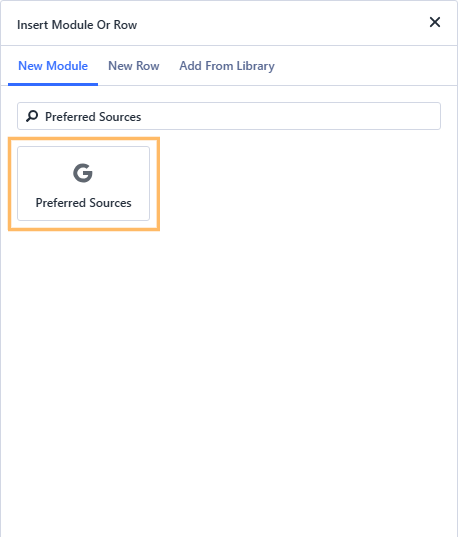
In the layout where you want the button to appear, open the Divi module picker. Use the search field to enter "Preferred Sources", then select the "Preferred Sources" module from the filtered results.
Check the button in the Visual Builder
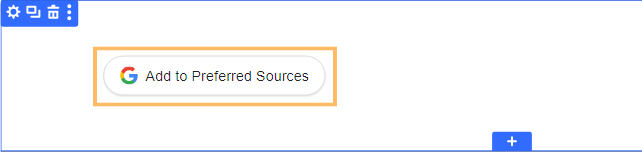
After selecting the module, confirm that the layout displays a visible button labeled "Add to Preferred Sources". No additional module configuration is required for the standard button presentation.
Publish and view the page
When your layout looks correct in the builder, save and publish the page. Leave the Visual Builder and open the page on its live front end. Locate the "Add to Preferred Sources" button and confirm that it has loaded with the Google icon, pill-shaped white background and light border.

Test the Google follow interaction
Click the "Add to Preferred Sources" button on the published page. Confirm that the Google follow interaction initializes and that the "Subscribe with Google" service is present and loaded from Google.

Conclusion
You have now added the Google Preferred Sources module, published the page, and confirmed that visitors can use the button to follow your site. If you are trying to customize a related Divi button or layout, leave a comment or get in touch for help.

0 Comments