
In this guide we'll look at how to give our Divi Preferred Sources button a consistent dark appearance while keeping its label and Google icon easy to recognize. This is useful for dark-themed layouts and helps the button look consistent in the builder and on the published page.
Set the Preferred Sources Button to a Dark Theme
This method uses the "Button Theme" setting in the Preferred Sources module to switch the button to a dark style. The module is provided by a dedicated plugin, and the result can be checked in both the Visual Builder and on the live page.
This method has been tested on, and is compatible with, Divi 5.
Get the Module
The Preferred Sources module is provided by our dedicated Divi Preferred Sources Module plugin. If you have not installed it yet, you can download and install it so the module and its button settings are available in the builder.
You can get the plugin here:
Add the Preferred Sources module
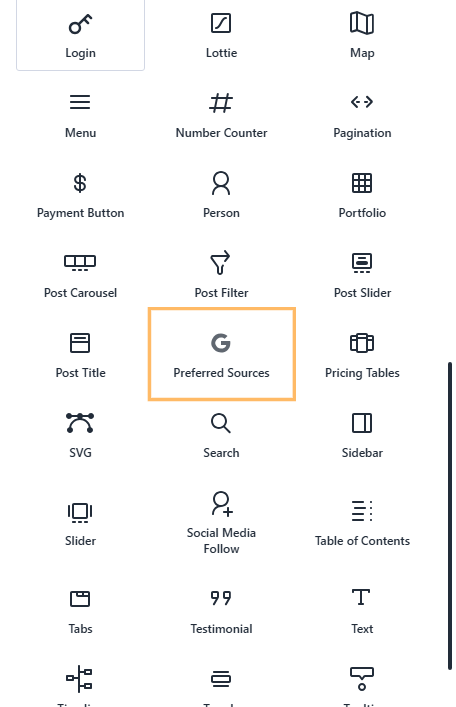
In the layout where you want the button to appear, open the module picker and choose "Preferred Sources". This adds the module to the page and opens its settings.
Open the Button settings
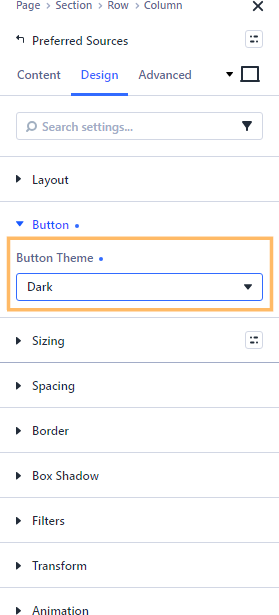
Select the "Design" tab, then open the collapsed "Button" section to reveal the controls for the module's button.
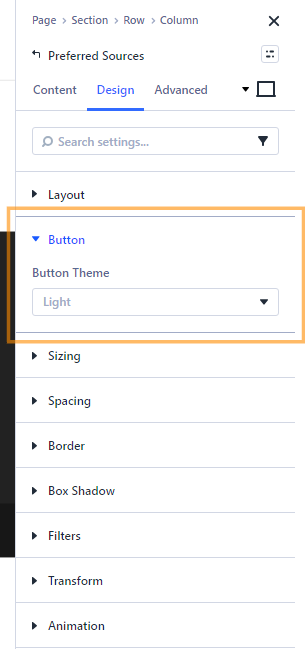
Choose the Dark button theme
In the "Button" settings, open "Button Theme" and select "Dark". This applies the dark button style while preserving the module's label and icon.
Check the button in the Visual Builder
Look at the page preview and confirm that the button has a visible near-black background, reads "Add to Preferred Sources", includes the Google icon, and uses light-colored text. The label and icon should remain clear so visitors can recognize the button.

Publish the page
When the button looks right in the builder, open the page's save options and choose the option that publishes the page. Then leave the Visual Builder and open the page on its live front-end view.

Confirm the result on the live page
Locate the Preferred Sources button on the published page. Confirm that it has a dark, near-black background, still reads "Add to Preferred Sources", includes the Google icon, and uses light-colored text.

Conclusion
Your Divi Preferred Sources module now uses a dark button theme in both the builder and the live page, with its label and Google icon still visible. If you are trying to customize another part of the module or button, leave a comment or get in touch and let us know what you need.

0 Comments