
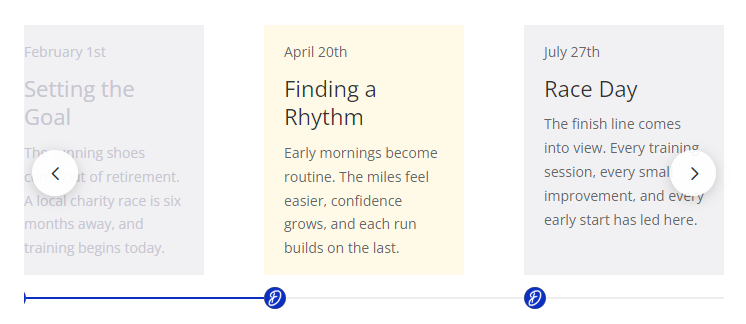
Divi’s Timeline module includes a horizontal layout, but on pages with several timeline items it can quickly become too wide to comfortably browse. An elegant solution is to turn the timeline module into a horizontal carousel, with left / right scroll arrows. Here's how to achieve this.
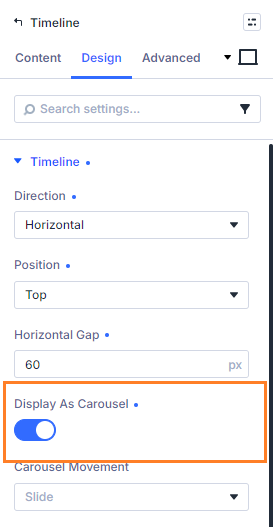
Quick Answer: To make a Divi Timeline scroll as a carousel, edit the Timeline module and set its direction to horizontal at Timeline → Design → Timeline → Direction → Horizontal. Then enable Timeline → Design → Timeline → Display as Carousel.
Once enabled, Divi Booster adds carousel arrows and extra carousel settings, including movement style and arrow design options.

Turn the Divi Timeline Module into a Horizontal Carousel
Divi Booster adds a carousel option for horizontal timelines, letting visitors move through timeline items using navigation arrows. It’s useful for roadmaps, process steps, project phases, event schedules and product histories where you want a cleaner, more interactive layout.
Add the Timeline Carousel Feature to Divi
To follow the steps below, first install Divi Booster. It adds a horizontal timeline carousel setting into the timeline module settings, along with settings for controlling the carousel behavior and styles.
Get Divi Booster below, then follow the steps to set up your Divi’s timeline module carousel.
Enable the Horizontal Carousel
Open the Divi Builder and edit your Timeline module.
Go to:
Timeline → Design → Timeline
Set Direction to Horizontal, then enable Display as Carousel.
Your horizontal timeline will now be displayed as a scrollable carousel with previous and next arrows.
Choose the Carousel Movement
In the same settings area, use:
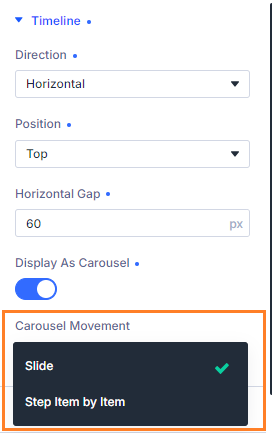
Timeline → Design → Timeline → Carousel Movement
You can choose how the arrows move the timeline:
- Slide moves by a visible section of the carousel
- Step Item by Item advances one timeline item at a time
Slide is a good default when all timeline cards look similar, as each click gives a clear visible movement. Step Item by Item works well when you’re using scroll state styling or want tighter control over the active item.
Customize the Carousel Arrows
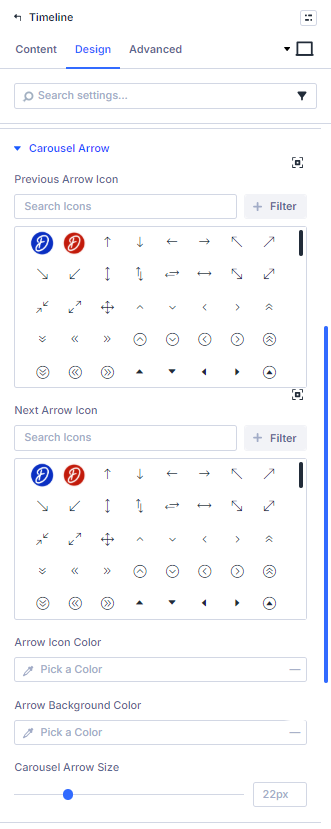
When the carousel is enabled, Divi Booster adds a dedicated arrow settings group:
Timeline → Design → Carousel Arrow
Here you can adjust the carousel arrow icons and styling, including:
- previous arrow icon
- next arrow icon
- arrow icon color
- arrow background color
- carousel arrow size
The arrow size controls the icon itself, while the circular button around it scales naturally to fit.
Use Different Settings by Breakpoint
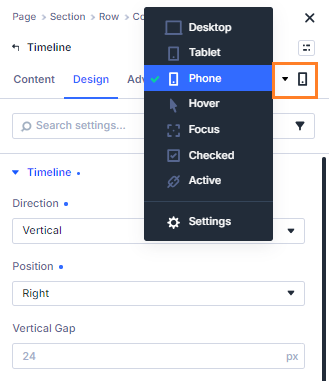
The carousel settings can be adjusted per Divi 5 breakpoint.
For example, you might use:
- horizontal carousel on desktop
- horizontal carousel with smaller arrows on tablet
- vertical timeline on phone
This lets you keep the layout usable on smaller screens without needing a separate Timeline module.
Combine with Scroll State Styles
The carousel also works with Divi Booster’s Timeline Scroll State styling.
When using Step Item by Item, the active timeline item can be styled differently from previous and upcoming items, helping visitors understand where they are in the timeline.
This is especially useful for process timelines, onboarding flows and step-based layouts.
Troubleshooting
If the carousel doesn’t appear, check that:
- Divi Booster is installed, active and updated
- the Timeline direction is set to Horizontal
- Display as Carousel is enabled
- the page has been saved
- Divi, plugin, server or CDN caches have been cleared
If the arrows are missing, also check the Carousel Arrow settings group and make sure the arrow background and icon colors aren’t blending into the page.
Conclusion
The horizontal carousel option gives Divi’s Timeline module a more compact and interactive layout. With Divi Booster, you can enable it directly from the Timeline settings, customize the arrows, choose how the carousel moves and adjust the behavior across Divi 5 breakpoints.


0 Comments