Using AI Generated Text in Divi Modules

News: Divi Code Snippet Module now supports Divi 5

Written by Dan Mossop

As a Divi developer, you know the importance of great content on your website. However, writing high-quality copy that engages your audience and drives conversions can be a tedious and time-consuming task. Fortunately, the advancements in AI technology have made it possible to generate top-notch content quickly and easily. In this article, we will take a look at two methods of adding AI-generated text into Divi Modules – ChatGPT and Supreme AI Writer.

Adding AI Generated Text in Divi modules using ChatGPT

Just in case you haven't heard… ChatGPT is an powerful AI text generation tool that allows you to generate high-quality content in response to an initial prompt. It is easy to use, and you can generate reams of text with little more than an sentence or two describing what you want it to be about. 

To start using ChatGPT, you need to sign up for an account with its creator, OpenAI. Then you simply open ChatGPT and a title, summary, or question representing your desired text, which ChatGPT will then produce. 
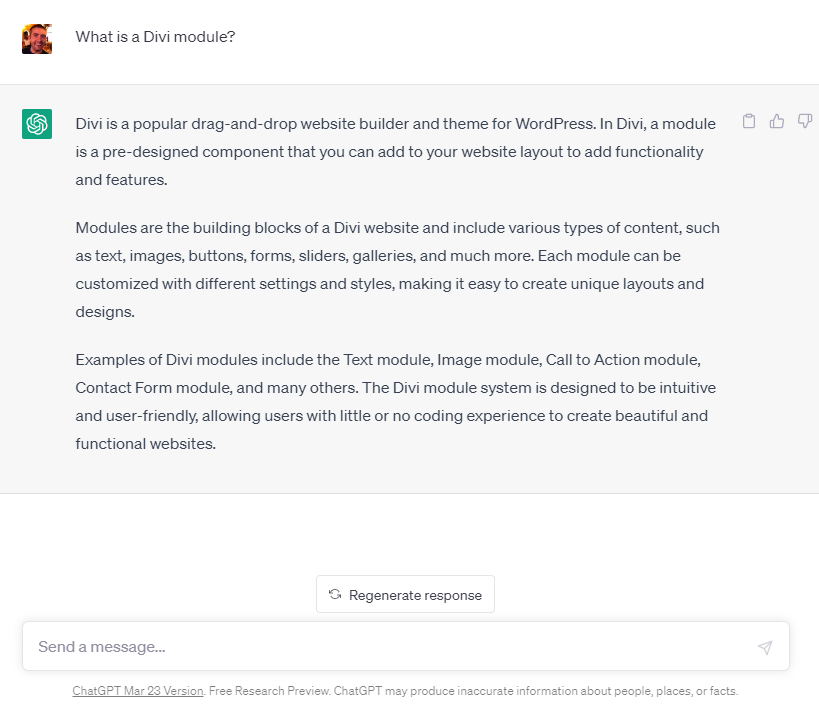
This text can be copied straight from the chat and pasted into the content field of your Divi modules

Adding AI Generated Text in Divi modules using Supreme AI Writer

Of course, if you need to add a lot of content to your site, manually copying and pasting from ChatGPT will quickly become tiresome. Fortunately, it is now possible to use ChatGPT directly within Divi modules using Supreme AI Writer.

Supreme AI Writer is a powerful Divi extension by the creator of Divi Supreme Pro that enables you to create high-quality, compelling content for your Divi website in seconds. It is powered by OpenAI's ChatGPT, which allows you to generate SEO-optimized content quickly and accurately, without leaving the Divi Builder.

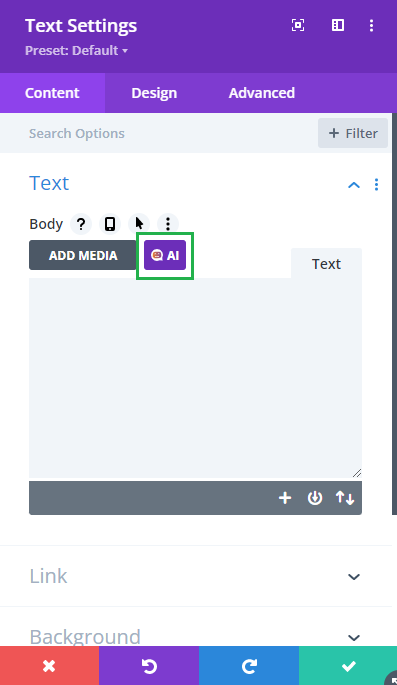
To use Supreme AI Writer, first click on the Supreme AI button in any module's settings that have the content field. 
From there, you can provide a small description of the content you want to enhance, choose your tone, writing style and even change the creativity of the content (by varying the "Temperature"). 
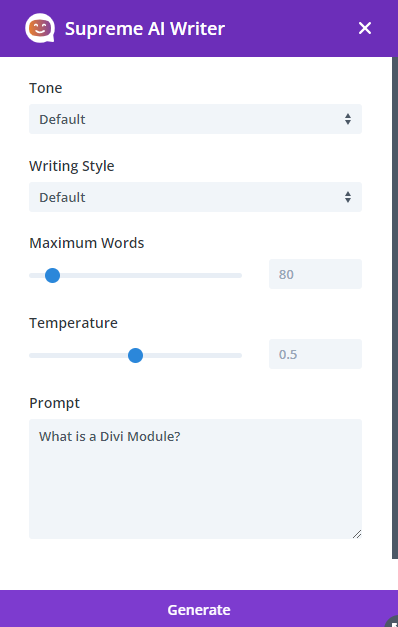
Once you hit the Generate button, the AI will generate your content for you in a few seconds.
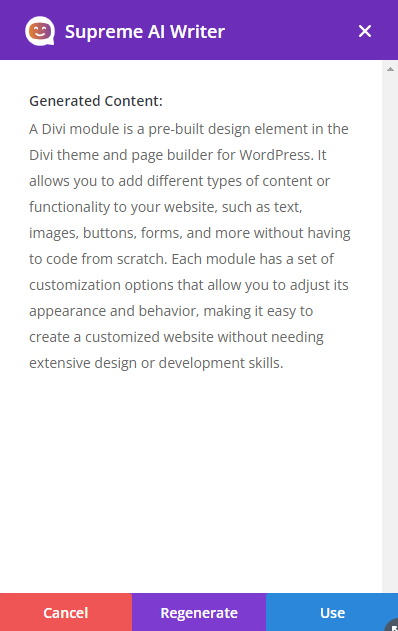
If you are not satisfied with the results, you can click the Regenerate button to generate new content every time.

Supreme AI Writer supports content fields both in native Divi modules (such as the Divi Text Module) and in third-party modules. Additionally, you can choose to generate as much content as you want, and once you're happy with the results, you can refine it until you're fully satisfied.

Learn more about Supreme AI Writer…


We may earn a commission when you visit links on our website.

Supercharge Your Content with AI-Powered CTAs

Elevate your WordPress site using AI to effortlessly create captivating content that drives engagement. Transform your posts with WP Magic CTAs—an innovative solution that integrates AI-driven call-to-actions into your content, enhancing interaction and conversion rates.

Latest Posts

Add Text Before the Number in the Divi Circle Counter

Adding a custom number prefix to your Circle Counter lets you clarify what the value represents—such as currency, units, or labels—without relying on the default percentage format. This helps your counters better match real-world metrics and keeps the design...

Add a Second Line of Text in a Divi Button Module

Adding a second line of text beneath a button’s main label lets you provide extra context, a brief benefit statement, or a supporting call-to-action without cluttering your design. This can improve clarity and increase clicks by making the button’s purpose more...

Top (or Bottom) Align Divi Icon List Module Icons

When Icon List items wrap onto multiple lines, the default icon alignment can make the icon appear vertically centered next to the text, which may look unbalanced or harder to scan. Setting the icons to align at the top creates a cleaner, more consistent...

Make Divi Button Modules Full Width with Centered Content

This configuration makes a Divi button stretch to the full width of its container while keeping its label neatly centered, creating a bold, edge-to-edge call-to-action. You might want this for hero sections, pricing tables, or any layout where a standard-sized button...

Fix the Flickr Typo in the Divi Social Media Follow Module

Sometimes it's the small things that make the difference... there is a minor typo in the Divi Social Media Follow module that was present in Divi 4, and (currently) remains in Divi 5. Specifically, the tooltip for Flickr is misspelled as "Flikr". Here's how to fix...

About Dan Mossop

Dan is a Scottish-born web developer, now living in Brisbane with his wife and son. He has been sharing tips and helping users with Divi since 2014. He created Divi Booster, the first Divi plugin, and continues to develop it along with 20+ other Divi plugins. Dan has a PhD in Computer Science, a background in web security and likes a lot of stuff, 

0 Comments

Submit a Comment

Comments are manually moderated and approved at the time they are answered. A preview is shown while pending but may disappear if your are cookies cleared - don't worry though, the comment is still in the queue.

Your email address will not be published. Required fields are marked *.