

Display an AI Disclosure Badge using the AI Disclosure Feature
In this method, you will enable the AI Disclosure feature, add custom disclosure text, position the badge over an image, and adjust its colors so it fits your design.
This method works with Divi 5.
Install the Feature
To follow this method, first make sure the AI Disclosure feature is installed and active on your site.
Get the feature and install the plugin before continuing.
Open the AI Disclosure settings
Open the Divi element you want to label. In this example, we are using an Image module, but the feature can also be applied to other Divi modules, rows, and sections.
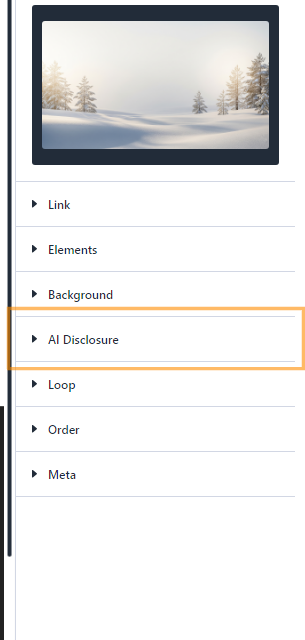
In the element settings, go to the "Content" tab, find the "AI Disclosure" settings group, and open it.
Enable the disclosure badge and add your text
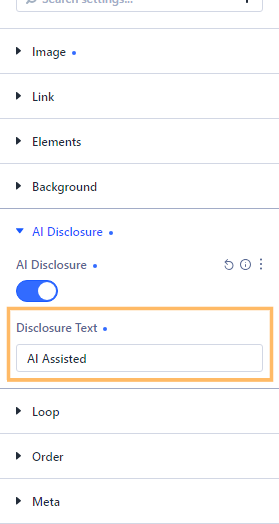
Turn on the "AI Disclosure" option. Then enter the text you want visitors to see in the "Disclosure Text" field. For example, you might use "AI Assisted" for content that was created with help from AI.
Choose the badge position
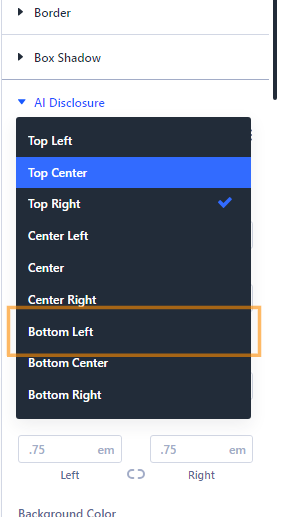
Open the "Design" tab, then open the "AI Disclosure" design settings. Use the "Position" setting to choose where the badge should appear.
For this example, select "Bottom Left" so the badge appears inside the lower-left corner of the image.
Style the badge
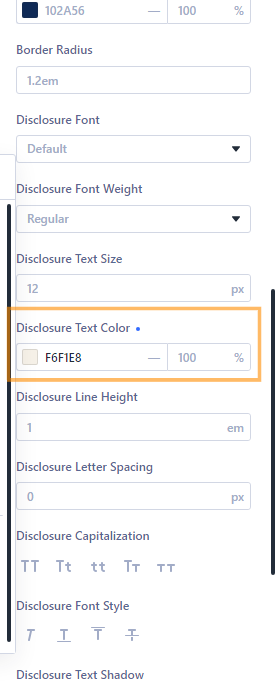
Still in the "AI Disclosure" design settings, adjust the badge styling to suit your layout. For example, you can set the "Background Color" to "#102a56" and the disclosure text color to "#f6f1e8" for a dark navy badge with light text.
If you want the badge text to feel a little more label-like, you might also set "Letter Spacing" to "1px".
Save and check the result
Save and publish your changes, then view the page on the front end. Confirm that the disclosure badge is visible, uses the text you entered, and appears in the position you selected.
In this example, the badge reads "AI Assisted" and appears at the bottom left of the image.

Take it further
Once your AI disclosure badge is in place, you may want to refine the surrounding image presentation or improve how image information is handled across your site:
- Add an Inset Border to the Divi Image Module to give the image a clearer framed appearance.
- Show Image Description on Image Module Lightbox if you want to display extra context when an image is opened in a lightbox.
- Setting Responsive Values for Divi Module Settings if you want to adjust badge-related spacing, sizing, or placement for smaller screens.
Conclusion
You have added a clear AI disclosure badge and styled it to match your Divi layout. If you are trying to apply the disclosure in a more specific layout or need help adapting it to another module, row, or section, feel free to get in touch.


0 Comments