

Change the Divi Menu Module Hamburger Icon with Divi Booster
Divi Booster adds a “Mobile Menu Icon” setting to the Divi Menu module, letting you choose a custom icon from Divi’s icon picker. It supports both Divi icons and Font Awesome icons available in the picker, and if no icon is selected, Divi’s normal hamburger icon is used.
Open the Divi Menu Module Settings
Open the page, header, or Theme Builder template containing your Divi Menu module.
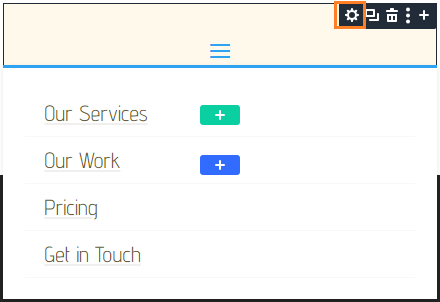
Click the Menu module or its gear icon to open its settings.
Choose the Mobile Menu Icon
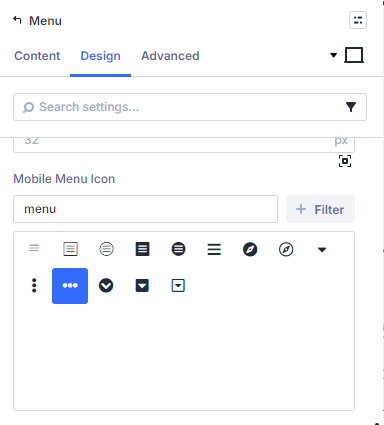
Find the Mobile Menu Icon setting in the module’s icon settings.
In Divi 5, go to: Design → Icons → Mobile Menu Icon
In Divi 4, go to: Advanced → Icon Settings → Mobile Menu Icon
Choose the icon you want to use for the mobile menu button. You can select a standard Divi icon, or any of the Font Awesome icons available in the icon picker.
Save and Preview the Menu
Save the module and preview the page at a width where the mobile menu button is shown.
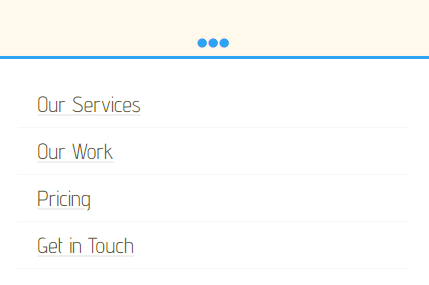
The Divi Menu module should now display your selected icon instead of the default hamburger icon.
Keep Going!
Once your mobile menu icon matches your design, you may also want to adjust when the mobile menu appears.
Start with this guide on showing the Divi Menu module hamburger menu on desktop, or browse the full collection of Divi menu tutorials.
Change the Divi Menu Module Hamburger Icon with CSS
If you only need a simple one-off change, you can use CSS instead. This method is lightweight, but it does not give you Divi Booster’s icon picker setting or automatic handling for Font Awesome icons.
Open the Menu Module Settings
Open the Divi Menu module you want to customize.
Add the CSS to the Free-Form CSS Box
Next, go to:
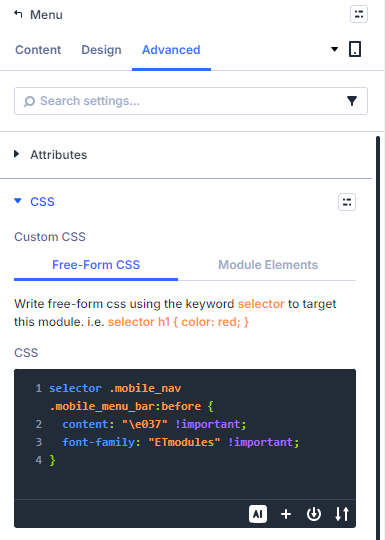
Advanced → Custom CSS → Free-Form CSS
Paste this CSS into the Free-Form CSS box:
selector .mobile_nav .mobile_menu_bar:before {
  content: "\e037" !important;
  font-family: "ETmodules" !important;
}
Divi automatically replaces selector with the current module’s selector, so the CSS applies only to this Menu module.
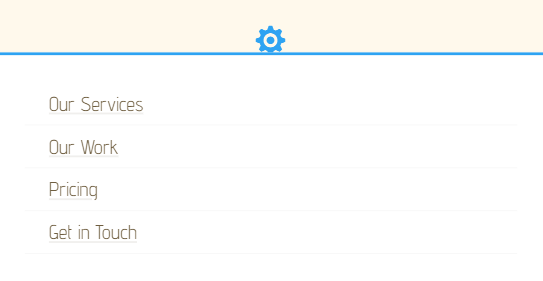
This example uses Divi’s gear icon, but you can replace \e037 with another ETmodules icon code if you want to use a different icon.
Save and Preview
Save the module and preview the page at a width where the mobile menu button is visible.
The module should now show your chosen icon in place of the default hamburger icon.
Take it Further!
If you want this custom icon to appear on desktop as well, you can pair this CSS with the guide on showing the Divi Menu module hamburger menu on desktop.
For more options, browse the full Divi menu tutorials.
Conclusion
Changing the Divi Menu module hamburger icon is a small detail that can make a custom header feel much more polished. Divi Booster is the more flexible option because it adds the icon choice directly to the module settings and supports the Divi icon picker, while CSS can work well for a simple fixed change. If there are other Menu module icon options you’d like to see added, please leave a comment with the setup you’re trying to build.

0 Comments