

Add and Style a Weekly Schedule with the Divi Opening Hours Module
The Divi Opening Hours module displays a weekly schedule with editable day entries and styling controls for individual rows. You can adjust the preconfigured days, add or remove entries, and rename them as needed. The examples below show how to edit an entry’s hours and give a row a distinct style.
This method has been tested on, and is compatible with, Divi 5.
Get the Module
The Opening Hours module used in this guide is provided by our dedicated plugin. If you don’t already have it, you can download and install the plugin to add the module to your Divi layouts.
You can get the plugin here:
Add the Opening Hours Module
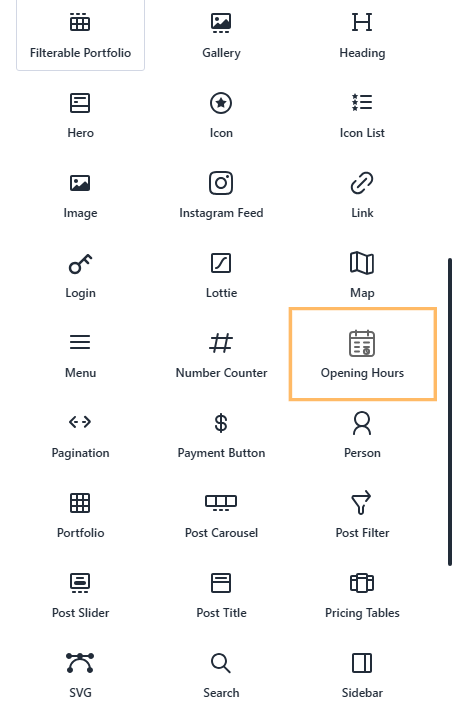
In the Divi layout where you want the schedule to appear, open the module picker and choose "Opening Hours".
Choose a day or schedule entry to edit
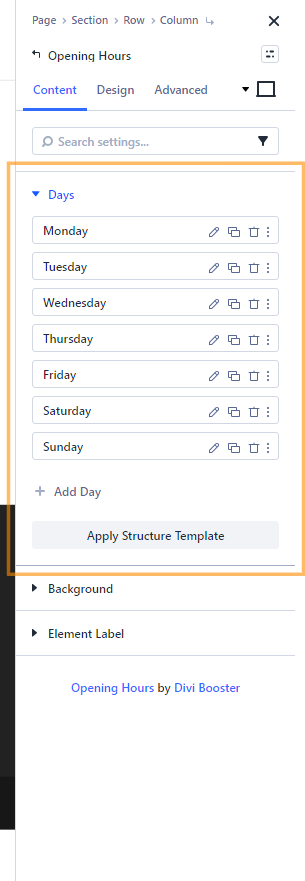
The module comes with days of the week preconfigured. Open the "Days" settings to review the schedule, then select the settings for the day or entry you want to change. You can also add, remove, or rename entries to fit your schedule.
Set an entry's hours
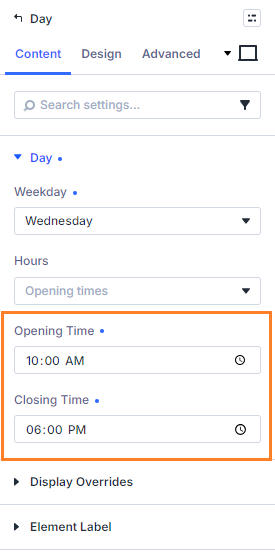
In the selected entry's "Day" settings, enter the opening and closing times. For example, you could set a day's hours to `10am` and `6pm`; use the times that suit your business.
Set a row background color
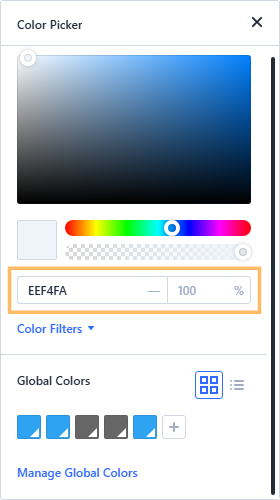
To distinguish a row, open its "Design" settings and expand "Row Background". Choose a background color that provides enough contrast with the text. This example uses a pale blue, but you can choose a color that works with your site's design.
Adjust row spacing
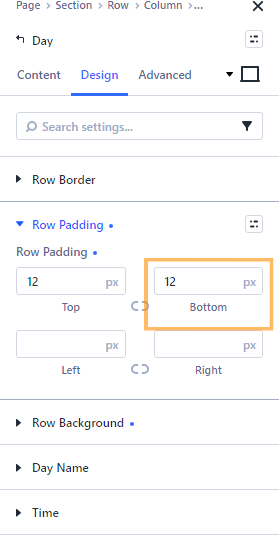
Use the row's "Row Padding" settings to adjust the space above and below its content. For example, adding padding to the top and bottom can make a highlighted row easier to scan. Choose spacing that fits your layout.
Style the day name
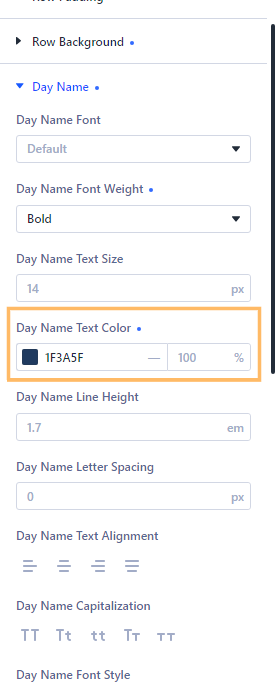
In the row's "Day Name" design settings, adjust the font weight and text color to make the label stand out. For instance, a bold font and a darker color can help distinguish the selected day from the rest of the schedule.
Review and publish the schedule
Check the schedule in the builder preview to make sure the hours and styles look right. When you’re happy with the result, open the page's save options and publish your changes.

Check the published schedule
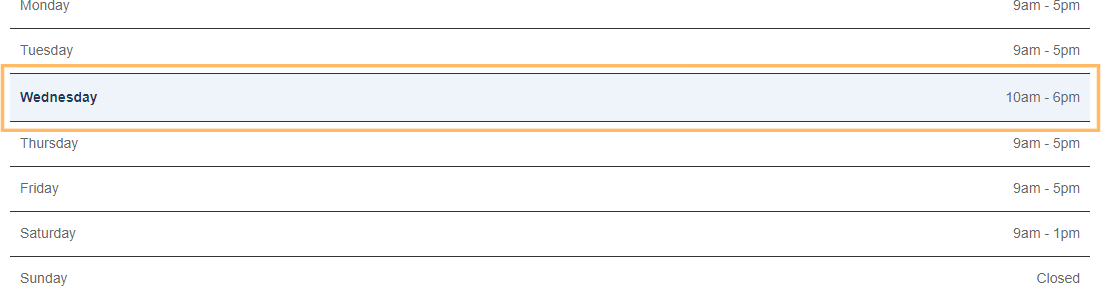
Open the published page and check that the schedule displays as expected. Confirm that your chosen hours and row styling are visible on the live page.
Conclusion
You’ve added an Opening Hours table to your Divi layout and learned how to edit its entries and styling. If you’re trying to adapt the schedule for a particular layout, please feel free to leave a comment or get in touch.


0 Comments