

Style Open and Closed Messages in the Divi Opening Hours Module
Use the Opening Hours module's schedule and Live Status settings to choose the messages visitors see, then use the Design tab to style the open and closed messages independently. This method has been tested on, and is compatible with, Divi 5.
Get the Module
The Opening Hours module is provided by our dedicated plugin. If you don't already have it, downloading and installing the plugin will give you the module and settings used in this guide.
You can get the plugin here:
Add the Opening Hours module
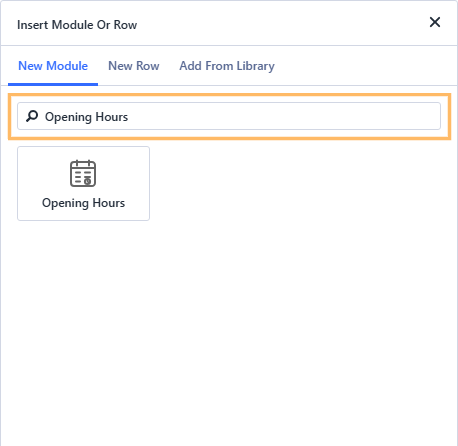
In the layout where you want to show your business hours, open the module picker and search for "Opening Hours." Select the module to add it to your page.
Set your weekly schedule
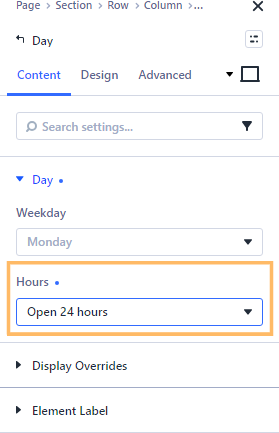
Open the module's "Days" settings and configure each day to match your business hours. For each day, you can choose set hours, "Open 24 Hours," or "Closed." The example shows the Hours setting for a day; repeat the process for any other days that need a schedule.
Enter the open and closed messages
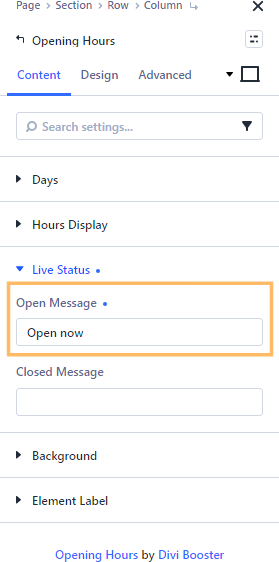
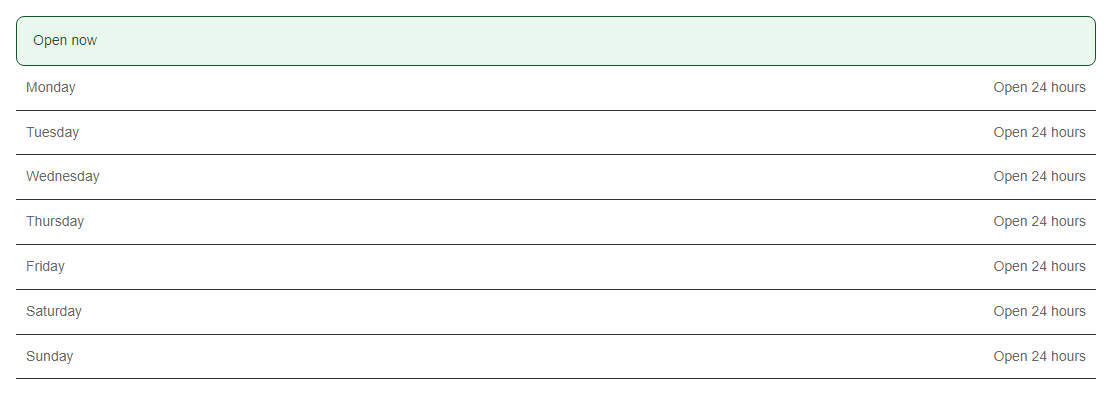
Open "Live Status" in the module settings and enter the wording you want in "Open Message" and "Closed Message." For example, you could use "Open now" and "Closed now," or choose messages that suit your business.
Style the open message
Go to the "Design" tab and expand "Open Message." Choose a text color and background color, then adjust the padding, border, and corner radius to suit your design. For example, a dark green text and border on a pale green background can make the open status easy to recognize.
Style the closed message
In the "Design" tab, expand "Closed Message" and set its text color, background, spacing, border, and corner radius as you'd like them to appear. A dark red text and border with a pale red background can, for example, distinguish the closed status from the open one.
Check the messages and view the published page
Preview the module in the Builder to check that the message styling is clear. Save and publish the page, then view it on the front end. The message shown depends on the schedule and current time, so check the page when the schedule indicates the business is open and when it indicates the business is closed.
Take your opening hours further
Once your live status messages are in place, you might also want to:
- Add and Style an Opening Hours Table in Divi to show visitors a full weekly schedule.
- Explore the Divi Opening Hours Module guide for more on schedule options and structured opening-hours data.
- Schedule Divi Modules by Date and Time to show or hide other content according to your business hours.
Conclusion
You've added live open and closed messages and styled them to make each status easy to recognize. If you're looking to customize another part of your opening-hours display, leave a comment or get in touch.

0 Comments