
Divi’s Timeline module is useful for showing processes, roadmaps and milestones, but the default markers don’t always make the sequence clear at a glance. Adding numbers to the timeline markers helps visitors understand the order of events, especially when the timeline is being used for steps, phases or instructions. After following this guide, you’ll be able to display automatic numbers in the Timeline module markers, with control over the starting value, direction, step size and text styling depending on the method used. This post covers adding numbered Timeline markers with Divi Booster, plus a manual CSS method.

Add Numbered Markers to the Divi Timeline Module with Divi Booster
Divi Booster adds marker numbering directly into the Divi Timeline module settings, so you can enable and style numbered markers without maintaining custom code. This is the most flexible option if you want the numbering to work naturally inside the builder and stay easy to adjust later.
Install and activate Divi Booster
Install and activate Divi Booster on your Divi site. Once active, the Timeline module will include the additional marker numbering options covered below.
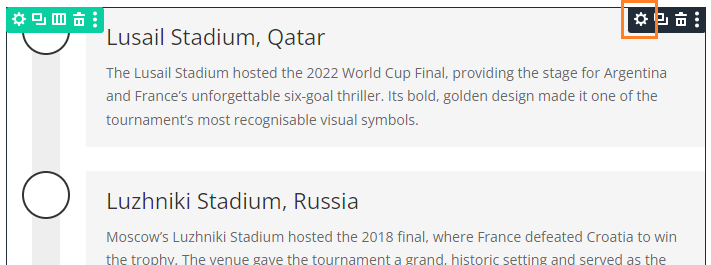
Open the Timeline module settings
Edit the page containing your Timeline module and open the Timeline module settings. The numbering controls are added to the parent Timeline module, rather than to each individual Timeline Item.
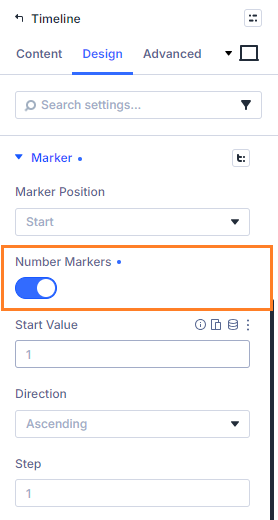
Enable numbered markers
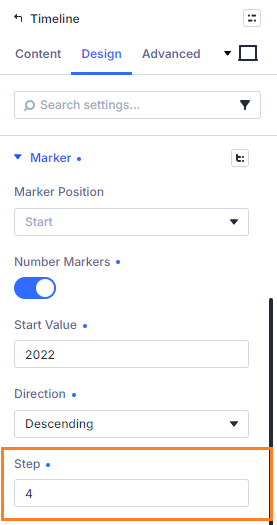
Go to the Timeline module’s Design tab and in the Marker settings group enable the Number Markers option. The module will then display automatic numbers inside the timeline markers.
As the numbers are generated automatically, you don’t need to manually enter a number for each item.
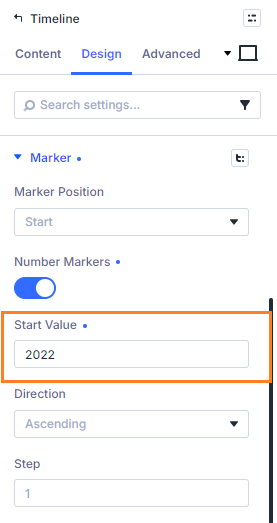
Set the start value
Use the Start Value setting to choose the number used by the first timeline marker. For example, you can start from 1 for a normal step-by-step sequence, or start from a later number if the timeline continues from another section of the page.
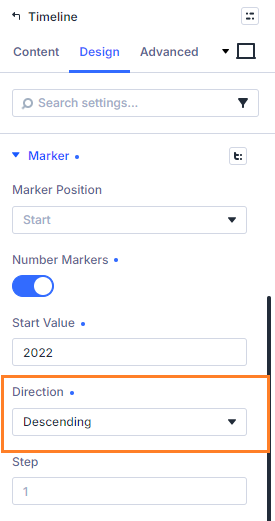
Choose the numbering direction
Use the Direction setting to choose whether the marker numbers count upward or downward. Ascending numbering works well for processes and tutorials, while descending numbering can be useful for countdown-style timelines.
Set the step value
Use the Step setting to control how much each marker number changes by. A step of 1 gives you 1, 2, 3 and so on, while larger values let you create sequences such as 10, 20, 30.
Style the marker numbers
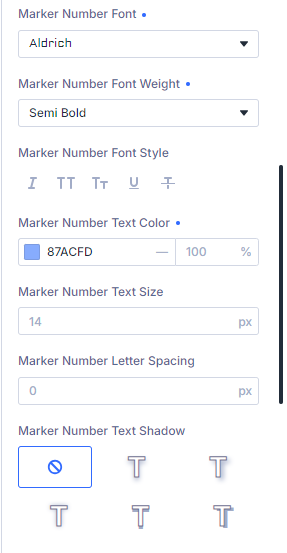
Still in the Timeline module’s Design > Marker settings, adjust the Marker Number font options. You can change the marker number text color, size, weight and other supported font styling so the numbers fit the design of your timeline.
Save and view the result
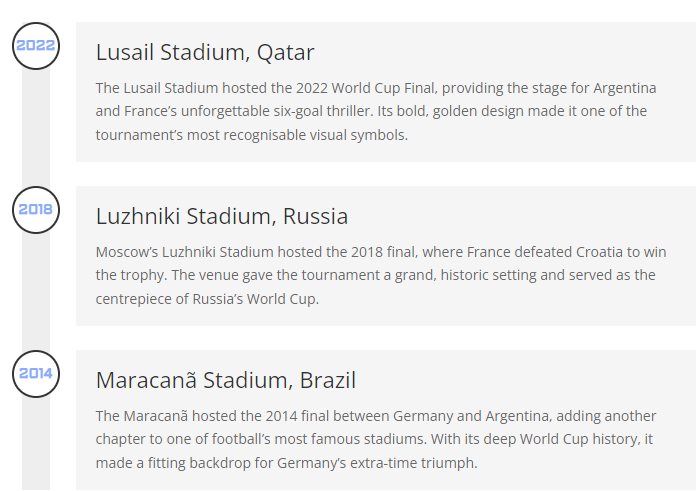
When you're ready, save the page and view the result on the front-end. You should see your timeline items are automatically numbers as you configured.
Continue customizing your timeline
Once the timeline markers are numbered, you may want to make the timeline feel more interactive or easier to browse. Good next steps are learning how to change the style of Divi Timeline items on scroll, turn the Timeline module into a horizontal carousel, or add custom icons to the Divi Timeline module.
Add Numbered Markers to the Divi Timeline Module with CSS
If you only need a simple ascending numbered timeline, you can also use CSS counters. This method is lighter, but it won’t give you the built-in Timeline module controls, responsive settings or font options provided by Divi Booster.
Open the Timeline module settings
Edit the page containing your Timeline module and open the Timeline module settings. We'll add the CSS to the parent Timeline module, rather than to each individual Timeline Item.
Add custom CSS to the Timeline module
Once in the Timeline module settings, go to Advanced > Custom CSS > Free-Form CSS and add this CSS:
c2VsZWN0b3IgLmV0X3BiX3RpbWVsaW5lX3RyYWNrIHsKCWNvdW50ZXItcmVzZXQ6IHRpbWVsaW5lLW1hcmtlci1udW1iZXIgMjAyNjsKfQoKc2VsZWN0b3IgLmV0X3BiX3RpbWVsaW5lX2l0ZW0gewoJY291bnRlci1pbmNyZW1lbnQ6IHRpbWVsaW5lLW1hcmtlci1udW1iZXIgLTQ7Cn0KCnNlbGVjdG9yIC5ldF9wYl90aW1lbGluZV9pdGVtIC5ldF9wYl90aW1lbGluZV9tYXJrZXI6OmJlZm9yZSB7CglhbGlnbi1pdGVtczogY2VudGVyOwoJY29udGVudDogY291bnRlcih0aW1lbGluZS1tYXJrZXItbnVtYmVyKTsKCWRpc3BsYXk6IGZsZXg7Cglmb250LXNpemU6IDE0cHg7Cglmb250LXdlaWdodDogNzAwOwoJaGVpZ2h0OiAxMDAlOwoJanVzdGlmeS1jb250ZW50OiBjZW50ZXI7CglsaW5lLWhlaWdodDogMTsKCXBvaW50ZXItZXZlbnRzOiBub25lOwoJd2lkdGg6IDEwMCU7Cn0KThe example starts at 2026 with a step of -4. Since the step will apply immediately, this makes the first displayed value 2022, with each subsequent value being 4 less than the one before. You can adjust this initial value and step to get your required numeric sequence.
Save and view the result
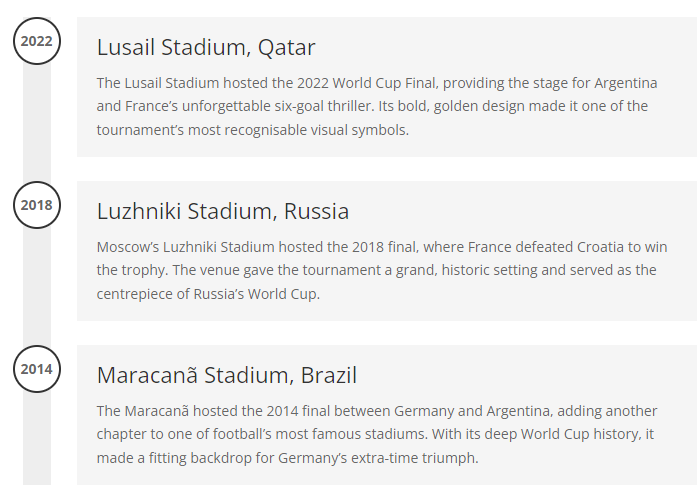
When you're ready, save the page and view the result on the front-end. You should see your timeline items are automatically numbers as you configured.
Continue customizing your timeline
Once you've got the timeline items numbered the way you want, you may like to look at related timeline customizations such as styling Timeline items on scroll, creating a horizontal Timeline carousel, or adding custom Timeline icons.
Conclusion
Numbered timeline markers are a small change, but they can make process steps, histories and project timelines much easier to follow. Divi Booster gives you the most convenient version of this feature by adding the controls directly into the Timeline module, while the CSS method is useful if you're comfortable working with custom code. If there are related Timeline marker options you’d like to see added, such as prefixes, suffixes, custom number formats or per-item overrides, let us know in the comments.


0 Comments