
By default, the Divi Accordion module opens only the first accordion item when the page loads. If you're using an accordion for product details, onboarding steps, documentation, pricing comparisons, or any content where visitors should see everything immediately, you may prefer all accordion items to start open instead.
Quick answer: To make a Divi Accordion module start all open, open the Accordion module settings and set Design → Toggle → Initial State to All Open. This option is added by Divi Booster. Alternatively, you can use a jQuery snippet to expand every accordion item automatically when the page loads.

This guide works with both Divi 5 and Divi 4. It shows you how to set the accordion module all open on load using these two methods:
- Divi Booster – No-code setup, easier future changes, Divi 5 / Divi 4 compatibility
- jQuery – One-off custom code changes, if you are comfortable maintaining snippets
Note: This guide covers making the Accordion module start fully expanded on page load. If you want visitors to be able to close an already-open accordion item after clicking it, see the related guide on making Divi accordion items closeable.
Before and After
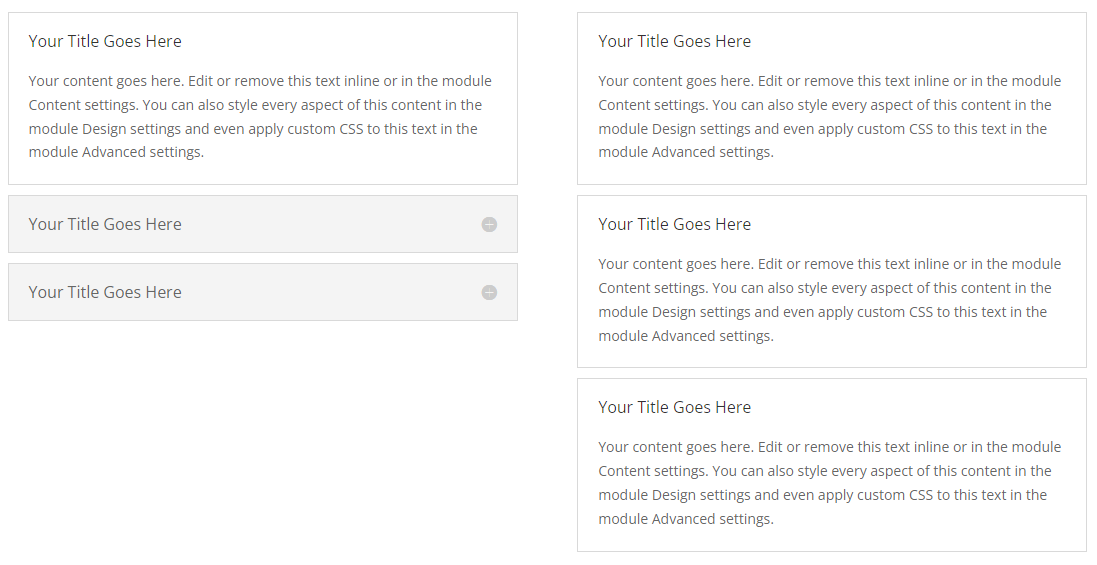
The example below shows the difference. On the left, Divi's default Accordion module opens only the first item automatically. On the right, the accordion starts with every item expanded, making all of the content immediately visible.
How to Make a Divi Accordion All Open Using Divi Booster
Divi Booster adds an Initial State option to the standard Accordion module settings, letting you choose whether the accordion starts in Divi's default state, all closed, or all open. Here's how to use it to make a Divi accordion start fully expanded.
Install and Activate Divi Booster
First, install and activate Divi Booster on your site. This adds the Initial State option to Divi's Accordion module, so you can set the accordion to start all open without editing code.
After activating Divi Booster, open the page containing your Accordion module and follow the steps below.
Open the Accordion Module Settings
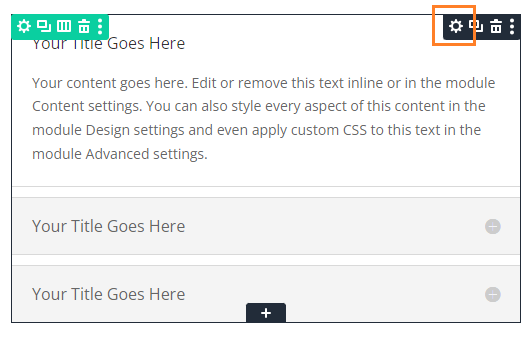
Locate the accordion module you want to modify, or add it to your layout if you haven't already. Then, hover over the module to reveal the module buttons. If your Divi Builder is set to use "Click" mode, you may need to click on the module instead of hovering. Click the "Gear" icon to open the module's settings.
Go to "Design → Toggle → Initial State"
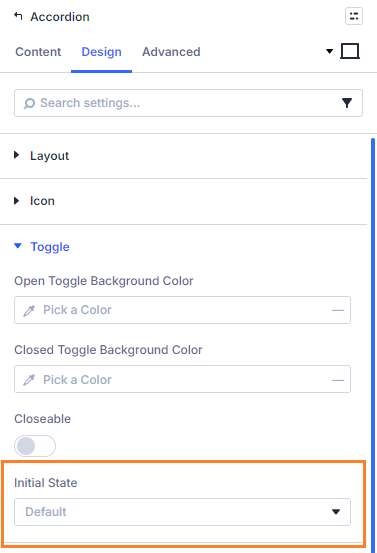
Now, in the Accordion module settings, click on the Design tab and then on Toggle to expand the Toggle settings. You should now see the Initial State option added by Divi Booster.
Choose "All Open"
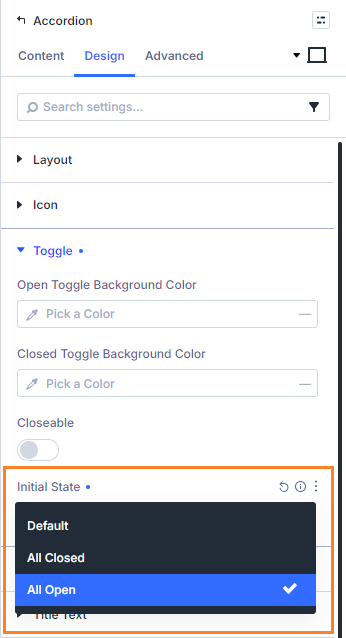
Click on the Initial State select box and choose All Open. The Default option gives you Divi's standard behavior, where only the first accordion item starts open. All Closed starts every item collapsed. All Open, which is what we want here, expands every accordion item automatically when the page loads.
Save and View the Result
Now save the module settings. Note that the initial state setting doesn't show in the visual builder preview. To see the result, save your page or post and view it on the front-end. You should now see that every accordion item is expanded when the page first loads.
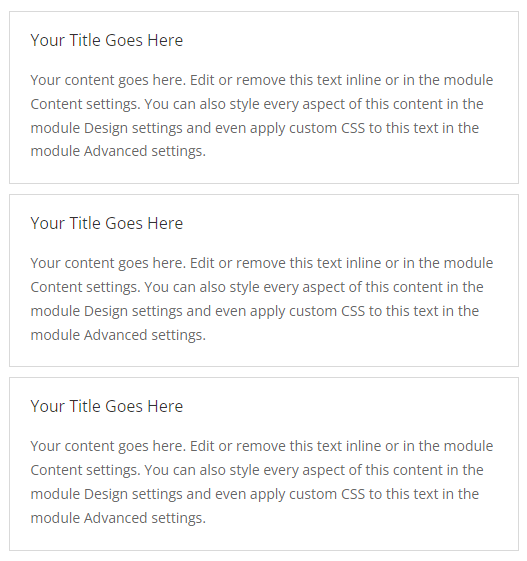
After a visitor clicks on an accordion heading, the module behaves like a normal Divi accordion, allowing one section to remain open at a time.
Tip: Want every Accordion module on your site to start fully expanded? Divi Booster also includes a global option under Divi → Divi Booster → Modules → Accordion.
Continue Customizing Your Accordion
Once your accordion starts all open, you may also want to customize how visitors interact with it. You could:
How to Make a Divi Accordion Start All Open Using jQuery
If you're comfortable adding custom code to your site, you can also make a Divi accordion start fully expanded using jQuery. This is useful if you only need a one-off code solution. However, because it depends on Divi's accordion markup and CSS classes, you may need to retest it after major Divi updates. That said, here's how to do it.
Open the Divi Theme Options
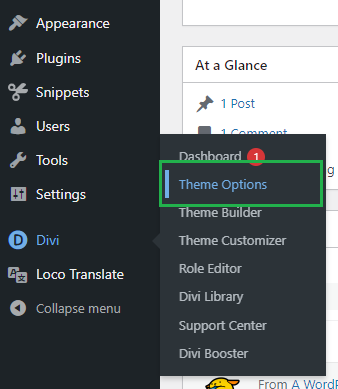
Divi's Theme Options include various settings for configuring Divi, including the option to add custom code. To open the theme options, from your WordPress dashboard, click on Divi in the sidebar menu, then the Theme Options sub-menu item.
Navigate to the "Add Code to the Head of your Blog" Setting
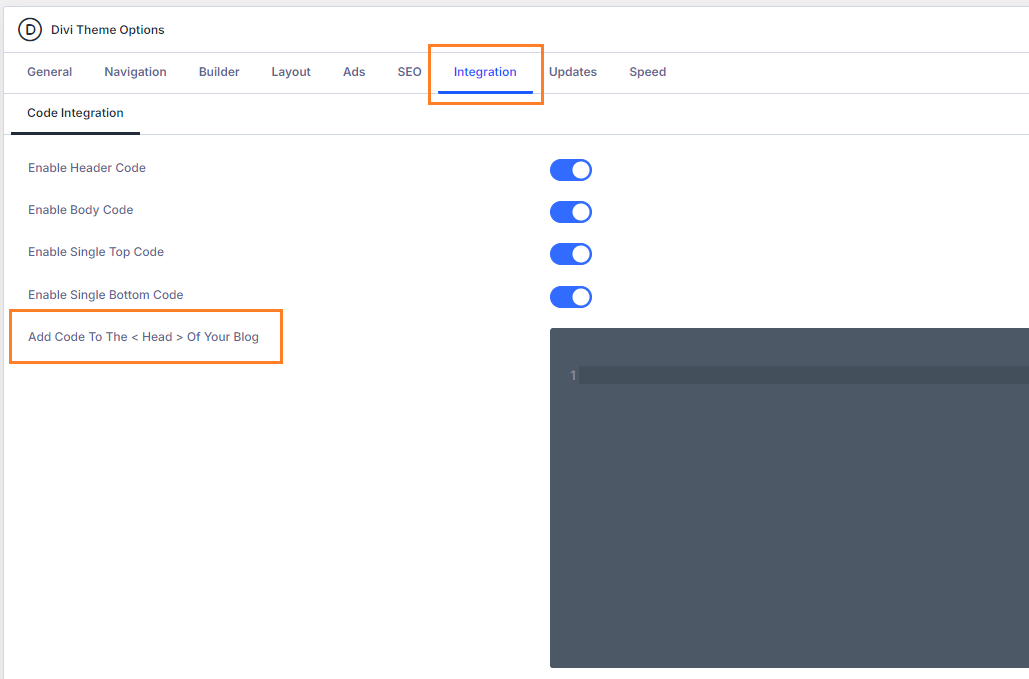
Click on the Integration tab in the Divi Theme Options. You should see a box called Add code to the <head> of your blog, which allows HTML, JavaScript and jQuery code to be added to your site.
Add jQuery Code to the Site
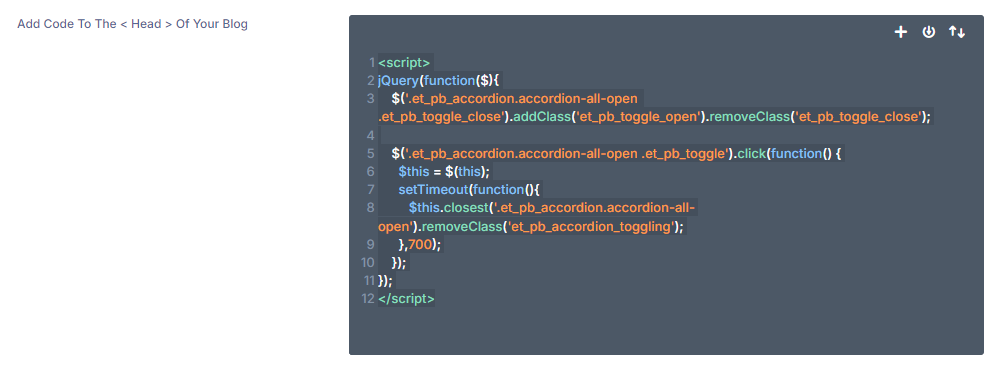
The jQuery code below will make every accordion item start expanded on page load. Paste it into the Add code to the <head> of your blog box, then click Save Changes.
Prefer not to maintain custom code? The Divi Booster method above adds this as a built-in Accordion module setting, so you can change the initial state directly in Divi instead of editing jQuery.
<script>
jQuery(function($){
    $('.et_pb_accordion.accordion-all-open .et_pb_toggle_close').addClass('et_pb_toggle_open').removeClass('et_pb_toggle_close');

    $('.et_pb_accordion.accordion-all-open .et_pb_toggle').click(function() {
      $this = $(this);
      setTimeout(function(){
         $this.closest('.et_pb_accordion.accordion-all-open').removeClass('et_pb_accordion_toggling');
      },700);
    });
});
</script>
Related Post: Adding JavaScript / jQuery to Divi.
Open your Accordion Module's Settings
Locate the accordion module you want to have fully expanded on initial load, or add it to your layout if you haven't already. Then, hover over the module to reveal the module buttons. If your Divi Builder is set to use "Click" mode, you may need to click on the module instead of hovering. Click the "Gear" icon to open the module's settings.
Add the "accordion-all-open" Class to Your Accordion Module
In the Accordion Settings, click on the Advanced tab.
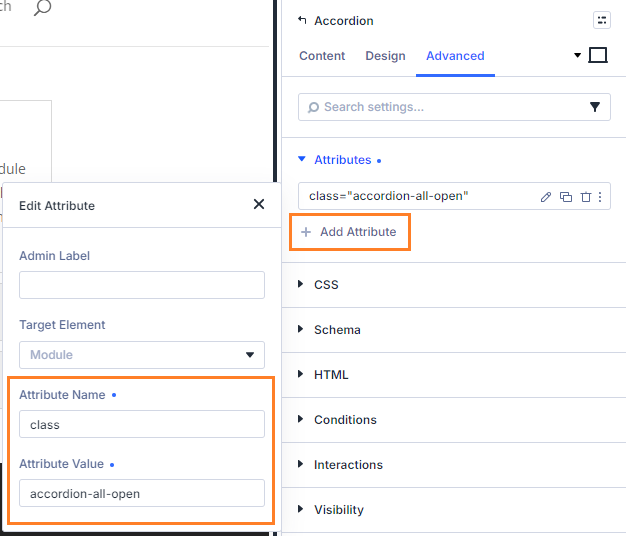
If you're using Divi 5, expand the Attributes settings group, click Add Attribute, set the attribute name to class, and enter accordion-all-open as the value. Then close the Edit Attribute modal.
If you're using Divi 4, expand the CSS ID & Classes settings section. There you should see a CSS Class field. Enter accordion-all-open into this field and then save the module settings.
Save and View the Result
Now save the module settings. Note that the code won't apply in the visual builder preview. To see the result, save your page or post and view it on the front-end. You should now see that every accordion item starts expanded.
Optional Next Steps
The jQuery method will make the selected accordion start fully expanded, but it does not add a visual setting inside Divi. If you later want easier control over accordion behavior, you may want to use Divi Booster's Accordion module options instead. You can also continue with these related guides:
Troubleshooting: Divi Accordion Still Opens the First Item
If your Divi accordion doesn't start with every item expanded after following the steps above, check the following:
Clear your caches. If you use a caching plugin, CDN, or Divi's static CSS cache, clear those caches and reload the front end of the page.
Check you are viewing the front end, not only the Visual Builder. The initial state may not appear in the Visual Builder preview. Save the page and view it normally.
Make sure the class is added to the Accordion module, not an individual accordion item. For the jQuery method, the accordion-all-open class needs to be added to the module's CSS Class field.
Check for other accordion scripts. Other snippets or plugins that change accordion behavior may override the initial state.
Confirm the module is an Accordion module, not separate Toggle modules. Divi Toggle modules already have their own open / closed state setting, while Accordion modules behave differently by default.
FAQs
Does Divi have a built-in setting to make Accordion items all open?
Divi's Accordion module does not include a native all open by default option. Divi Booster adds this as an Initial State setting, alongside the options for Divi's default behavior and all closed.
What is the difference between making an accordion all open and making it closeable?
Making an accordion all open controls its state when the page first loads. Making it closeable controls whether visitors can collapse an open accordion item after clicking it.
Can I make all Divi accordions on my site start open?
Yes. Divi Booster includes a global Accordion module option under Modules → Accordion that can make accordions start fully expanded site-wide.
Does this work in Divi 5 and Divi 4?
Yes, the Divi Booster method is intended for Divi 5 and Divi 4. If using custom jQuery, test after Divi updates because custom code may need maintenance.
Can I make the accordion open on desktop but closed on mobile?
Yes, but it requires a workaround. You can create two synchronized global copies of the same Accordion module, disable syncing for the Initial State and Visibility settings, then show one version on desktop and the other on mobile/tablet with different initial states.
Conclusion
Making your Divi Accordion module start all open is an easy way to present documentation, onboarding guides, product information, pricing details, or other content that visitors may want to scan without repeatedly opening sections. If you want the simplest approach, Divi Booster adds the Initial State option directly to the Accordion module, allowing you to choose All Open, All Closed, or Divi's default behavior without maintaining custom code. From there, you can continue refining the experience by making accordion items closeable, adding open / close all controls, or improving the scrolling behavior of long accordion sections on mobile. If there's another accordion behavior you're trying to create, ask in the comments and I'll try to point you in the right direction.


0 Comments