
Assigning unique CSS IDs to specific items in the Divi Accordion module allows for precise control over styling, targeting, and linking within your page content. This ability is particularly useful when you want to apply custom designs or create anchor links to particular accordion sections, enhancing both the look and functionality of your site. In this guide we show you how to assign a custom CSS ID to individual accordion items, enabling more advanced customization and usability.
Set Custom CSS IDs for Individual Divi Accordion Items using the Divi Booster Plugin
This method demonstrates how to assign a unique CSS ID to a specific Divi Accordion item by utilizing the Divi Booster plugin. It allows you to precisely target individual accordion items for advanced styling or anchor linking, a capability not available in standard Divi installations.
Open the Accordion Item's Advanced Settings
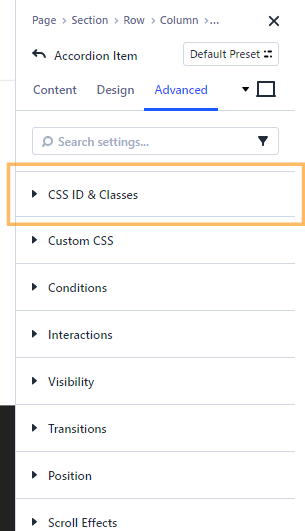
To begin, locate the Accordion module on your page and open its settings. Click on the first accordion item you wish to customize—this will expand its individual settings. Next, navigate to the 'Advanced' tab at the top, and then expand the 'CSS ID & Classes' section. Here, you'll be able to add custom identifiers for this particular accordion item.
Assign a Custom CSS ID
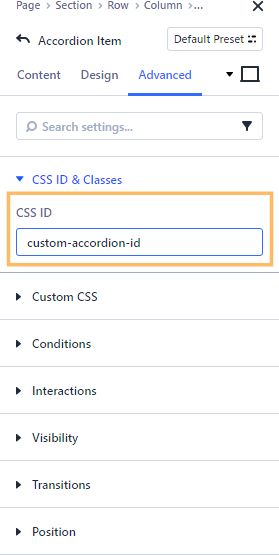
Within the expanded 'CSS ID & Classes' section, you'll see a field labeled 'CSS ID.' Enter your desired ID here (for example, 'custom-accordion-id'). This unique identifier can now be used in your CSS targeting or when creating anchor links in your content.
Publish and View Your Changes
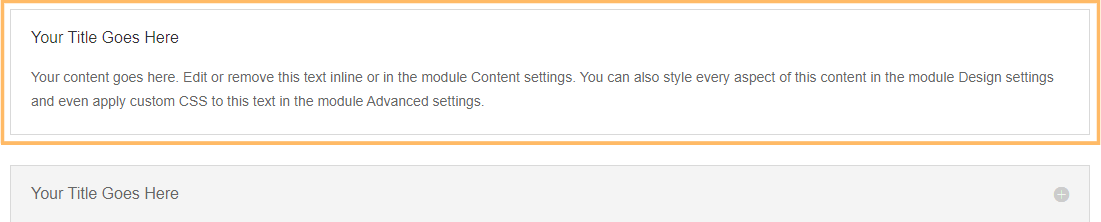
Once you have entered your custom CSS ID, make sure to save your changes. Click the 'Publish' button in the Divi Builder to make your new CSS ID live. You can now visit your page on the front end to confirm that the Accordion item appears as intended and is ready for advanced customization or linking.
Conclusion
With just a couple of tweaks in the Divi Builder, you can now add unique CSS IDs to individual Accordion items—unlocking more flexible styling and anchor link options for your Divi site!

0 Comments