
Divi’s Timeline module is great for displaying processes, milestones and roadmaps, but the default marker icons aren’t always the clearest way to label each point. Adding short text directly inside the markers can make each timeline item easier to scan, especially for steps, statuses, initials, dates or compact labels. After following this guide, you’ll be able to show custom marker text on individual Timeline items and style it to fit your design. This post covers adding Timeline marker text with Divi Booster.

Add Custom Text to Divi Timeline Module Markers with Divi Booster
Divi Booster adds marker text controls directly into the Divi Timeline and Timeline Item settings, so you can enter marker labels in the builder and style them using familiar Divi design options. This is the most convenient method if you want the labels to be editable per item without maintaining custom CSS for each marker.
Install and activate Divi Booster
Install and activate Divi Booster on your Divi site. Once active, the Timeline module and Timeline Item modules will include the marker text options covered below.
Open the Timeline Item settings
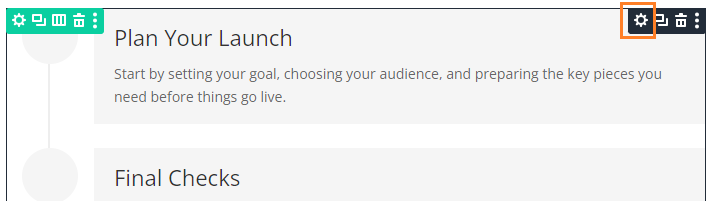
Edit the page containing your Timeline module, then open the settings for the Timeline Item where you want to add text inside the marker.
Enter the marker text
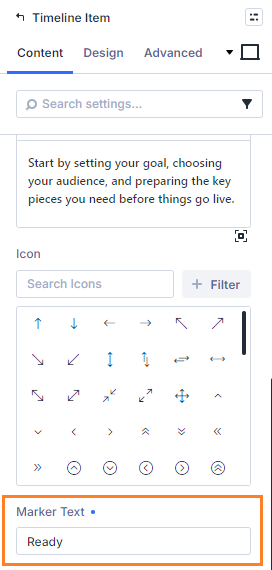
In the Timeline Item Content settings, find the Marker Text field and enter the text you want to display inside that item’s marker.
Keep the text short so it fits comfortably inside the marker. Good examples include step numbers, initials, short status labels, years or compact words such as “Start” and “Done”.
Repeat for other Timeline Items
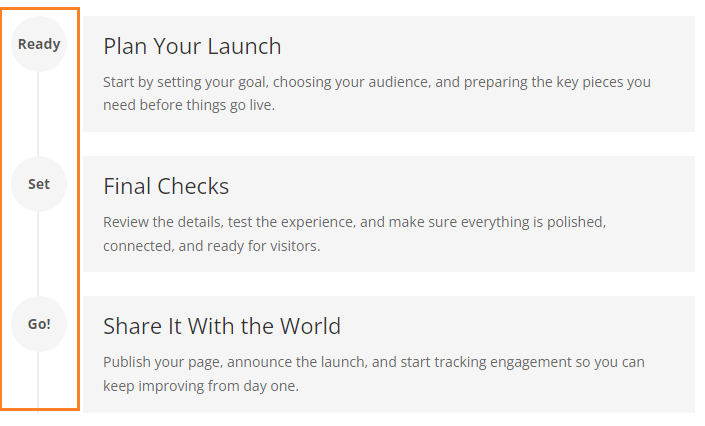
Open each Timeline Item that needs its own marker label and enter the relevant Marker Text. Items without marker text can be left unchanged.
Style all marker text from the Timeline module
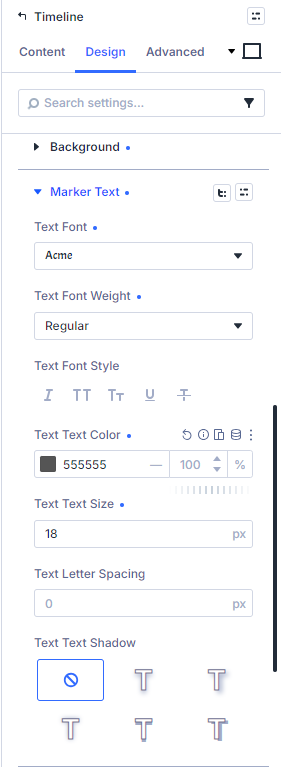
Open the parent Timeline module settings and go to Design > Marker > Marker Text. Use the font controls there to set the default marker text style for the whole timeline.
This is useful when all marker labels should share the same color, size, weight and general appearance.
Override marker text styling on individual items
If a particular Timeline Item needs different marker text styling, open that item’s settings and go to Design > Marker > Marker Text. Adjust the font options there to override the parent Timeline styling for that item.
This lets you keep a consistent default style while still highlighting individual items where needed.
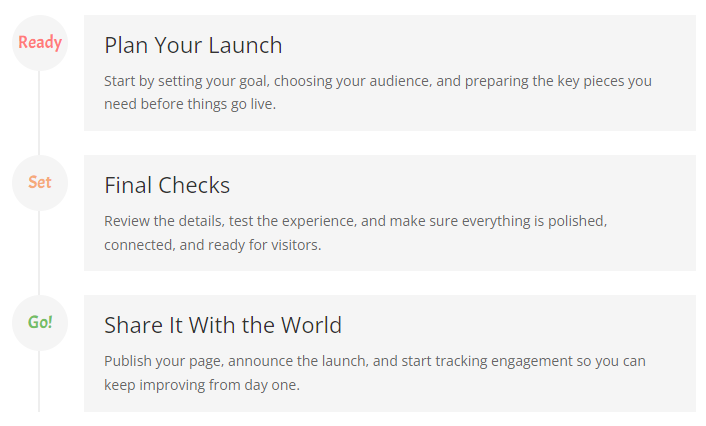
Continue customizing your timeline
Once your markers have custom text, you may want to refine the timeline further. Good next steps are learning how to change the style of Divi Timeline items on scroll, turn the Divi Timeline module into a horizontal carousel, or add custom icons to the Divi Timeline module.
Conclusion
Custom marker text gives the Divi Timeline module another useful way to communicate meaning quickly, whether you’re showing steps, dates, statuses or compact labels. If there are related marker options you’d like to see added, such as marker text presets, icons plus text, badges, prefixes or conditional styling, let us know in the comments.


0 Comments