

Divi’s Button module includes a built-in icon option, but it only lets you choose from Divi’s standard icon set. If you want to use your own SVG, PNG, brand mark, product icon, download icon or custom CTA graphic, Divi doesn’t provide a built-in upload field.
In this guide, I’ll show you how to add custom image icons to the Divi Button module using Divi Booster, so you can upload your icons once and select them directly from Divi’s button icon picker.
Quick answer: Divi doesn’t include a built-in way to upload a custom image icon to the Button module, but Divi Booster adds this option. Enable it at Divi → Divi Booster → Site-wide Settings → Icons → Add custom icons for use in modules, upload your icon, then select it at Button → Design → Icon → Button Icon. Make sure Show Button Icon is enabled, and disable Only Show Icon On Hover For Button if you want the icon visible before hover.
The feature works with both Divi 5 and Divi 4. Other methods, such as using the Blurb module, CSS background images, Font Awesome or a generated webfont, can work in some cases, but they often mean replacing the Button module, writing custom code or creating a separate icon font. Divi Booster uses a simpler image-based method, so you can keep using Divi’s normal Button module settings while choosing your uploaded icon from the button icon picker.
Add a Custom Icon to the Divi Button Module using Divi Booster
This method uses Divi Booster to add custom image icons to Divi’s module icon picker. Once uploaded, your icon becomes available in supported icon fields, including the Button module’s Button Icon setting.
This is usually easier than creating a custom icon font with tools such as IcoMoon or Fontello, especially if you only need a few brand, logo or project-specific icons. For most sites, uploading the icons directly through Divi Booster is quicker and easier to manage.
Add the Custom Icons Feature to Divi
To follow the steps below, first install Divi Booster. It adds the site-wide custom icons feature used in this guide, so you can upload your icon once and select it in the Divi Button module.
Get Divi Booster below, then follow the steps to add your custom icon.
Enable Custom Icons in Divi Booster
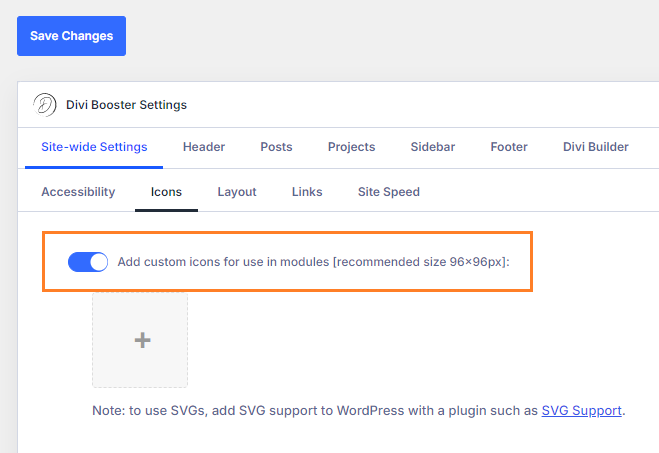
In your WordPress dashboard, go to Divi → Divi Booster → Site-wide Settings → Icons, then enable Add custom icons for use in modules.
This displays the upload controls for adding your own icons.
Upload Your Custom Button Icon Image
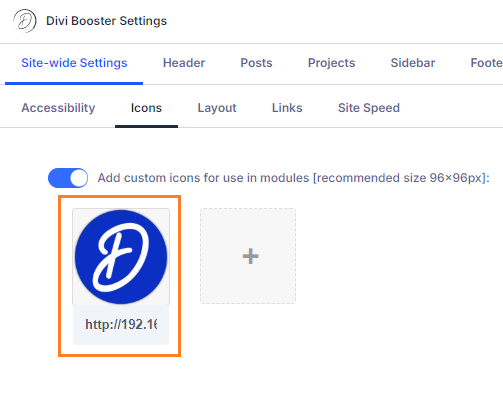
Click the + icon in the custom icons setting to upload a new icon image or choose an existing image from the WordPress Media Library.
Divi Booster uses images from the WordPress Media Library, so supported formats generally follow what your WordPress site allows. For button icons, SVG usually gives the sharpest result, while transparent PNG is a good fallback. JPG, JPEG, WebP and other supported formats may also work, but they are usually less suitable for simple icon-style graphics.
If you want to use SVG icons, enable SVG uploads first, as WordPress does not allow them by default. The free SVG Support plugin works well for this.
After selecting your icon, it should appear in the Divi Booster custom icons setting.
Add More Icons or Remove Existing Ones
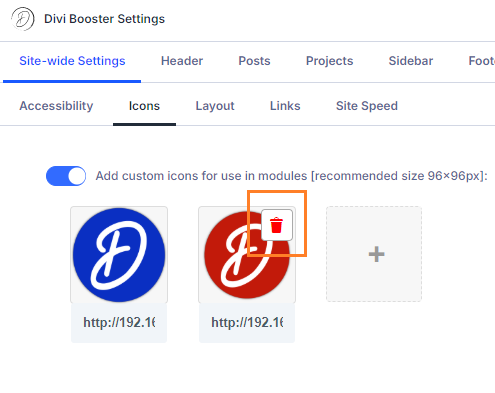
To add another custom icon, click the + icon again and choose another image from the Media Library. To remove an icon, hover over it and click the trash can icon.
To add an icon by URL instead, close the Media Library popup and paste the icon URL into the URL field below the icon.
Save the Divi Booster Settings
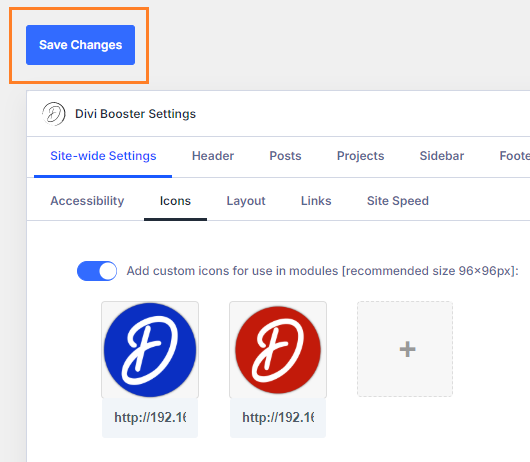
Once you have added your custom icons, save the Divi Booster settings.
After saving, your custom icons will be added to supported Divi module icon lists. Depending on your Divi and Divi Booster versions, the icons may appear near the start of the icon picker rather than at the end.
Enable the Button Icon in the Divi Button Module
Now open the page containing your Button module in the Divi Builder.
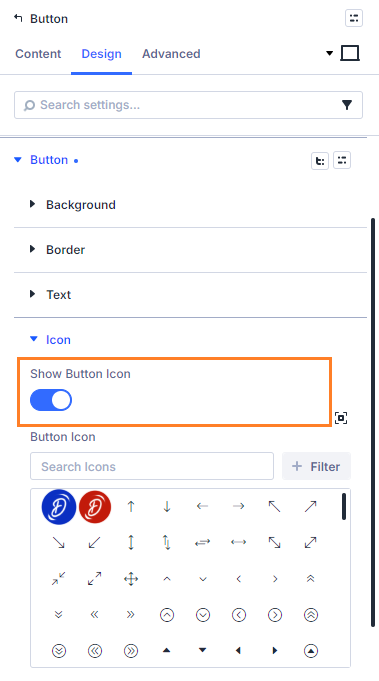
Open the Button module settings, then go to: Design → Button → Icon.
Make sure this option is enabled: Show Button Icon
This is enabled by default in many Divi button setups, but it’s worth checking. If this option is disabled, the button icon won’t display.
Select Your Custom Icon in the Divi Button Module
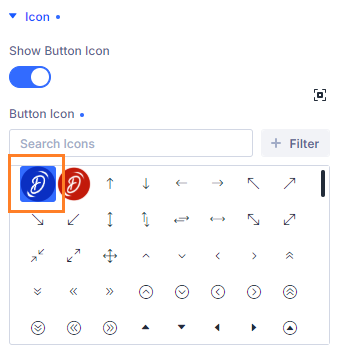
Choose your uploaded custom icon from the icon picker, at:
Button → Design → Icon → Button Icon
Your custom icon should now be selected as the Button module icon.
(Optional) Show the Button Icon All the Time
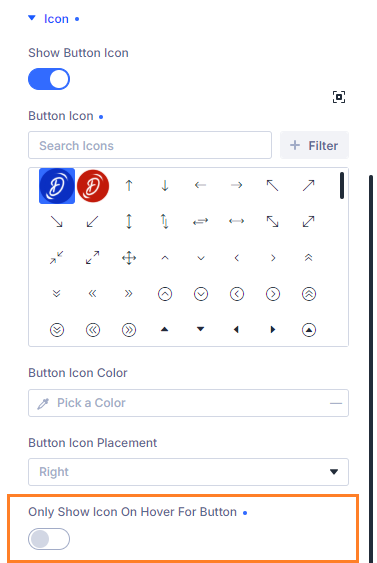
By default, Divi buttons often show the icon only on hover.
To make your custom icon visible before hover, go to Button → Design → Icon and disable Only Show Icon On Hover For Button.
This is usually best when the icon is important to the button’s meaning, such as a download, booking, cart or brand-specific CTA icon. If you prefer a cleaner default button state, leave the hover-only option enabled.
Style Your Custom Divi Button Icon
Custom icons added with Divi Booster are image-based icons, not font icons. This means they behave slightly differently from Divi’s built-in icon font.
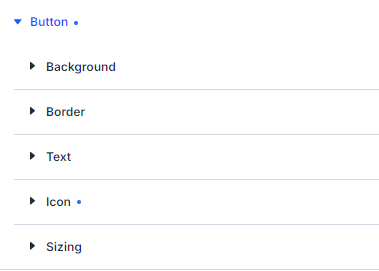
You can still use Divi’s normal Button module design settings for the button text, background, border, spacing, hover styles, alignment and responsive layout.
The main limitation is icon colour. Divi’s built-in icons are font icons, so Divi can recolour them like text. Uploaded image icons do not automatically respond to Divi’s icon colour setting in the same way.
For best results, use SVG where possible, or transparent PNG if SVG is not suitable. Crop icons tightly, use a consistent canvas size across icon sets, and upload the icon in the colour you want displayed on the site.
If you need the same button icon in multiple colours, upload a separate version for each colour.
Save and View Your Custom Button Icon
Once you’ve selected your custom icon, save the module and page, then exit the Visual Builder and check the front end of your site.
If the icon appears in the Visual Builder but not on the live page, clear Divi’s static CSS cache, any caching plugins, server cache or CDN cache, then reload the page.

Troubleshooting – Custom Icon Not Showing in the Divi Button Module
If your custom icon doesn’t appear in the Button module icon picker or on the front end, check the following:
- Divi Booster is installed, activated and updated.
- Add custom icons for use in modules is enabled in Divi → Divi Booster → Site-wide Settings → Icons.
- You saved the Divi Booster settings after uploading the icon.
- You selected the icon at Button → Design → Icon → Button Icon.
- Show Button Icon is enabled.
- Only Show Icon On Hover For Button is disabled if you want the icon visible before hover.
- You have checked near the start of the icon list, as custom icons may appear there in newer versions.
- Any WordPress, Divi, server, CDN or performance plugin caches have been cleared.
- For SVG icons, SVG uploads are enabled on your WordPress site.
- The uploaded image format is suitable for icons; SVG or transparent PNG usually works best.
Continue Customizing Your Divi Icons
Once you’ve added a custom icon to the Divi Button module, you may also want to:
Add custom icons to Divi modules – upload your own image icons once and reuse them across supported Divi icon fields.
Add custom image icons to the Divi Social Media Follow module – add social platforms or brand icons not included in Divi’s default social icon list.
Add icons to Divi Tabs module tab titles – useful for pricing sections, FAQs and product information.
Add icons to Divi Accordion titles – make FAQ and collapsible content sections easier to scan.
Add more social icons to the Divi header or footer – link to additional social platforms from global site areas.
FAQs
Can I add a custom icon to the Divi Button module?
Yes. Divi doesn’t include a built-in upload field for custom Button module icons, but Divi Booster adds custom image icons to Divi’s module icon picker. After uploading your icon in Divi Booster, you can select it from Button → Design → Icon → Button Icon.
Where is the Button icon setting in Divi?
Open the Button module settings and go to Button → Design → Icon. Make sure Show Button Icon is enabled, then choose your icon from Button Icon.
How do I make the Divi Button icon show all the time?
Open the Button module settings and go to Button → Design → Icon. Disable Only Show Icon On Hover For Button. This makes the icon visible before hover instead of only appearing when the user hovers over the button.
Can I use an SVG icon in the Divi Button module?
Yes. Divi Booster can use images from the WordPress Media Library, and SVG icons usually give the cleanest result for button icons. WordPress does not allow SVG uploads by default, so you may need to enable SVG uploads first using a plugin such as SVG Support.
Can I use a PNG icon in the Divi Button module?
Yes. Transparent PNG icons can work well, especially if SVG is not suitable. For best results, use a tightly cropped transparent PNG with a consistent canvas size.
Does this work with Divi 5?
Yes. Divi Booster’s custom icons feature works with both Divi 5 and Divi 4. If your custom icon doesn’t appear after updating Divi, make sure you are using the latest version of Divi Booster and clear any caches.
Do I need to create a custom icon font?
No. With Divi Booster, you can upload image-based icons and select them from supported Divi module icon lists, including the Button module. This avoids the need to create a webfont with tools such as IcoMoon or Fontello.
Is this better than using the Blurb module as a button?
It depends on the layout. The Blurb module can work well for larger icon-and-text blocks, but it means you are no longer using Divi’s Button module. If you want a normal Divi button with a custom icon, Divi Booster lets you keep the Button module and select your uploaded icon from the icon picker.
Is this better than using CSS or Font Awesome?
If you just want to add your own SVG or PNG icon to a standard Divi button, Divi Booster is usually simpler because you can select the icon from the Button module’s icon picker. CSS background-image methods and Font Awesome snippets can work, but they usually require custom code and are better suited to more specific layouts or icons already available in Font Awesome.
Can I change the colour of an uploaded button icon in Divi?
Uploaded custom icons are image-based, so they do not automatically recolour like Divi’s built-in font icons. Upload the icon in the colour you want to display. If you need the same icon in multiple colours, upload separate versions of the icon.
Conclusion
Adding a custom icon to the Divi Button module is a simple way to make your calls to action more branded and specific.
With Divi Booster, you can upload your own SVG, PNG or other WordPress-supported image icons and select them directly from the Button module’s icon picker – without replacing the Button module, writing custom CSS, adding Font Awesome code or generating a custom icon font.
For best results, use SVG or transparent PNG icons, enable Show Button Icon, select your uploaded icon from Button Icon, and disable Only Show Icon On Hover For Button if you want the icon visible before hover.
Is there another Divi module where you’d like to use a custom icon? Let me know in the comments and I’ll try to help.

0 Comments