

Divi includes a large set of built-in icons, but sometimes you need your own – such as a client logo, brand icon, product icon, or custom graphic that isn’t included in Divi’s default icon set.
In this guide, I’ll show you how to add custom image icons to Divi’s module icon picker using Divi Booster. This lets you upload your icons once and reuse them across supported Divi modules, without creating a custom icon font.
Quick answer: Divi doesn’t include a built-in way to add your own image icons to the standard module icon picker, but Divi Booster adds this option. Once enabled, go to Divi → Divi Booster → Site-wide Settings → Icons, turn on Add custom icons for use in modules, upload your icon image(s), then select them from supported Divi module icon lists. This avoids the need to generate and upload a custom icon font.
The guide has been updated for Divi 5 and Divi 4.
Some Divi custom icon methods require you to create a webfont using tools such as IcoMoon or Fontello. Divi Booster uses a simpler image-based method, which is best when you want to add your own logo-style, brand, client or project-specific icons without building a full custom icon font.
How to Add Custom Icons to Divi Modules using Divi Booster
This method uses Divi Booster to add custom image icons to Divi’s module icon picker. This is usually the easiest approach to adding custom icons to your Divi site and avoids the need to compile your icons into a icon font set.
Creating your own icon set usually only makes sense if you're dealing with a lot of icons or need to be able to treat your icons as text. For most sites, though, direct image upload via Divi Booster will be quicker and easier to manage.
Once uploaded in Divi Booster, the icons can be reused across supported modules simply by selecting them from the module icon picker.
Add the Custom Icons Feature to Divi
To follow the steps below, first install Divi Booster. It adds a site-wide custom icons feature, so you can upload your own image icons once and reuse them in supported Divi modules without custom CSS or custom webfont generation. The feature works with both Divi 5 and Divi 4.
Get Divi Booster below, then follow the steps to add your icons to Divi’s module icon picker.
Once installed and activated, Divi Booster adds the custom icon controls to its settings page.
Enable Custom Icons in Divi Booster
In your WordPress dashboard, go to Divi → Divi Booster.
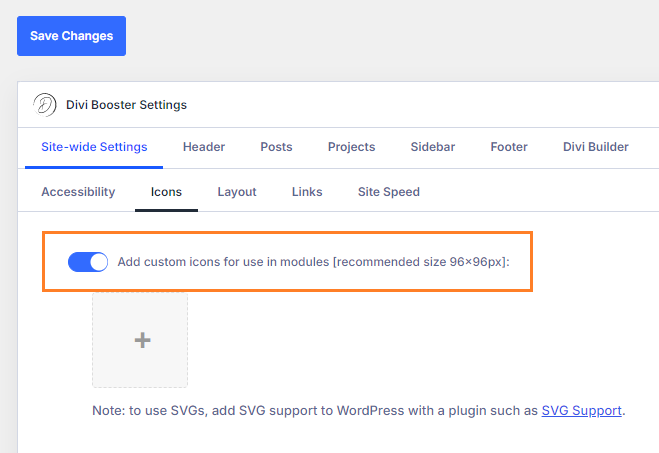
Open Site-wide Settings, then open Icons. Enable the option labelled Add custom icons for use in modules.
This turns on the custom icons feature and displays the upload controls for adding your own icons.
Upload Your Custom Icon Image
Click the + icon in the custom icons setting to upload a new icon image or choose an existing image from the WordPress Media Library.
Divi Booster uses images from the WordPress Media Library, so supported formats generally follow what your WordPress site allows. SVG and transparent PNG usually give the cleanest icon-style result, while JPG, JPEG, WebP and other supported image formats may also work.
If you want to use SVG icons, make sure SVG uploads are enabled, as WordPress does not allow them by default. The free SVG Support plugin works well for this.
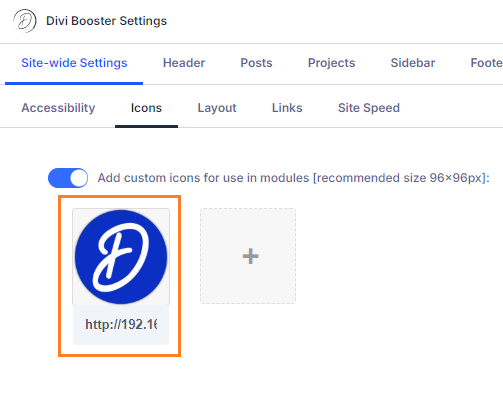
After selecting your icon, it should appear in the Divi Booster custom icons setting.
Add More Icons or Remove Existing Ones
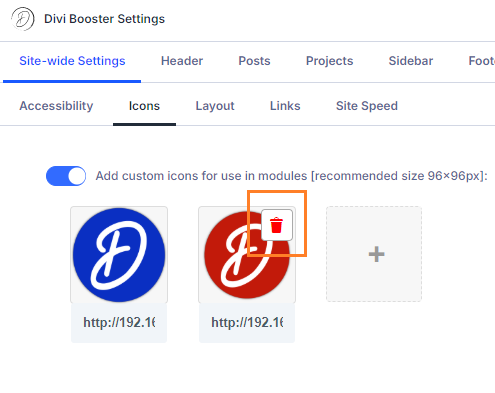
To add another custom icon, click the + icon again and choose another image from the Media Library.
To remove an icon, hover over it and click the trash can icon that appears over the image.
If you want to add an icon by URL instead of choosing it from the Media Library, close the Media Library popup and paste the icon URL into the URL field below the icon.
Save the Divi Booster Settings
Once you have added your custom icons, save the Divi Booster settings.
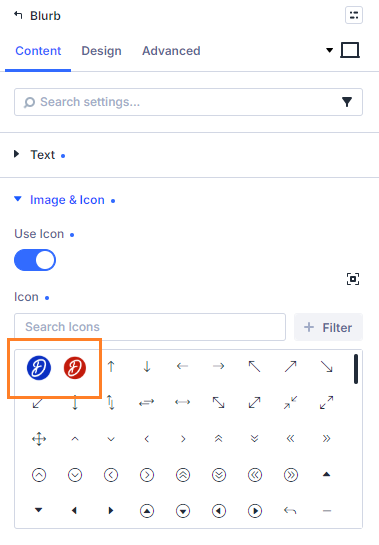
After saving, your custom icons will be added to supported Divi module icon lists. Depending on your Divi and Divi Booster versions, the icons may appear near the start of the icon picker rather than at the end.
Select Your Custom Icon in a Divi Module
Open the Divi Builder and edit the module where you want to use your custom icon.
For example, in a Blurb module, open the module settings and go to Content → Image & Icon. Enable Use Icon, then open the icon picker and select your uploaded custom icon from the list.
The exact setting name may vary slightly depending on the module, but the general process is the same: open a module that supports icons, open its icon picker, then choose your uploaded custom icon.
Style Your Custom Icons
Custom icons added with Divi Booster are image-based icons, not font icons. This means they behave slightly differently from Divi’s built-in icons.
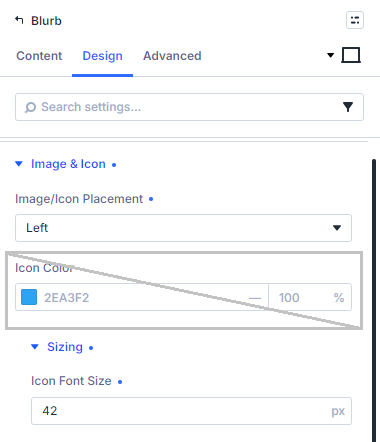
In most modules, you can still adjust icon size and placement using Divi’s normal design settings. Background styles should also work as expected, provided your icon image has suitable transparency or spacing.
The main limitation is colour. Divi’s built-in icons are font icons, so Divi can recolour them like text. Uploaded image icons do not automatically respond to Divi’s icon colour setting in the same way.
For best results:
- use SVG where possible for sharp scaling
- use transparent PNG if SVG is not suitable
- avoid JPG for simple icons unless you do not need transparency
- crop the icon tightly to avoid uneven spacing
- use a consistent canvas size for icons in the same set
- upload the icon in the colour you want displayed on the site
If you need the same icon in multiple colours, upload a separate version for each colour.
Save and View Your Custom Icon
Once you’ve selected your custom icon in the Divi module, save the module and save the page.
Then exit the Visual Builder and check the page on the front end of your site. Your custom icon should appear in the module where you selected it.
If the icon appears in the Visual Builder but not on the live page, clear any caching plugins, Divi static CSS cache, server cache or CDN cache, then reload the page.
Troubleshooting – Divi Custom Icons Not Showing
If your custom icons don’t appear in the Divi icon picker or on the front end, check that:
- Divi Booster is installed, activated and updated.
- Add custom icons for use in modules is enabled in Divi → Divi Booster → Site-wide Settings → Icons.
- You saved the Divi Booster settings after uploading the icon.
- You are using a module that supports Divi’s standard icon picker.
- You have checked near the start of the icon list, as custom icons may appear there in newer versions.
- Any WordPress, Divi, server, CDN or performance plugin caches have been cleared.
- For SVG icons, SVG uploads are enabled on your WordPress site.
- The uploaded image format is suitable for use as an icon. For example, JPG images may work, but they do not support transparency.
Continue Customizing Your Divi Icons
Once you’ve added custom icons to Divi’s module icon lists, you may also want to:
- Add custom image icons to the Divi Social Media Follow module – useful when you want to add a social platform or brand icon that isn’t included in Divi’s default social icon list.
- Add icons to Divi Tabs module tab titles – useful for feature comparisons, pricing sections, FAQs or product information where each tab needs a visual cue.
- Add icons to Divi Accordion titles – useful when you want FAQ or collapsible content sections to be easier to scan.
- Add more social icons to the Divi header or footer – useful when you want to link to additional social platforms from your site’s global header or footer.
FAQs
Can I add custom icons to Divi without creating an icon font?
Yes. With Divi Booster, you can add custom image icons to supported Divi module icon lists without creating a webfont with tools such as IcoMoon or Fontello. Upload the icon image through WordPress, save the Divi Booster settings, then select it from the module icon picker.
Does this work with Divi 5?
Yes. Divi Booster’s custom icons feature is designed to work with both Divi 5 and Divi 4. If your icons don’t appear after updating Divi, make sure you are using the latest version of Divi Booster and clear any caches.
Is Divi Booster’s custom icon feature only for SVG icons?
No. Divi Booster uses images from the WordPress Media Library, so supported formats generally follow what your WordPress site allows. SVG and transparent PNG are usually best for icon-style graphics, but other supported formats may also work.
What is the easiest way to add a few custom icons to Divi?
If you only need to add a few brand, logo, client or project-specific icons, the easiest method is usually to upload them as image icons with Divi Booster. A custom icon-font workflow may be better for larger icon libraries, but it requires extra steps to generate and upload the font files.
Conclusion
Adding custom icons to Divi modules is a useful way to make your designs more branded, specific and reusable. With Divi Booster, you can upload your own image icons through WordPress and make them available in supported Divi module icon lists.
For best results, use SVG or transparent PNG icons where possible, though other WordPress-supported image formats may also work.
Is there another place in Divi where you’d like to use a custom icon – such as a specific module, menu item, button, header area or third-party module? Let me know in the comments and I’ll try to help.

Dan, I've added the icons in SVG format and they are not showing up in the Divi icon set. Looks like more changes have taken place. I have the latest Divi version.
Hey Matt, I've just done some testing and SVG icons are still working for me in the latest Divi, so I'm not sure yet what is causing the issue on your site. Which module / settings field are you working on? Also is this in the module settings that they aren't showing up or on the front-end (or both)? If possible, are you able to share a link to an example page or a login so that I can look into it for you? You can send the details to me privately via the Contact Form. Thanks!
This is in the Blurb Module on the backend. I'm not seeing any of the SVGs I've uploaded even though they are showing up in the plugin settings. And even though I see a lot of icons, much more random ones than I expected. Blue Sky is still not one of them. I thought your plugin was one I saw it was added too.
Hey Matt, it sounds like you've been able to solve this by updating to the latest version of Divi Booster. I wrote to you about some suspected admin caching issues, though now I'm wondering if you updated the plugin while I was looking at it… Either way, it looks like the icons are showing up now. Hopefully you're seeing them too?
Yes that was the issue.
Thanks!
You're welcome, Matt. Glad you were able to figure it out!
Hi Dan, I added everything properly and am using a custom icon for a button hover effect. However, I'm not seeing the icons live on my site. When I scroll over while in Visual Builder I see the effect properly. But once I exit Visual Builder or view as a live site in an incognito window, the icon does not appear on hover. I have cleared cache, etc. Can you help at all?
Hi Bainie, sorry you've been having this issue. It looks like it's triggered when "Divi > Theme Customizer > Buttons > Buttons Styles" is set to "No".
I've got a fix coming for this in the next version of Divi Booster (v4.1.2) which I hope to have out early next week. A workaround in the meantime would be to set that option to "Yes", or add the following CSS to the site:
.et_button_no_icon .db-custom-extended-icon.et_pb_button:after{
	display: inline-block;
}
.et_button_no_icon .db-custom-extended-icon.et_pb_button:hover,
.et_button_no_icon .et_pb_module .db-custom-extended-icon.et_pb_button:hover{
	padding:.3em 2em .3em .7em !important;
}
I hope that helps, but let me know if not. Thanks!
Hey Bainie, I've just released the update (v4.1.2) with the fix included. I hope it helps, but please let me know if your custom icons are still not showing up after that. Thanks!
I just purchased Divi Booster – specifically to add icons to the icon picker. I follow your instructions but I can only add 1 icon. After saving Divi Booster settings and attempting to add a second icon the first uploaded icon is removed from the picker and the two spaces for uploading icons both show the last uploaded icon. I have tried several times and get the same result.
Hey Cale, sorry to hear you've having this issue. I've just done some testing and it doesn't happen on my test sites (latest Divi, WP, etc). It does, however, remind me of a case I saw a few years back where a another plugin was inadvertently messing up the HTML of the Divi Booster settings page and causing something similar. I forget the details, but we were ultimately able to resolve that one. Is there any chance I'd be able to login to the site to take a look for myself? If so, perhaps you could send through the login details via the contact form? Alternatively, try temporarily disabling the other plugins on the site to see if that resolves it. I hope that helps!
Hello Dan, I followed your CSS and did everything correctly, but its not show up, is it because of different version of Wordpress or DIVI? Seems the CSS not working, and I don't want too much plugins for my site, please help, thank you.
Hi Jasper, unfortunately the Divi 4.13 update made some big changes to the handling of icons that were incompatible with the code given in the post. While I've been able to fix the custom icon feature in Divi Booster, I haven't yet managed to update the PHP code in this post. I hope to do so soon. So my sincere apologies, the manual PHP code version won't work at the moment in the latest version of Divi.
Hi Dan, I've recently started using the plug-in to add customized icons to my site, mainly to add a customized scroll down icon to the Scroll Down Icon list in the Header. Unfortunately, no added icons are showing, and I can't find any relevant info addressing this issue. Is there a way to solve this using this plug-in?
Hey Mor, the fullwidth header module's scroll down icon picker is implemented a bit differently to the icon picker in other modules, and so the Divi Booster custom icon feature wasn't applying to it. However, I've just gone through now and added support for custom icons in scroll down icons, which will be in the next update (v3.7.0). After updating, custom icons added via "Divi > Divi Booster > Site-wide settings > Icons" should become available in the fullwidth header module. I hope to have it released before the end of the week. I'll let you know when it's ready. I hope it does what you need, but let me know if not. Cheers!
I've now released the update (v3.7.0) to add support for custom icons in the fullwidth header scroll down icon picker. Hope it helps!
Hi I bought divi booster specifically to be able to add custom icons to a site, its all activated and I have followed the steps to add a custom icon but when i go to the button in the divi builder the custom icon isnt an option within the icons.
Hi Rachel, sorry you've been having this issue. The recent Divi update made some sweeping changes to the way it handles icons, which ultimately stopped the Divi Booster feature from working. I've now released an update to address this (v3.6.8). Hopefully the update will get the icons working for you, but please let me know if not. Thanks!
Hello Dan,
I would like to inform you that my custom icon has suddenly disappeared from the list of built-in icons. I have been using my custom icon for at least 3 years through your plugin. And I used it in each of my many blurbs that were on my 74 pages until a few days ago. On some of my pages even 3 or 4 blurbs have been visible in my posts.
Now today I immediately had the suspicion that it must be only because of the last Divi update a few days ago.
So I just did a downgrade (rollback)from 4.13 to 4.12.1 in the Divi Theme Updates.
Lo and behold, my custom icon appears again in the built-in icons list.
What do you think is the reason that the update to Divi 4.13 made my custom icon disappear?
Thank you for your respond,
Torsten
Hi Torsten
Thanks for getting in touch and sorry you've been having this issue.
You're absolutely right, it's the recent Divi update which has caused this feature to stop working. The update made some quite sweeping changes to the way Divi handles icons, and I'm currently working on a fix to restore the icons / feature. I'm hoping to have it sorted out before the end of this week, and I'll let you know as soon as I have an update ready.
Sorry for the hassle,
Dan
Hey Torsten
I've just released the update (v3.6.8) to address the custom icon issue, so it should show up in your WordPress plugins page shortly. If you don't see it right away, click the "Check for Updates" link next to the plugin and it should pick it up. If you aren't able to update via the WordPress plugins page, you can also access the download in your Divi Booster account.
I hope the update helps, but please let me know if you have any questions about it.
Thanks and my apologies again,
Dan
Jumping in.
Experiencing the same issues as Torsten. Been using this feature a long time and now it's broken.
Upgrading to version 3.6.8 doesn't clear the issue. (Everything else is updated.) I've saved my Booster settings but the custom icons still isn't available through the blurb module.
Do I need to activate something to have this feature running again? Any suggestions?
Thanks in advance.
Hey Rickard, there's nothing you should need to do to re-activate the feature. One change though is that the custom icons now appear at the very start of the icon list, rather than the end as used to be the case. I'd suggest checking for them there. if you still don't see them, is there any chance I'd be able to login and take a look for you? If this is possible, you can send the details via the contact form. Thanks!
Hi Dan. Thank you for your reply. This was exactly the issue. I was looking for them at the end of the list. Things seems to be working as expected. Great. Thanks!
Great! Thanks for letting me know, Rickard!
Hi Dan,
First of all, I wanted to say thanks – I've been using your plugin for (?) six years – maybe more now? Wow… Where has that time gone!?
I followed your tutorial and added an icon, but couldn't see it (it is in the divi-booster section but doesn't come through to the blurb. I cleared my cache as you suggested in the comments.
What I really want to do is add our logo as a bullet point for a list. Is this possible?
Many thanks,
Matt
Hey Matt, sorry I'm just replying now. Yeah, six years, mate – it launched in Feb 2015. Like you I have absolutely no idea where the time has gone! :)
I've updated the instructions in the post to clarify a couple of things, just in case that was the issue. Specifically, make sure the checkbox next to the feature is ticked, and check the screenshot of the module settings for an example of where to find the icon – it'll show up at the end of the icon list. Hopefully that points you in the right direction, but if you're still not seeing the icon, perhaps you could send through a login via the contact form so that I can take a look for myself?
It's possible in general to use an image as the list bullet points, though I haven't tried doing so with a custom icon yet. Is there any chance you're able to send through an example of the list and logo image (URL)? I'll have a go at it on my test site when I get a chance, but it would be great to see your setup so that I can make sure anything I come up with will work on your site. Cheers!