
By default, Divi's Accordion module only lets you display a title and content for each item. If you'd like to add a subtitle beneath each accordion title, this guide shows you exactly how. You'll learn how to add subtitles, style them across the whole module, and optionally customize individual accordion items.

The feature is available either as the standalone Divi Accordion Subtitles plugin or as part of Divi Booster. Both add the same accordion item subtitle option to the Accordion module, so you can use whichever best matches your setup.
Here's how a default accordion module looks before adding subtitles, and after:
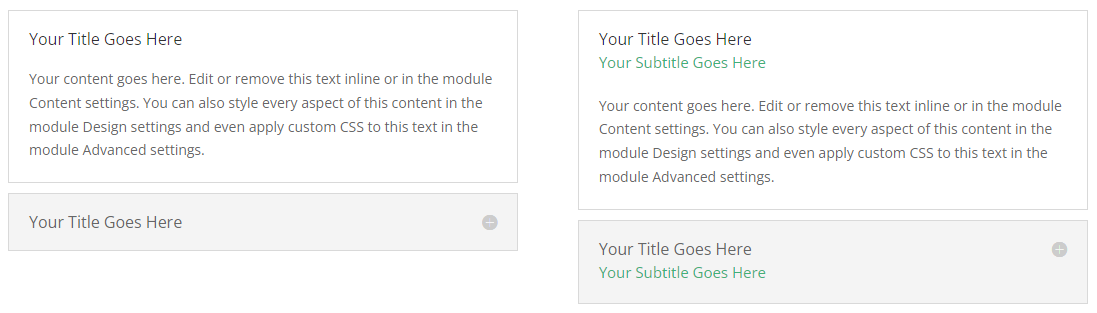
Add Subtitles to the Divi Accordion Module without Code
This tutorial demonstrates how to use the Accordion Subtitle feature to add subtitle text to individual Divi 5 accordion items. You'll also learn how to use shared Subtitle Text typography settings from the parent Accordion module and override the subtitle text color for individual items. Let’s get started!
Note that this method is currently for Divi 5 only – it won't work with Divi 4 or earlier.
Install the Feature
Divi doesn't currently include a built-in option for accordion subtitles. To follow this guide, you'll first need either our standalone Accordion Subtitle plugin, or Divi Booster, which now includes the same functionality. Either plugin adds subtitle fields and styling controls directly into the Divi 5 Accordion module.
Just need this one feature? You can download the standalone plugin here:
Already using Divi Booster? This feature is included – there's no need to purchase the standalone plugin. You can learn more about Divi Booster here.
After installing either the standalone plugin or Divi Booster, the feature is available automatically. You can install either plugin as follows:
- Download the plugin ZIP file.
- Go to Plugins › Add New Plugin › Upload Plugin.
- Upload the ZIP file.
- Select Install Now, then Activate Plugin.
You can then follow the steps below.
Add Subtitles to Accordion Items
Open the Accordion module settings, then expand an accordion item. If you haven't already done so, add your desired title and content as normal.
Enter the subtitle you want to display beneath the accordion title. The subtitle appears immediately below the main heading, giving visitors additional context before expanding the item.
Repeat for any other accordion items that need subtitles.
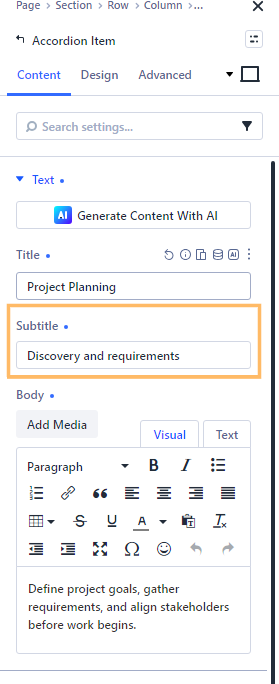
Style All Accordion Subtitles Using the Parent Module Settings
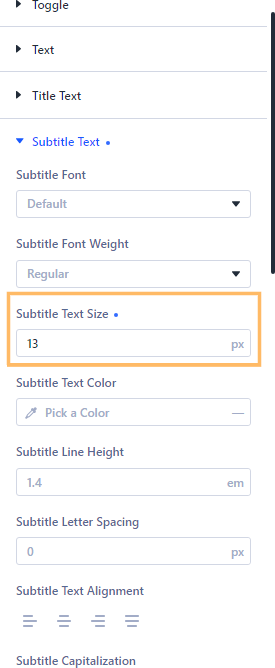
For consistent typography across all your accordion subtitles, use the Accordion module's main Design tab. Scroll down to the "Subtitle Text" section. Here you can set the font size, color, line height, and letter spacing for all subtitles at once.
These settings control the typography for every subtitle in the Accordion module, helping maintain a consistent visual hierarchy. Individual items can still override these settings where needed.
Style the Individual Accordion Item Subtitles
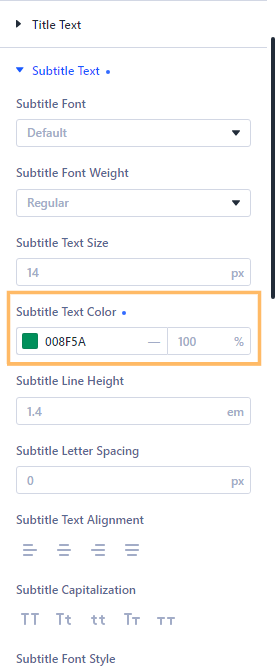
You can also customize the subtitle text styles for specific accordion items. In the item's settings, switch to the Design tab and open the "Subtitle Text" styling group.
Use item-level styling when you want to highlight a particular accordion item or visually separate featured content from the rest.
Save and Preview Your Changes
Once you’ve added your subtitles and styled them, Save & Publish, then view the page to confirm each subtitle displays correctly on the front end.

Customize your Accordion Module Further
Now your accordion subtitles are working, you might also want to:
Conclusion
That's all there is to adding subtitles to the Divi Accordion module. By combining module-wide typography with optional per-item styling, you can create accordions that are easier to scan while keeping a consistent design.
If you're trying to customize the Divi Accordion module further, let us know in the comments. We're always looking for new Divi features and tutorials to create, and your suggestion may become our next guide.


0 Comments