
By default, the Divi Accordion module opens the first accordion item when the page loads. If you want a cleaner FAQ, pricing, product details, or documentation layout, you may prefer all accordion items to start closed instead.
Quick answer: To make a Divi Accordion module start all closed, open the Accordion module settings and set Design → Toggle → Initial State to All Closed. This option is added by Divi Booster. Alternatively, you can use a jQuery snippet to remove Divi’s default open state from the first accordion item.
Watch the walkthrough below to see both methods in action:

This guide works with both Divi 5 and Divi 4. It shows you how to set the accordion module all closed on load using these two methods:
- Divi Booster – No-code setup, easier future changes, Divi 5 / Divi 4 compatibility
- jQuery – One-off custom code changes, if you are comfortable maintaining snippets
Note: This guide covers making the Accordion module start closed on page load. If you want visitors to be able to close an already-open accordion item after clicking it, see the related guide on making Divi accordion items closeable.
Before and After
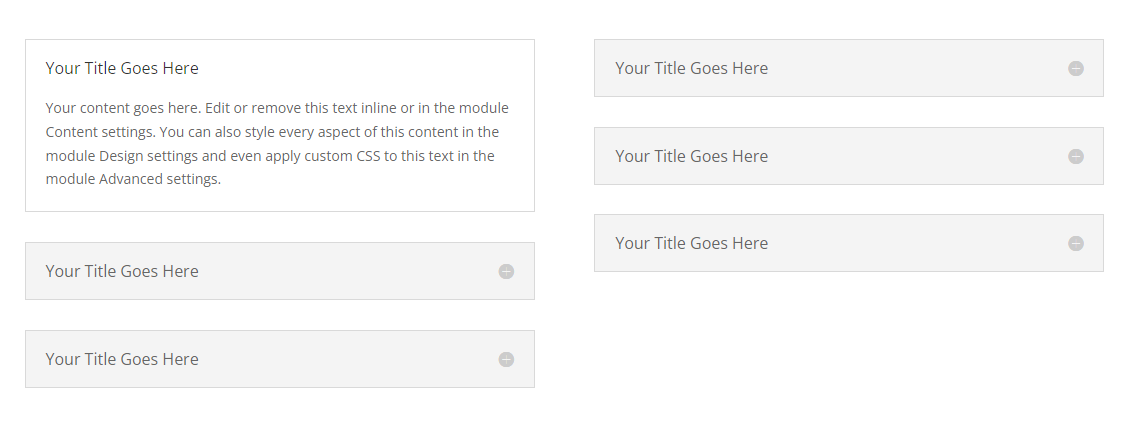
The example below shows the difference. On the left, Divi’s default Accordion module opens the first item automatically. On the right, the accordion starts with every item closed, creating a more compact layout on page load.
How to Make a Divi Accordion Closed by Default Using Divi Booster
Divi Booster adds an Initial State option to the standard Accordion module settings, letting you choose whether the accordion starts in Divi’s default state, all closed, or all open. Here’s how to use it to make a Divi accordion start closed by default.
Install and Activate Divi Booster
First, install and activate Divi Booster on your site. This adds the Initial State option to Divi’s Accordion module, so you can set the accordion to start all closed without editing code.
After activating Divi Booster, open the page containing your Accordion module and follow the steps below.
Open the Accordion Module Settings
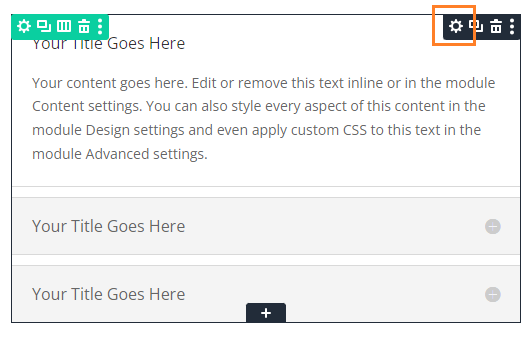
Locate the accordion module you want to modify, or add it to your layout if you haven't already. Then, hover over the module to reveal the module buttons. If your Divi Builder is set to use "Click" mode, you may need to click on the module instead of hovering. Click the "Gear" icon to open the module's settings.
Go to "Design → Toggle → Initial State"
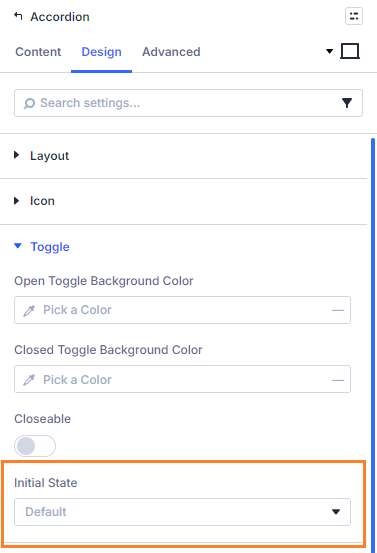
Now, in the Accordion module settings, click on the Design tab and then on the "Toggle" to expand the Toggle settings. You should now see the "Initial State" option added by Divi Booster.
Choose "All Closed"
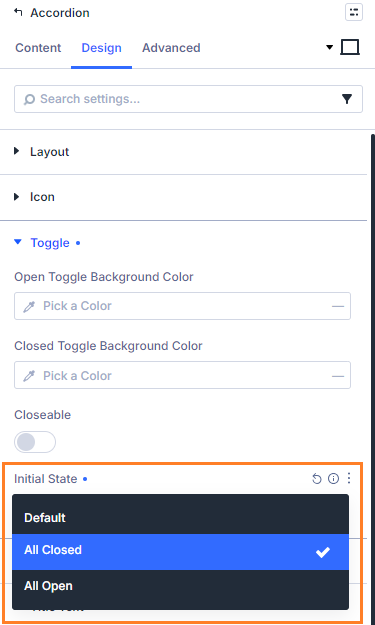
If you click on the "Initial State" select box, you'll see three options. "Default" just gives you the standard accordion module behavior – it leaves the first toggle open as normal. "All Closed", which is what we want here, makes the Divi accordion module start with all of its toggles closed. There's also "All Open" which makes the accordion start with all of the toggles expanded. Click on "All Closed" to set the initial accordion module state to all closed.
Save and View the Result
Now save the module settings. Note that the initial state setting doesn't show in the visual builder preview. To see the result, save your page or post and view it on the front-end. You should now see that your accordion module starts with all of its toggles closed.
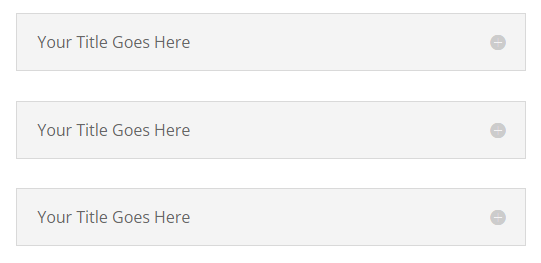
After a visitor opens one item, the module behaves like a normal Divi accordion: opening another item closes the previously open one.
Tip: Want every Accordion module on the site to start closed? Divi Booster also includes a global option under Divi → Divi Booster → Modules → Accordion.
Continue Customizing Your Accordion
Once your accordion starts all closed, the next useful improvement is usually to control how visitors interact with it. You may also want to:
How to Make a Divi Accordion Start All Closed Using jQuery
If you are comfortable adding custom code to your site, then it is possible to make a Divi accordion start closed using jQuery. This is useful if you only need a one-off code solution. However, because it depends on Divi’s accordion markup and CSS classes, you may need to retest it after major Divi updates. That said, let's see how it can be done.
Open the Divi Theme Options
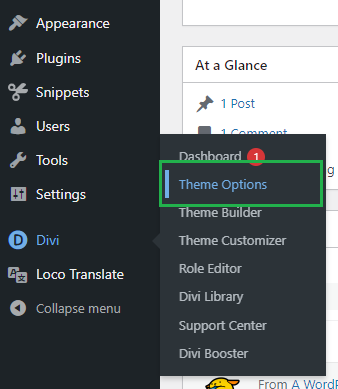
Divi's Theme Options include various settings for configuring Divi, including the option to add custom code. To open the theme options, from your WordPress dashboard, click on "Divi" in the sidebar menu, then the "Theme Options" sub-menu item.
Navigate to the "Add Code to the Head of your Blog" Setting
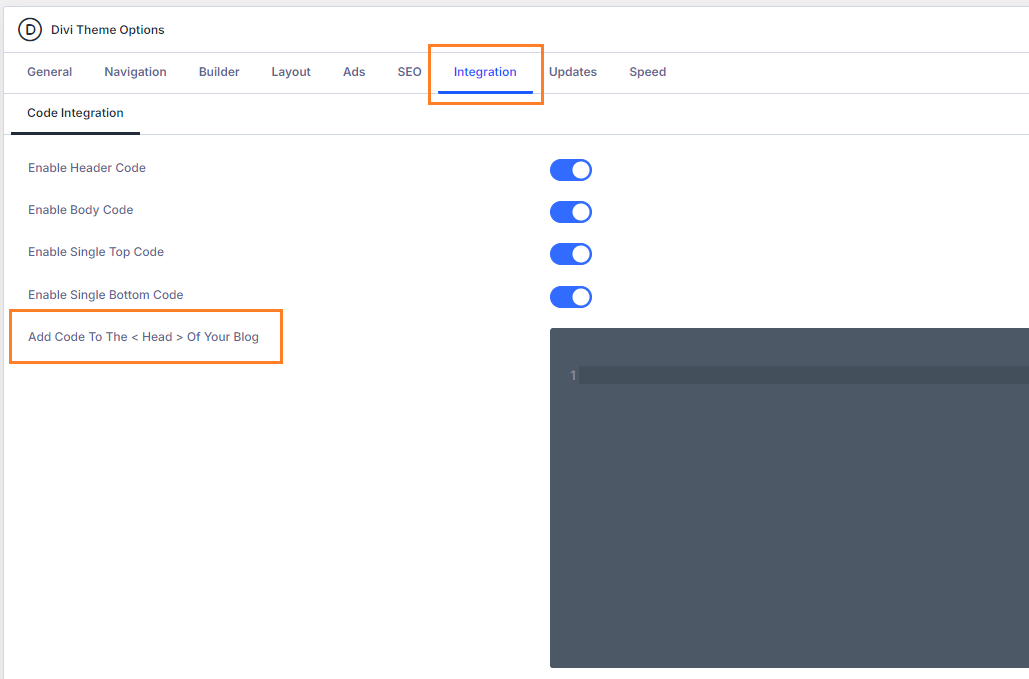
Now click on the "Integration" tab in the Divi Theme Options, which brings up options for adding custom code to Divi. You should see a box called "Add code to the < head > of your blog" which allows HTML, JavaScript and jQuery code to be added to your site:
Add jQuery Code to the Site
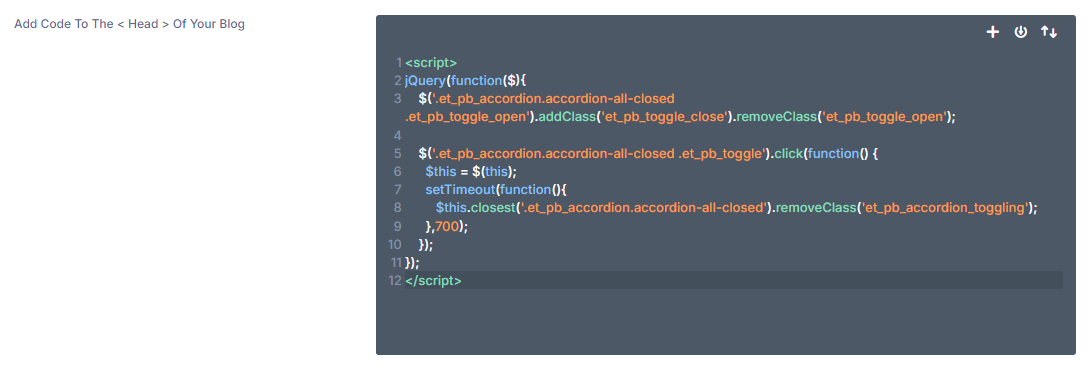
The jQuery code below will enable the accordion toggle closing functionality to your site. Paste it into the "Add code to the < head > of your blog" box then click "Save Changes" to save the Divi Theme Options.
Prefer not to maintain custom code? The Divi Booster method above adds this as a built-in Accordion module setting, so you can change the initial state directly in Divi instead of editing jQuery.
<script>
jQuery(function($){
    $('.et_pb_accordion.accordion-all-closed .et_pb_toggle_open').addClass('et_pb_toggle_close').removeClass('et_pb_toggle_open');

    $('.et_pb_accordion.accordion-all-closed .et_pb_toggle').click(function() {
      $this = $(this);
      setTimeout(function(){
         $this.closest('.et_pb_accordion.accordion-all-closed').removeClass('et_pb_accordion_toggling');
      },700);
    });
});
</script>
Related Post: Adding JavaScript / jQuery to Divi.
Open your Accordion Module's Settings
Locate the accordion module you want to have fully closed on initial load, or add it to your layout if you haven't already. Then, hover over the module to reveal the module buttons. If your Divi Builder is set to use "Click" mode, you may need to click on the module instead of hovering. Click the "Gear" icon to open the module's settings.
Add the "accordion-all-closed" Class to Your Accordion Module
In the Accordion Settings, click on the "Advanced" tab.
If you're using Divi 5, expand the Attributes settings group, click Add Attribute, set the attribute name to class, and enter accordion-all-closed as the value. Then close the Edit Attribute modal.
If you're using Divi 4, expand the "CSS ID & Classes" settings section. There you should see a "CSS Class" field. Enter accordion-all-closed into this field and then save the module settings.
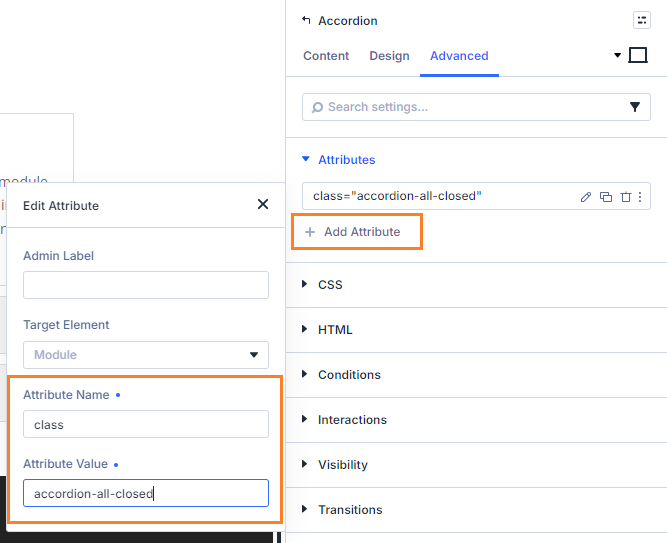
Save and View the Result
Now save the module settings. Note that the code won't apply in the visual builder preview. To see the result, save your page or post and view it on the front-end. You should now see that your accordion module starts with all of its toggles closed.
Optional Next Steps
The jQuery method will make the selected accordion start closed, but it does not add a visual setting inside Divi. If you later want easier control over accordion behavior, you may want to use Divi Booster’s Accordion module options instead. You can also continue with these related guides:
Troubleshooting: Divi Accordion Still Opens the First Item
If your Divi accordion still opens the first item after following the steps above, check the following:
Clear your caches. If you use a caching plugin, CDN, or Divi’s static CSS cache, clear those caches and reload the front end of the page.
Check you are viewing the front end, not only the Visual Builder. The closed state may not appear in the Visual Builder preview. Save the page and view it normally.
Make sure the class is added to the Accordion module, not an individual accordion item. For the jQuery method, the accordion-all-closed class needs to be added to the module’s CSS Class field.
Check for other accordion scripts. Other snippets or plugins that change accordion behavior may override the initial state.
Confirm the module is an Accordion module, not separate Toggle modules. Divi Toggle modules already have their own open / closed state setting, while Accordion modules behave differently by default.
FAQs
Can I make a Divi Accordion module start with all items closed?
Yes. Divi opens the first Accordion item by default, but you can make the Accordion module start all closed using Divi Booster’s Initial State setting or by adding a small jQuery snippet.
Does Divi have a built-in setting to make Accordion items all closed?
Divi’s Accordion module does not include a native “all closed by default” option. Divi Toggle modules have an individual open / closed state setting, but the Accordion module normally starts with the first item open.
What is the difference between making an accordion all closed and making it closeable?
Making an accordion all closed controls its state when the page first loads. Making it closeable controls whether visitors can close an open accordion item after they have clicked it.
Can I make all Divi accordions on my site start closed?
Yes. Divi Booster includes a global Accordion module option under Modules → Accordion that can make accordions start closed site-wide.
Does this work in Divi 5 and Divi 4?
Yes, the Divi Booster method is intended for Divi 5 and Divi 4. If using custom jQuery, test after Divi updates because custom code may need maintenance.
Can I make the accordion closed on mobile but open on desktop?
Yes, but it requires a workaround. You can create two synchronized global copies of the same Accordion module, disable syncing for the Initial State and Visibility settings, then show one version on desktop and the other on mobile/tablet with different initial states.
Conclusion
Making your Divi Accordion module start all closed is a simple way to keep FAQ sections, pricing details, product information, and documentation pages cleaner on first load. If you want the easiest setup, Divi Booster adds the Initial State option directly to the Accordion module, so you can choose All Closed, All Open, or Divi’s default behavior without maintaining custom code. From there, you can keep refining the user experience by making accordion items closeable, adding open / close all controls, or improving the scroll behavior of long accordion sections on mobile. If there’s another accordion behavior you’re trying to create, ask in the comments and I’ll try to point you in the right direction.


Thanks a lot for this Script works perfekt!
Hello,
the new code work perfect! Thank You!!!
It worked with no issues. Just copied/pasted in the below path within WP.
Divi\Theme Options\Integration\Add code to the of your blog
Thanks Dan!
Adding the code does in fact close the accordion by default but for some reason, apart from the first one in the list, none of the others now work.
Hi Ian, I've just updated the code to address some changes Elegant Themes have made to the way the accordion works. If you replace the old code with the new code above, it should now work correctly.
Thanks Dan.
I will implement the new coding now.
Dan,
Could you please post the new code?
Hi Theo, this is the latest version of the code. Let me know if you're having trouble with it (and send me a link to the affected site if possible). Thanks!
Hi! I am sorry this is a silly question, but I'm new to WP. Where exactly do I insert this code? I know it says to add it to the footer code, but where is that in the editor? Or do I add it somewhere else?
Thank you!
Hollis
Hi Hollis, there are a few ways to do it (ePanel, child themes, plugins, etc). I've just started a post on how to do it, which currently just covers the ePanel method. Let me know if that doesn't work for you and I can advise you on other ways to do it, etc.
http://divibooster.com/adding-javascript-and-jquery-to-the-divi-theme/
The code has worked for me in the past, but since updating to Divi 2.4 I have run into issues. The accordion is closed by default, but when I open one section, it will not allow any other subsequent sections to open. In the past it would close the current open section as the new section opens. Now, nothing happens after the first section opening. Thanks for the help you have already provided me with your blog!!
Hi Bj, Elegant Themes changed the way the accordion works, and so the old code no longer worked (and resulted in the open / close issue you saw). I've updated the code in this post and in my plugin, so it should now work again. Let me know if you still have issues with it. Cheers!
Hi,
Can I PM you the link to site?
ISsue: On home home when Make accordions start fully closed by default option enabled, I can only open 1 box and then I'm unable to close or open another box. Works fine on another page.
Thanks
Alan
Hi Alan, ET made some changes to the way the accordion works. I've updated the code above (and my plugin) to work with the new accordion code. This should hopefully fix the opening / closing issue for you.
For your info – after Update to divi 2.4.3 these function activated stops the opening process to Accordions.
Only the first opening works, but second an more change of accordions doesn't work.
If i disable the function in Divi Booster the accordion still works "normal".
Thanks for the heads up, Thomas. It seems Elegant Themes made some changes to the way the accordion works which broke my old code. I've now updated the code above to work with the latest version of Divi. Let me know if you still have problems with it.
Perfect, know it works again. Tnx ;-)
Hello,
This code also doesn't seem to work on my page as well. Would you please consider looking at our page and seeing what I might be doing wrong? I'd greatly appreciate it. Thank you!
Hey Nick,
It looks like the code hasn't copied across correctly. On your site the code is showing up as:
As you can see this differs from the posted code in a few ways (the CDATA bit, the quotes are different, etc). I'm not sure what caused this for you, but copying into and back out of programs such as word can do this. Make sure you copy the code exactly as given and hopefully that will fix it.
Hi Dan,
Worked like a charm. Thank you so much for getting back to me so quick! The site is really coming along!
Very useful code to add in the footer section. It really works, I already applied it to my webpage design!
Yep Dan, Divi is its own an all in all theme although its the smartest elegant theme of Elegant designs i also admire the same that you mentioned in this post. Well written post that i completely agree. I would like to inform one small thing that i also organised a giveaway of divi theme on my blog if you wish to take a look it would be a pleasure of mine. Thanks
Divi is a lovely theme but to operate professionally with it and to design it the way I want I really need some guidance, that is why I love your tutorials, they are easy for me to understand and just apply the codes you provide!
Hey,
Thank you so much for your wonderful work.
This doesn't work for me. Using a Divi child theme and the new update.
Any help given will be much appreciated.
Cheers :)
Thanks Noni!
I'm not quite sure why it wouldn't be working for you…
The only problem I can see with the original code is that it may run to early (before the accordion is fully loaded), though it doesn't do so on any of my test setups. I've modified the code to make sure that the accordion is fully loaded before the code tries to close it – I'm hoping that might solve it.
Otherwise, if you can send me a link to the page with your accordion I'd be happy to take a look and see if I can spot the problem.
Perfect! Thanks
Very nice! Exactly what I was looking for – thank you! :)_