
By default, the Divi Accordion module only keeps one item open at a time. When a visitor opens a new accordion item, the previously open item closes automatically. If you want to show several sections at once – for example in an FAQ, product details section, or documentation page – you can enable the "Multi Open" setting.
This guide shows you how to turn on "Multi Open", save the module, and confirm that multiple accordion items remain expanded on the live page.

Keep Multiple Accordion Items Open using the Multi Open Feature
This method uses the Accordion Multi Open feature to allow multiple items in a Divi Accordion module to remain open at the same time. Once enabled, opening another accordion item will no longer close the item that is already open.
The Multi Open feature is available in both Divi Booster and a standalone Accordion Multi Open plugin. If you already have Divi Booster installed, you don't need to install the standalone plugin.
This method works with Divi 5.
Accessing the Multi Open feature
The Multi Open feature is included in Divi Booster. If you already own Divi Booster, you can use the feature without installing any additional plugin.
If you don't have Divi Booster and only want the Multi Open functionality, you can purchase the standalone Multi Open plugin below.
Already using Divi Booster?
You can follow the instructions below using the Multi Open setting provided by Divi Booster (v5.9 onwards). The setting and functionality described in this guide are the same whether you're using the standalone Multi Open plugin or Divi Booster.
Open the Accordion Module Settings
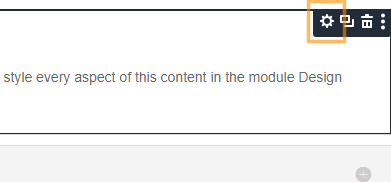
In the Visual Builder, hover over the Accordion module and click the gear icon to open its settings. You can use this on an existing Accordion module – there is no need to rebuild the page or recreate the module.
Find the Multi Open Setting
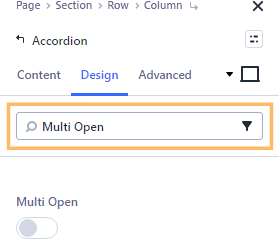
In the Accordion settings, go to the "Design" tab and open the "Toggle" settings group. To find the option quickly, type "Multi Open" into the settings search field.
Enable Multi Open
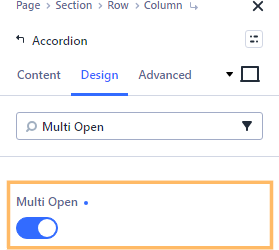
Set "Multi Open" to "On". This allows a new accordion item to open without closing the item that is already expanded.
Note that the Accordion module does not have a built-in way to directly close an open toggle. After enabling "Multi Open", visitors can open multiple items at once, but they will not be able to click an open item to close it again unless you also add closeable accordion behavior. If you need that, see the related closeable accordion guide in the "Take it further" step below.
Save and Publish the Page
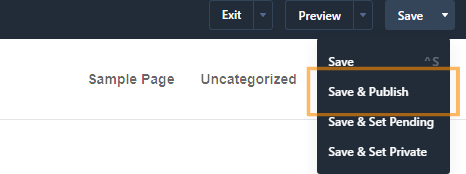
Close the module settings and save your changes. If the page is ready to go live, use "Save & Publish" so you can test the accordion on the front end.
Check the Accordion on the Live Page
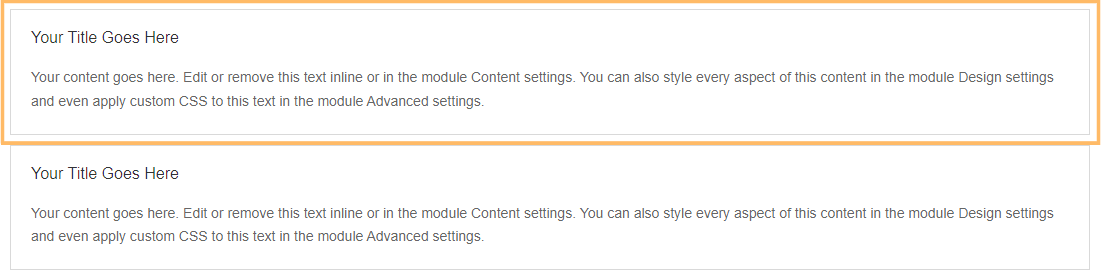
Open the published page and click the title of a second accordion item. The first item should remain open while the second item expands, confirming that "Multi Open" is working.
Take it further
Multi Open allows several accordion items to remain expanded, but you may also want to change how visitors open and close those items. If you want visitors to be able to close open accordion items, follow the guide to make Divi Accordion items closeable.
You might also want to:
Conclusion
You have now enabled "Multi Open" so multiple Accordion module items can stay open at the same time. If you are trying to create a more advanced accordion layout or need different open and close behavior, feel free to get in touch or leave a comment.

0 Comments