
Quick Answer: Create a Theme Builder template for your password protected post, add a Divi Password Box module from Divi Booster in a section set to show before the password is entered, then add a Post Content module in a second section set to show after the password is entered.
This gives you a styled password screen in the Theme Builder template, while keeping the protected post content hidden until the visitor enters the correct password.

Style Password Protected Posts using Divi Password Box
To achieve this easily, we'll use the Divi Password Box plugin. It adds a Password Box module to Divi, along with section visibility controls for showing different Theme Builder sections before and after the password has been entered.
To follow the steps below, first install Divi Password Box.
Create or Open Your Password Protected Post
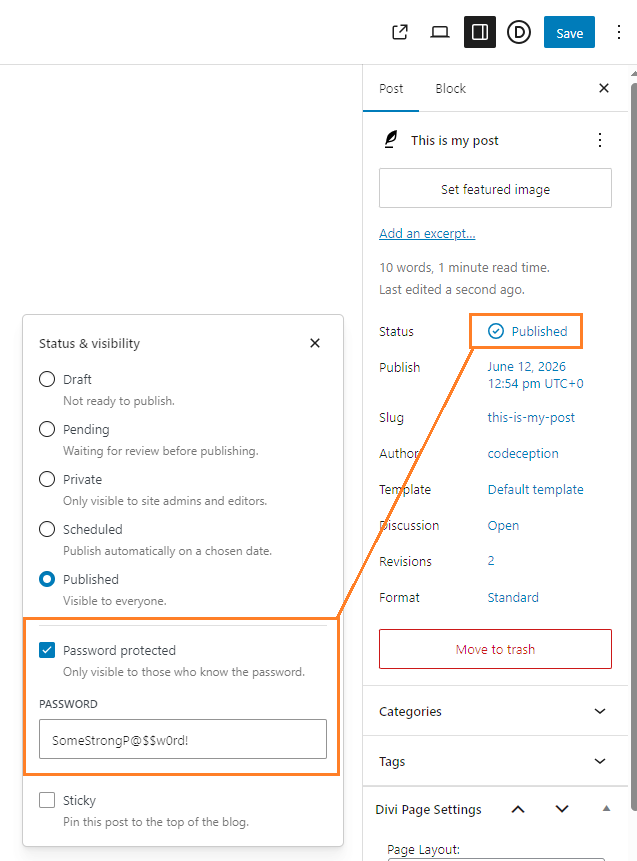
In the WordPress admin, create or edit the post you want to protect. In this example, the post is called My Password Protected Post.
Set the post visibility to password protected and enter the password you want visitors to use. Save or update the post.
The post does not need to contain the password form itself. The password form will be added in the Theme Builder template.
Create a Theme Builder Template
Go to:
Divi → Theme Builder
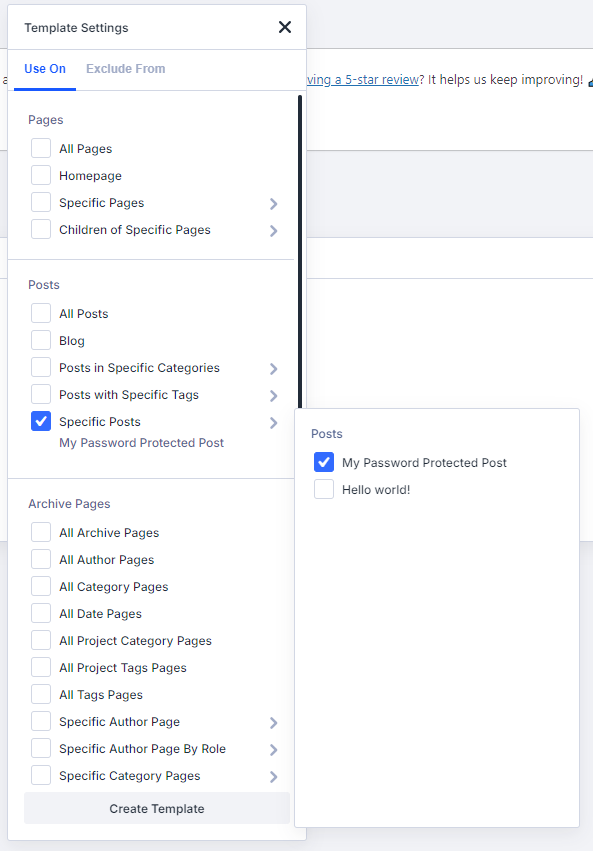
Create a new template and assign it to your password protected post. For this example, assign the template to My Password Protected Post.
Once the template has been created, add a custom body layout. This is where you’ll add both the password form and the post content.
Add the Password Box Section
In the Theme Builder body layout, add a new regular section.
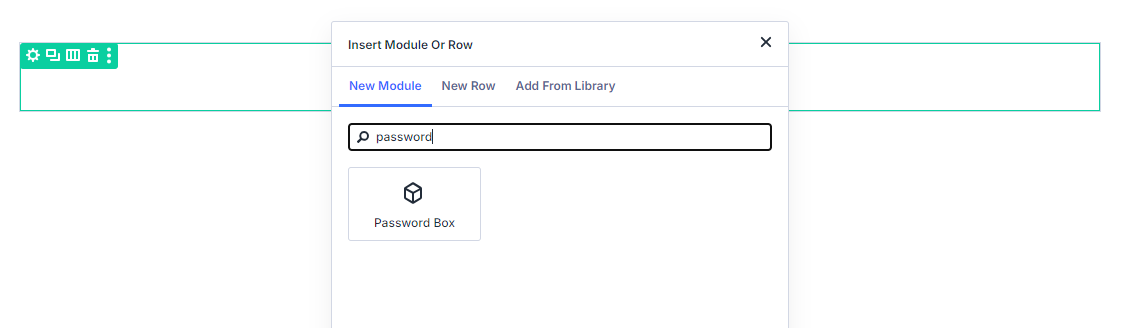
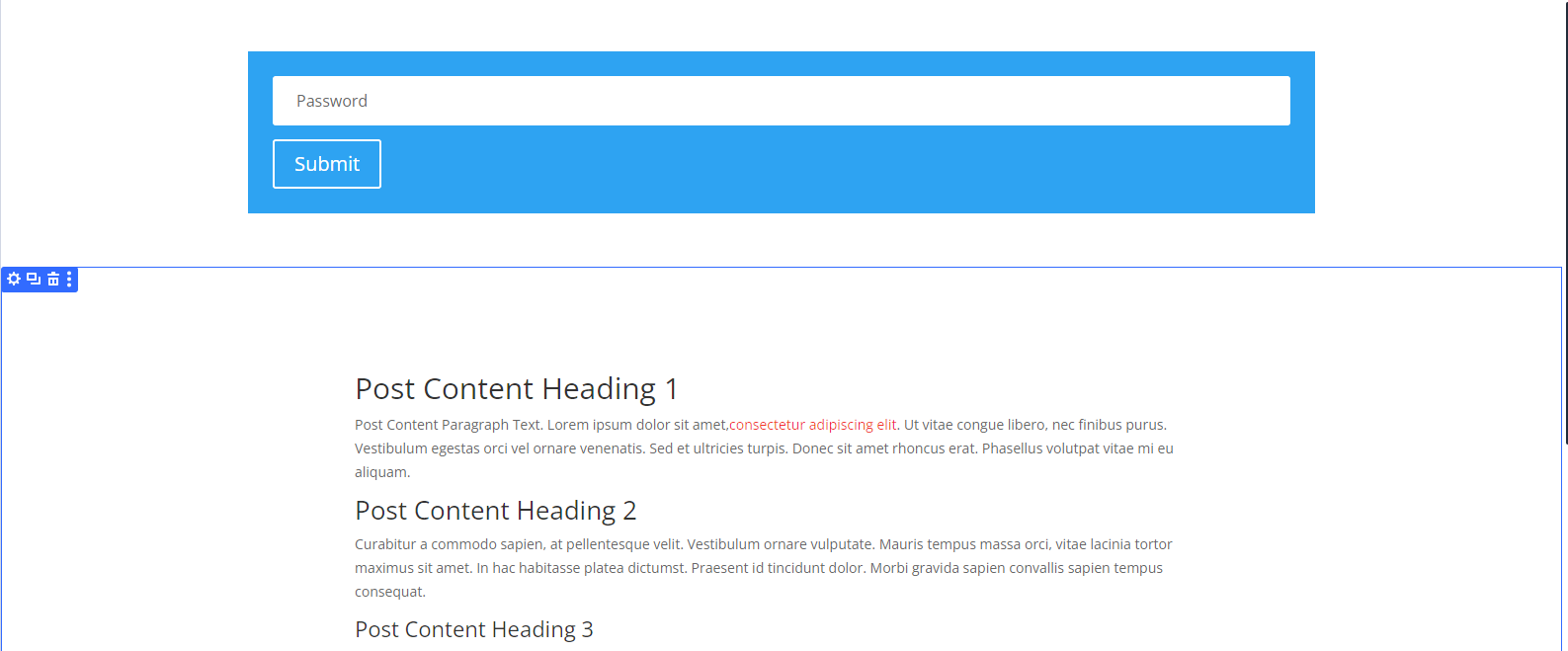
Inside this section, add the Password Box module. This module outputs the password form visitors will use before they can view the protected post content.
Style the Password Box module as needed using the module’s design settings.
Show the Password Box Before the Password is Entered
Open the settings for the section containing the Password Box module.
Go to:
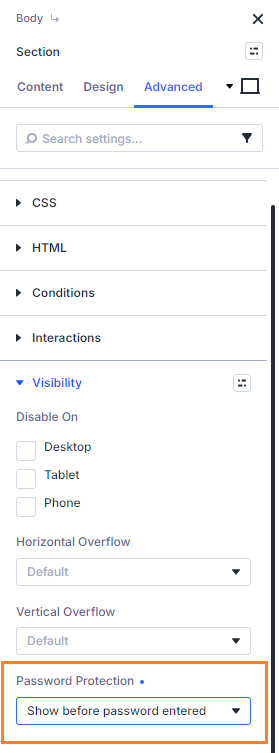
Section Settings → Advanced → Visibility → Password Protection
Set Password Protection to Show before password entered.
This tells Divi Password Box to show this section while the post is still locked. It also allows this Password Box module to replace the default WordPress / Divi password form on the front end.
Add the Post Content Section
Below the Password Box section, add another regular section.
Inside this second section, add the Post Content module. This module is what displays the content of My Password Protected Post once the visitor has entered the correct password.
Show the Post Content After the Password is Entered
Open the settings for the section containing the Post Content module.
Go to:
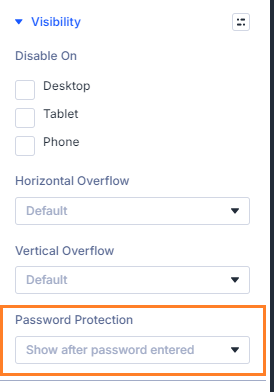
Section Settings → Advanced → Visibility → Password Protection
Set Password Protection to Show after password entered.
This keeps the protected content hidden while the password is still required. Once the correct password has been entered, the Password Box section will be hidden and the Post Content section will be shown.
Save the Theme Builder Layout
Save the body layout, then save the Theme Builder changes.
It’s worth checking that the template is still assigned to the correct post, especially if you are creating a template for a specific post rather than for all posts.
View the Post on the Front End
Open your password protected page on the front end.
Before the password is entered, you should see your styled Password Box module from the Theme Builder template. The default WordPress / Divi password form should not appear, and the Post Content section should remain hidden.
After entering the correct password, the Password Box section should disappear and the Post Content section should appear.
Conclusion
Using the Divi Password Box module in a Theme Builder template lets you design a reusable password entry layout for protected posts and pages. By placing the Password Box module in a section shown before password entry, and the Post Content module in a section shown after password entry, you can replace the default password form while keeping the protected content hidden until the visitor enters the correct password.

0 Comments