Adjust Lightbox Arrow Size in Divi Gallery

Written by Dan Mossop

Customize the size of the navigation arrows that appear in your gallery lightbox so they’re easier to see and aligned with your site’s design. Whether you want larger, more accessible controls or a subtler look, setting a precise arrow size creates a more polished browsing experience for your visitors. In this guide we show you how to set a custom lightbox arrow size in the Divi Gallery and confirm the change on the front end.

Adjust Lightbox Arrow Size in Divi Gallery using Divi Gallery Booster / Divi Booster

This method shows how to resize the lightbox navigation arrows in a Divi Gallery by using the Lightbox Arrows design group provided by the Divi Gallery Booster and Divi Booster plugins. It offers a simple, no-code UI where you can set an exact font size (e.g., 80px) and verify on the front end that the arrows render at the chosen size for clearer, more accessible navigation.

Access the Gallery Module Settings

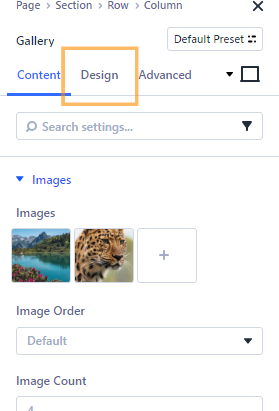
Begin by opening the page with your existing Divi Gallery module in the Divi Builder. Click on the Gallery module to open its settings. Switch to the "Design" tab at the top of the settings modal.
Find the Lightbox Arrows Option

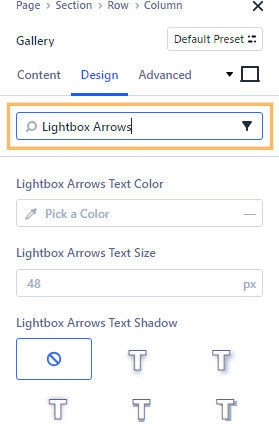
In the Design tab, use the settings search box and type “Lightbox Arrows.” This will filter the options to show the Lightbox Arrows design settings.
Set the Lightbox Arrow Size

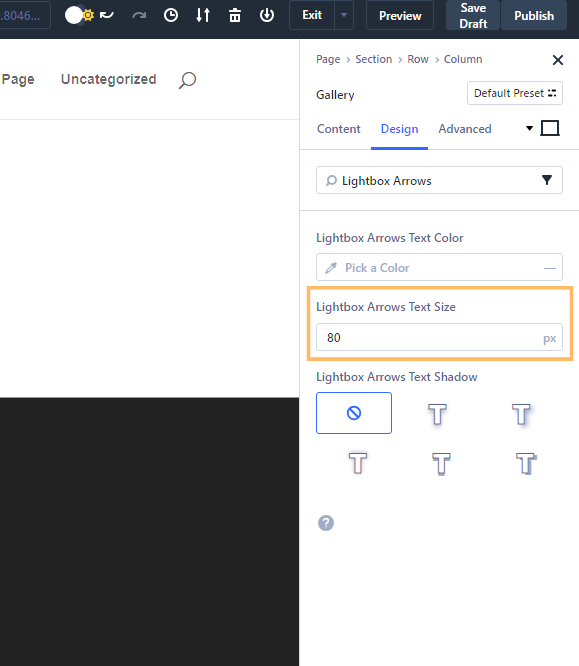
Within the Lightbox Arrows section, locate the Text Size field. Enter your desired arrow size in pixels (for example, 80) to make the lightbox navigation arrows bigger and more noticeable. Make sure to click outside the field or on the modal title to confirm your input.
Save and Publish Your Changes

Once you’ve set your preferred arrow size, save the Gallery module settings and publish your page by clicking the Publish button in the Divi Builder toolbar. This ensures your changes go live for visitors.

Check the Arrow Size on the Front End

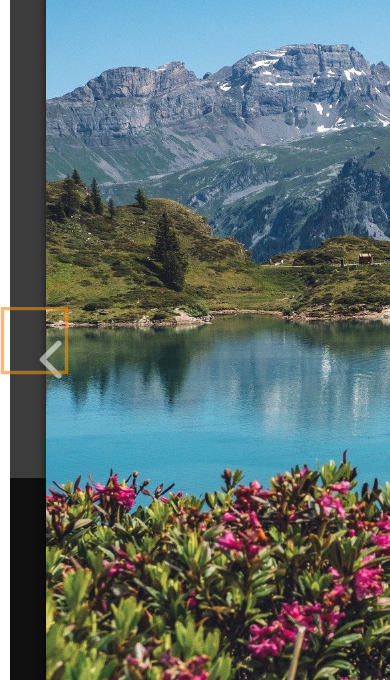
Visit your page on the front end and open a gallery image in the lightbox. You should see the navigation arrows at your new chosen size, making it easier for users to click through your images.
Conclusion

Adjusting the lightbox arrow size in your Divi Gallery helps users navigate images more comfortably and matches your website’s style. With just a few quick steps, you can create a great visual experience for every visitor!

We may earn a commission when you visit links on our website.

Enhance Your Divi Galleries Effortlessly!

Take your Divi galleries to the next level with the Divi Gallery Booster. Gain precise control over design elements, such as lightbox arrow size, to improve user navigation and aesthetics. Perfect for creating polished, user-friendly galleries that stand out.

Latest Posts

Top (or Bottom) Align Divi Icon List Module Icons

When Icon List items wrap onto multiple lines, the default icon alignment can make the icon appear vertically centered next to the text, which may look unbalanced or harder to scan. Setting the icons to align at the top creates a cleaner, more consistent...

Make Divi Button Modules Full Width with Centered Content

This configuration makes a Divi button stretch to the full width of its container while keeping its label neatly centered, creating a bold, edge-to-edge call-to-action. You might want this for hero sections, pricing tables, or any layout where a standard-sized button...

Fix the Flickr Typo in the Divi Social Media Follow Module

Sometimes it's the small things that make the difference... there is a minor typo in the Divi Social Media Follow module that was present in Divi 4, and (currently) remains in Divi 5. Specifically, the tooltip for Flickr is misspelled as "Flikr". Here's how to fix...

Add a Frosted-Glass Background Blur in Divi

Give your Divi layouts a polished, glassmorphism look by blurring the content behind a semi‑transparent Divi section, row or module. This effect enhances readability over busy or textured backgrounds while preserving the visual impact of your imagery and layout. In...

About Dan Mossop

Dan is a Scottish-born web developer, now living in Brisbane with his wife and son. He has been sharing tips and helping users with Divi since 2014. He created Divi Booster, the first Divi plugin, and continues to develop it along with 20+ other Divi plugins. Dan has a PhD in Computer Science, a background in web security and likes a lot of stuff, 

0 Comments

Submit a Comment

Comments are manually moderated and approved at the time they are answered. A preview is shown while pending but may disappear if your are cookies cleared - don't worry though, the comment is still in the queue.

Your email address will not be published. Required fields are marked *.

Compatible with

Divi 5

Divi 4

Get this feature

This feature is included in the following plugins:

Divi Gallery Booster

About Divi Gallery Booster