

Add Linked Footnotes Using the Footnotes Module
The Footnotes module pairs a phrase in your page text with a footnote you write. You can then display the numbered reference as a superscript link and style its marker to suit your page.
This method has been tested on, and is compatible with, Divi 5.
Get the Module
The Footnotes module is provided by our dedicated plugin. If you have not installed it yet, you will need it to add the module and follow the steps below.
You can get the plugin here:

Add the Text You Want to Reference
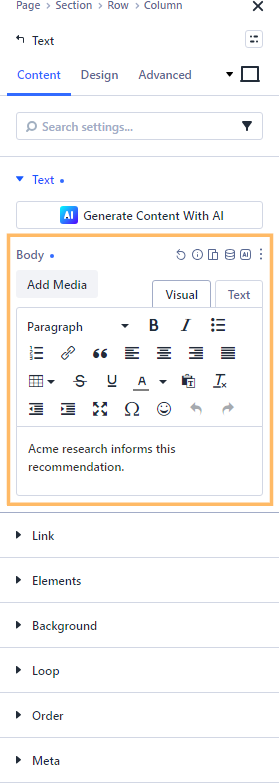
In the layout you are editing, add or open a Text module and enter the sentence that needs a footnote. For this example, we'll use "Acme research informs this recommendation." The phrase "Acme research" is the part we'll link to the footnote.
Insert the Footnotes Module
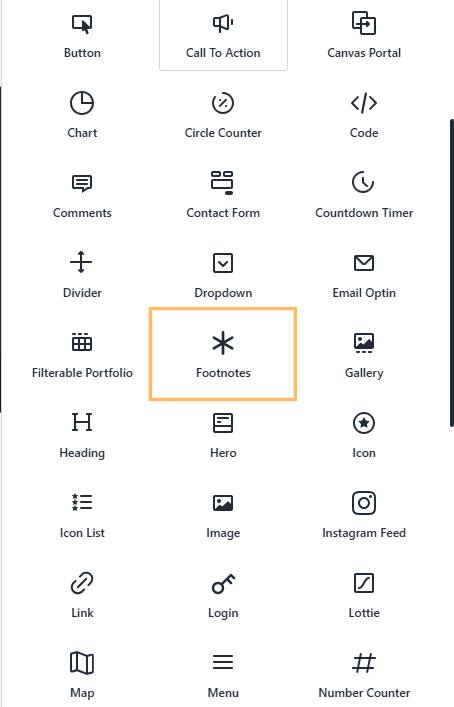
In the layout where you want the footnotes to appear, open the module picker and select "Footnotes". Place it after the text you want to reference so readers can find the supporting content below it.
Add Your Footnote Content
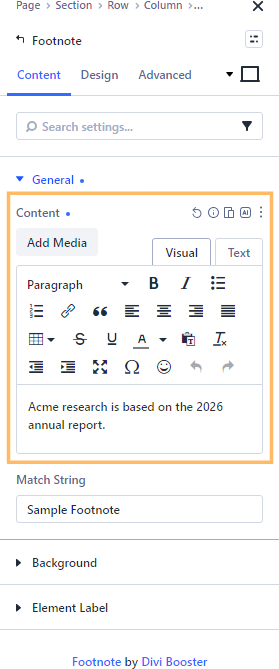
In the Footnotes module settings, open the default "Sample Footnote" item and expand "General". Enter the supporting text in "Footnote Content". In this example, we'll use "Acme research is based on the 2026 annual report."
Set the Match String
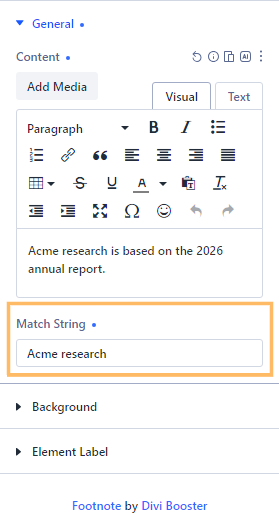
In the same footnote item's "General" settings, enter the exact phrase from your Text module in "Match string". For our example, that's "Acme research". The module uses this match to place a numbered reference beside the phrase in the page text.
Display the Reference as Superscript
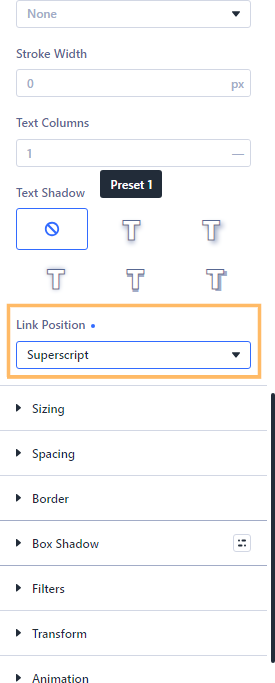
Return to the parent Footnotes module settings, open the "Design" tab, and expand "Footnote Links". Set "Link Position" to "Superscript" to raise the numbered reference above the surrounding text.
Style the Footnote Marker
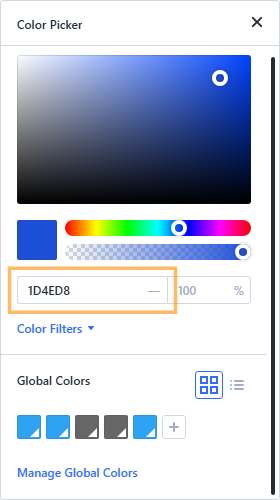
If you want the marker beside the footnote content to stand out, expand "Footnote Marker" in the "Design" tab and choose a text color that works with your page. Our example uses dark blue, "#1D4ED8".
View the Published Result
Publish the page and view it outside the Visual Builder. Check that a raised numbered reference appears beside your matched phrase. In our example, "[1]" appears immediately after "Acme research".

Check the Footnote Link
Click the numbered reference and confirm that it takes you to the corresponding footnote content. Check that the text and any marker styling you chose appear as expected.

Conclusion
Your page now has a numbered reference linking its text to supporting footnote content. If you're trying to adapt the footnotes to a particular layout or style, leave a comment or get in touch.

0 Comments