
Tab icons can make your Tabs module easier to scan and more visually polished by pairing each tab label with a clear visual cue. In this guide we show you how to add icons to individual tabs and style their appearance across the Tabs module.
Quick answer: Divi doesn’t include a built-in option for adding icons to Tabs module tab titles, but you can add this using Divi Booster or the standalone Divi Tabs Module – Tab Icons feature plugin. Once installed, open each tab’s settings, choose an icon from Content → Tab Icon, then style all tab icons from the parent Tabs module under Design → Tab Icon.
This is useful for feature comparisons, pricing sections, service pages, FAQs, product information, or any tabbed layout where icons can help users identify each tab more quickly.
Watch the walkthrough below to see the feature in action:

How to Add Icons to Divi Tabs Module Tab Titles
This method uses the Tabs Module Tab Icons feature, available in Divi Booster and as a standalone plugin, to add a new Tab Icon setting to each individual tab, plus global icon styling controls to the parent Tabs module.
Choose How to Add the Tab Icon Feature
Divi’s Tabs module lets you add tab titles and tab content, but it doesn’t include a built-in setting for adding icons beside individual tab titles. To follow the steps below, you’ll first need to add the Tab Icons feature using one of the options below.
Best value: Divi Booster
Divi Booster includes the Tabs Module Tab Icons feature, plus many other Divi fixes, enhancements and module customizations. Choose this option if you regularly customize Divi sites or want access to more than this one Tabs module feature.
Single-feature option
Only need to add icons to Divi Tabs module tab titles? You can purchase the standalone feature below.
Divi Tabs Module – Tab Icons
Once installed, the new Tab Icon controls will appear in the Divi Tabs module. The steps below are the same whether you’re using the feature through Divi Booster or the standalone Tab Icons plugin. You can then open your Tabs module and start assigning icons to individual tabs.
Assign Tab Icons to Individual Tabs
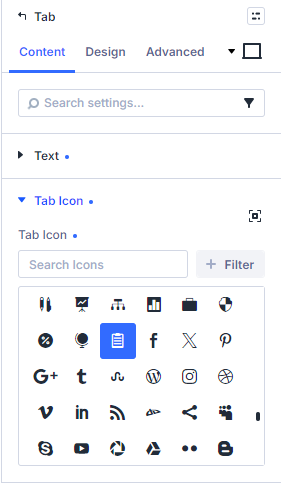
Open the Tabs module settings, then click the gear icon for the tab you want to edit. In that tab’s settings, go to Content → Tab Icon and choose the icon you want to display next to the tab title.
Repeat this for each tab that should have an icon. Tabs where no icon is selected will continue to display as normal, with text only.
Style All Tab Icons
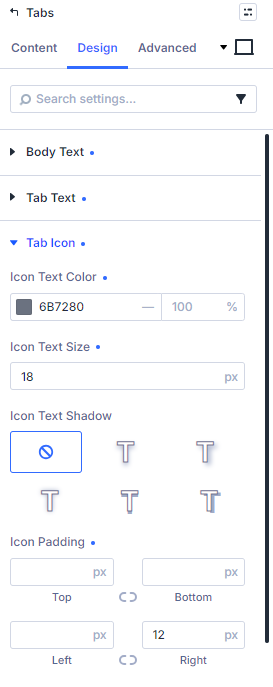
To style all tab icons at once, open the parent Tabs module settings, go to Design → Tab Icon, and adjust settings such as icon color and icon size. These settings apply to all tab icons in the module by default.
Style the Active Tab Icon
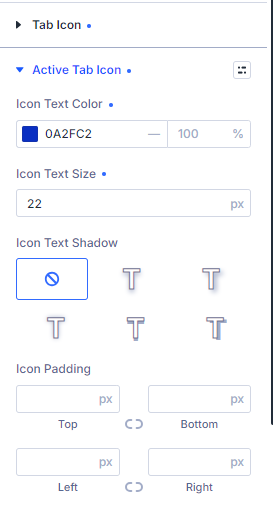
To give the selected tab a different icon style, go to Tabs module settings → Design → Active Tab Icon. This lets you make the active tab icon stand out with a different color or size.
Override the Icon Style for One Tab
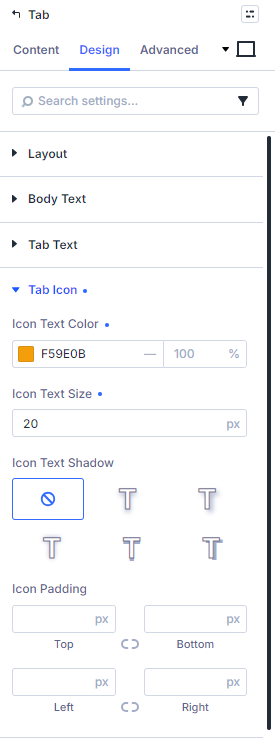
To customize a single tab icon, open that individual tab’s settings, go to Design → Tab Icon, and adjust the icon styles there. These settings override the global Tab Icon styles for that tab only.
Save and View Your Tabs with Icons
Once you’ve assigned icons and styled them, save your changes in the Divi Builder. Then, exit the Visual Builder to preview your work on the front end of your site. You should see tabs with icons next to the titles where you chose them, and no icon on any tab where you left it unset.
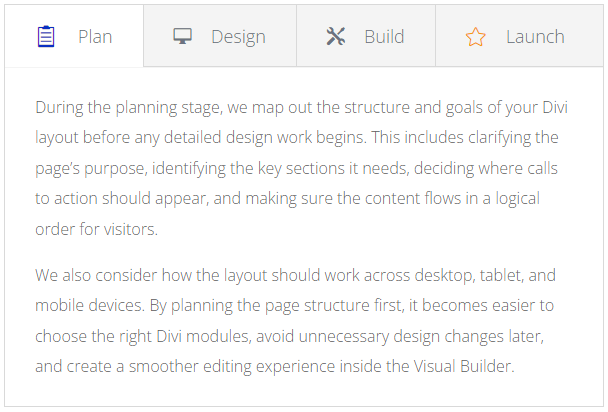
In our example, the inactive tab icons use the global grey style, the active Plan tab uses a larger blue icon, and the Launch tab uses an individual amber icon override.
Troubleshooting – If Your Tab Icons Don’t Show
If the icons don’t appear on the front end, check that:
- The Tab Icons feature is installed and active, either through Divi Booster or the standalone plugin.
- You have selected an icon inside the individual tab’s Content → Tab Icon settings.
- You have saved the module / page before checking the live page.
- Any caching plugin, server cache, or CDN cache has been cleared.
Continue Customizing Your Divi Tabbed Content
Once you’ve added icons to your tab titles, you may also want to:
- Display source code inside Divi tabs – useful if you’re creating documentation, tutorials, or comparison tabs with different code languages.
- Create flexible tab-style layouts with Divi Show / Hide Button – useful when the standard Tabs module is too restrictive and you want buttons or other modules to behave like tabs.
- Add icons to Divi Accordion titles – useful when you’re using accordions instead of tabs for FAQ or collapsible content sections.
Conclusion
Adding icons to Divi Tabs module titles is a simple way to make tabbed content easier to scan and more visually polished. With the Tab Icons feature, available in Divi Booster or as a standalone plugin, you can choose icons for individual tabs, style them globally, and fine-tune active or per-tab icon styles when needed.
Is there another Tabs module customization you’d like to make – such as changing the tab layout, adding images, adjusting mobile behavior, or styling individual tabs differently? Let me know in the comments and I’ll try to help.


This is a very cool feature. I do have one website where there is a conflict with WooEssential by Divi Next. When the plugin is activated, the additional settings for Tab Icon do not show. I can tell you what, don't know why. WooEssential is critical to the store setup so not an option to disable it for me.
Thanks for what you do to make Divi better.
Hey Thomas, thanks for reporting this and apologies for the late reply. It looks like there was an issue where some plugins were (legitimately) causing parts of Divi's code to load earlier, and the tabs icon feature wasn't properly handling this case. I've come up with a fix which will be in the next update (Divi Booster v5.5) – I'll hopefully be able to release it early next week. I'll update here as soon as it's available. I hope it helps and apologies again for the hassle. Thanks!
The latest version (5.5) resolved the issue and it looks great! Thank you again for a great plugin.
You're very welcome, Tom! Thanks for confirming this :)
I've updated Divi Booster, but do not see any settings for tab icons like the documentation.
Divi 5.6.1
Booster 5.3
Hey Thomas, I've just replied to your follow up message, so I won't repeat myself other than to say thanks again and a fix is on the way in Divi Booster v5.5 :)