
Less Hassle, More Productivity
Copying images and content directly from your clipboard into Divi has never been easier. Say goodbye to the cumbersome save-and-upload routine and hello to streamlined efficiency.
A More Efficient Workflow
This plugin lets you to transfer images, text and HTML straight into Divi, making your design process smoother and faster.
With it, content is copied from your computer's clipboard into Divi's internal clipboard, ready to be pasted into your layout as a module or section, using Divi's own paste function.
Divi Copy & Paste converts your images into image modules and your content into text modules or sections.
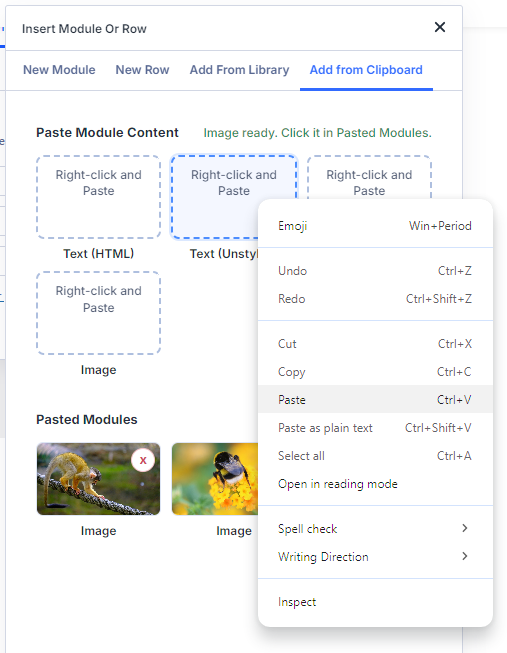
To get started, copy your content to your clipboard. Then, in the Divi Builder, click to add a module or section where you'd like it appear in your layout. Next, in the "Insert Module Or Row" and "Insert Module" popup, click the "Add from Clipboard" tab added by the plugin. Right-click on one of the options under "Paste Module Content" and select "Paste" from your browser's menu. Your content will then be added to a list of "Pasted Modules" – simply click it to insert it in to your page.
Module Types
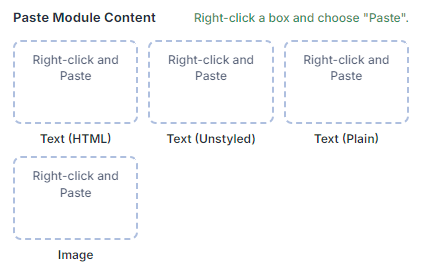
Divi Copy & Paste can convert clipboard content into Divi modules of several different types:
Text (HTML) – Turns content into a Text Module, preserving the HTML and inline styles of the source content
Text (Unstyled) – Creates a Text Module with the HTML markup preserved, but inline styles removed
Text (Plain) – Creates a Text Module from the content, with both HTML markup and inline styles removed
Image – Turns an copied image into an Image Module
Section Types
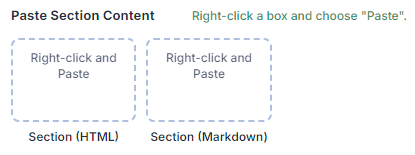
If you access the "Insert from Clipboard" tab when inserting a section, you'll find the following section options:
Section (HTML) – From HTML content on the clipboard, it creates a section containing text modules where each heading and the content that follows is placed in a text module.
Section (Markdown) – From markdown content on the clipboard, it creates a section containing text modules where each heading and the content that follows is placed in a text module.
Clipboard History
When you paste in content into one of the Divi Copy & Paste boxes, it will add the module (or section) to the "Pasted Modules" area of the "Insert from Clipboard" tab.
These "Pasted Modules" can be inserted into the page with a single click. The plugin stores a history of up to 12 pasted modules, allowing you to copy in multiple items before inserting them into the builder, or to insert the same item multiple times without the need to copy it in repeatedly.
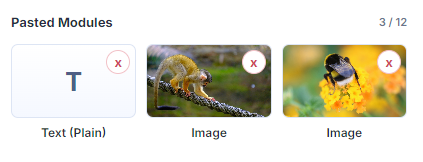
Divi 4 Mode
Divi Copy & Paste has been completely redesigned for Divi 5. But if you're still using Divi 4, no problem – it works with Divi 4 too. It just has a different user interface.
In Divi 4, to get started, hover over "Paste into Divi" in the admin bar and then right-click your desired element and select "Paste".
You can then use the Divi "Paste Module" or "Paste Section" option in the Divi 4 builder menu to insert the created module wherever you like.
Please note that some features, such as the clipboard history aren't available in Divi 4, but they'll be waiting for you when you upgrade to Divi 5.

How about compatibility with the coming DIVI 5 version?
Hi Claude,
The current version v1.1 doesn't yet work with Divi 5 due to changes in how Divi 5 implements its internal clipboard. But I am currently in the process of updating all my plugins to support Divi 5, including Divi Copy & Paste and hope to be able to release a Divi 5 compatibility update in the near future.
I will continue to support and develop Divi Copy & Paste on Divi 5 and beyond.
I hope that helps, but if you have any further questions, please feel free to ask. Thanks!
Hi – what happens when I put my Licence Key in and it says that "Your license key has reached its activation limit." Was it only active for 90 days or something?
Hi Eric,
Your Divi Agency Bundle, and by extension Divi Copy and Paste, is a single-site lifetime license, so it will always remain valid – it's not limited to 90 days. The message about reaching the activation limit indicates that the license key is already in use on the maximum number of sites, which for your license, is one site.
If you need to move your license to a different site, or if the site it's currently activated on is no longer in use, here's how you can manage your activations:
Should you wish to use the plugin on more than one site, you have a couple of options. You can upgrade your current bundle – these upgrades are prorated, considering what you've already paid. To check available upgrades, log in to your account, click "View Licenses," next to your Agency Bundle purchase and then "View Upgrades".
Alternatively, you can purchase a separate license for Divi Copy and Paste for an additional site, if that's all you need.
I hope that answers your question, but if there's anything else I can help you with, don't hesitate to reach out.
Thanks!
Hi Dan,
What happens to the image with respect to the Media Library? What kind of name is it given? I assume all the image sizes are created and it goes through normal image optimization processes?
Thanks,
David
Hey David,
The image will be uploaded to the media library and available there like any other uploaded image.
At the moment, if you copy an existing image (e.g. copy an image file from the desktop) and paste that in, the media library title will be set to the slugified version of the image file name. So copying an image called "some-file.png" would give the title "some-file". If you are copying the image where there isn't a title available (e.g. if you copied a selection from a paint program) then the title in the media library will just be set to "image". You can, of course, edit the title manually after that, but if you have a particular use case where you have an existing title available, let me know and I'll look into whether it's possible to get it transferred into the media library.
And yes, the image sizes will be created and any image optimizations in place should be applied (I use Smush to compress images and it applies to the copy / pasted images).
I hope that helps, but feel free to ask if there's anything else you'd like to know.
Cheers,
Dan
Here is what is happening
When I capture an image using Windows Shift S – the image is uploaded with DIVI Paste. But if I capture the image using Ctrl C or Ctrl X – the image won't transfer
This plugin no longer works – tried deleting and reinstall – nothing
Hey Pete, thanks for the comment. I think the issue might be with the data being copied to the clipboard to being with. Are you able to give me an idea of what you're copying from (e.g. is the browser, or an app such as Word), and how you select it (e.g. do you just click on it before you do Ctrl C, or are you dragging an area with the mouse to select it?). What might be happening is that instead of a plain image, the clipboard could be receiving HTML (or similar) wrapping an image – which isn't then being recognized as an image. I should be able to say more once I understand where your image is coming from.
For reference, the plugin is still working for me in the various ways I use it – mainly copying images from paint programs (via Ctrl C) and copying images from webpages (via "Right Click > Copy Image" in Chrome).
Thanks!
Buggy – Images disappear.
Hi Dion, I'm sorry to hear you're having this issue. Is there any chance you're able to give me a bit more detail on what you're seeing (or not). If you're able to describe the steps to reproduce it, or send through a screenshot, etc, that would be very helpful. Thanks!
need support, copy&paste does not work for me! Divi 4x and newest WP
Ok, now I found the item position and it working fine :-)
Great! Thanks for letting me know, Petra :)