
Add and Display Sub Text Under a Divi Button Label using the "Button Sub Text" Feature
This method shows how to add a second line of text beneath a Divi Button module label using our "Button Sub Text" feature. It's a quick, no-code approach that lets you easily enhance your call-to-action buttons.
This feature is included in one or more of our plugins – see the 'Get this feature' section for the current list.
Add a Button Module and Enter Main & Sub Text
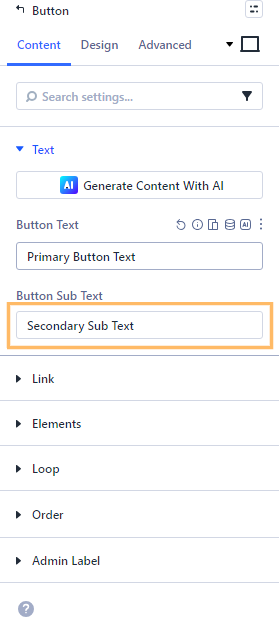
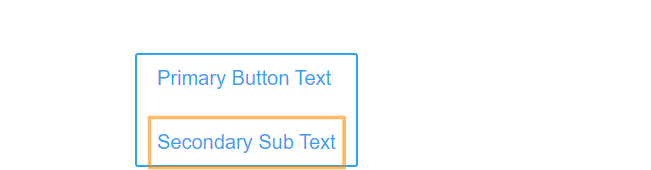
Inside the Divi Builder, add a new Button module to your layout. In the Button module settings, you'll find the "Button Text" field where you enter the main label (for example, "Primary Button Text"). Just below that, there's a "Button Sub Text" field—type your desired secondary line (like "Secondary Sub Text") here. This sub text will appear beneath the main button label.
You can also style the sub text to match your design. To adjust its appearance, go to Button Settings > Design > Button Sub Text, where you’ll find options for font, color, size, and more.
Publish and View Your Updated Button
Once you've added your main and sub text, publish or save the page. Then exit the Visual Builder to view the live page. Your button should now show the main label with the sub text displayed clearly underneath, giving your visitors that extra bit of information without cluttering the design.
Conclusion
Adding sub text to your buttons in Divi is a fast, easy way to make your calls-to-action clearer and more compelling!

0 Comments