
Make Divi Button Modules Full Width with Centered Content using the Force Fullwidth Setting
This method demonstrates how to make a Divi button span the full width of its container by enabling the custom "Force Fullwidth" setting provided by the Divi Button Module – Force Full Width plugin. It’s a straightforward, low-effort approach that requires no custom code and gives your button a modern, full-width look.
Add a Full-Width Button Module in Divi
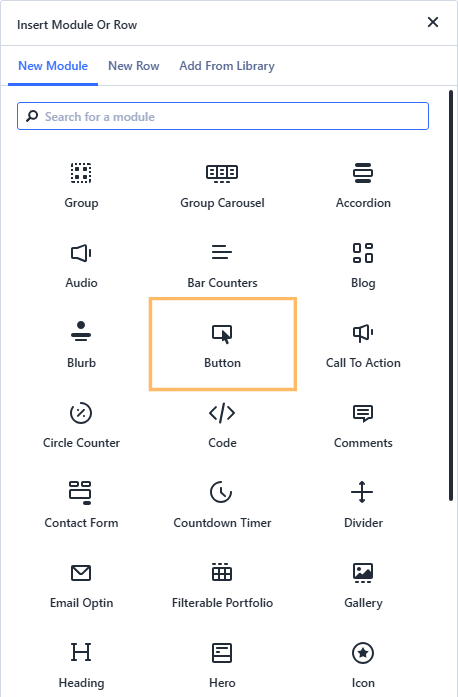
To get started, open your page in the Divi Builder. Add a single-column row to your layout if you don’t already have one. In that row, insert a Button module from the module library. When prompted for the button text, enter a label such as "Fullwidth Button"—this will appear on your button.
Enable the "Force Fullwidth" Setting
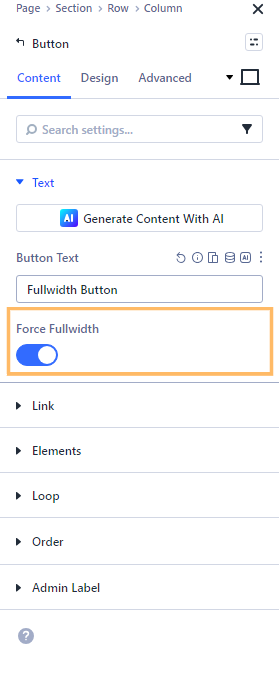
With the Button module settings open, head to the Content tab. Find the option labeled "Force Fullwidth" and toggle it on. This setting makes your button stretch to fill the entire width of its container and ensures the button text remains centered.
Save and View Your Fullwidth Button
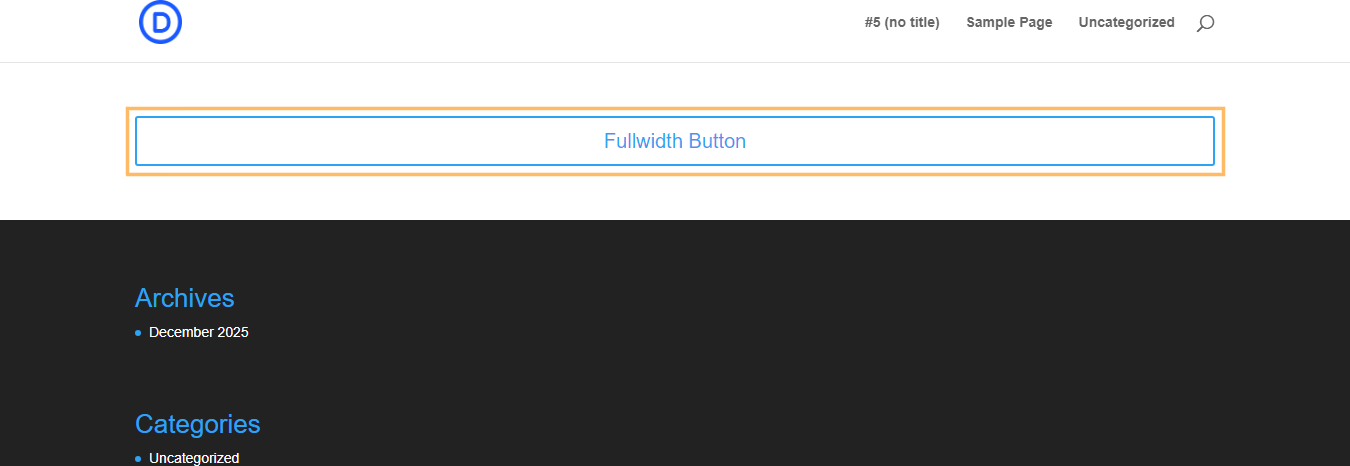
Once you’ve enabled "Force Fullwidth," click the main save or publish button in the Divi Builder to update your page. Next, exit the builder and view your page on the front end to see the new full-width button in action.
Conclusion
With just a couple of quick steps in Divi, you can transform any button into an eye-catching, full-width call-to-action with centered text—no custom code needed.


0 Comments